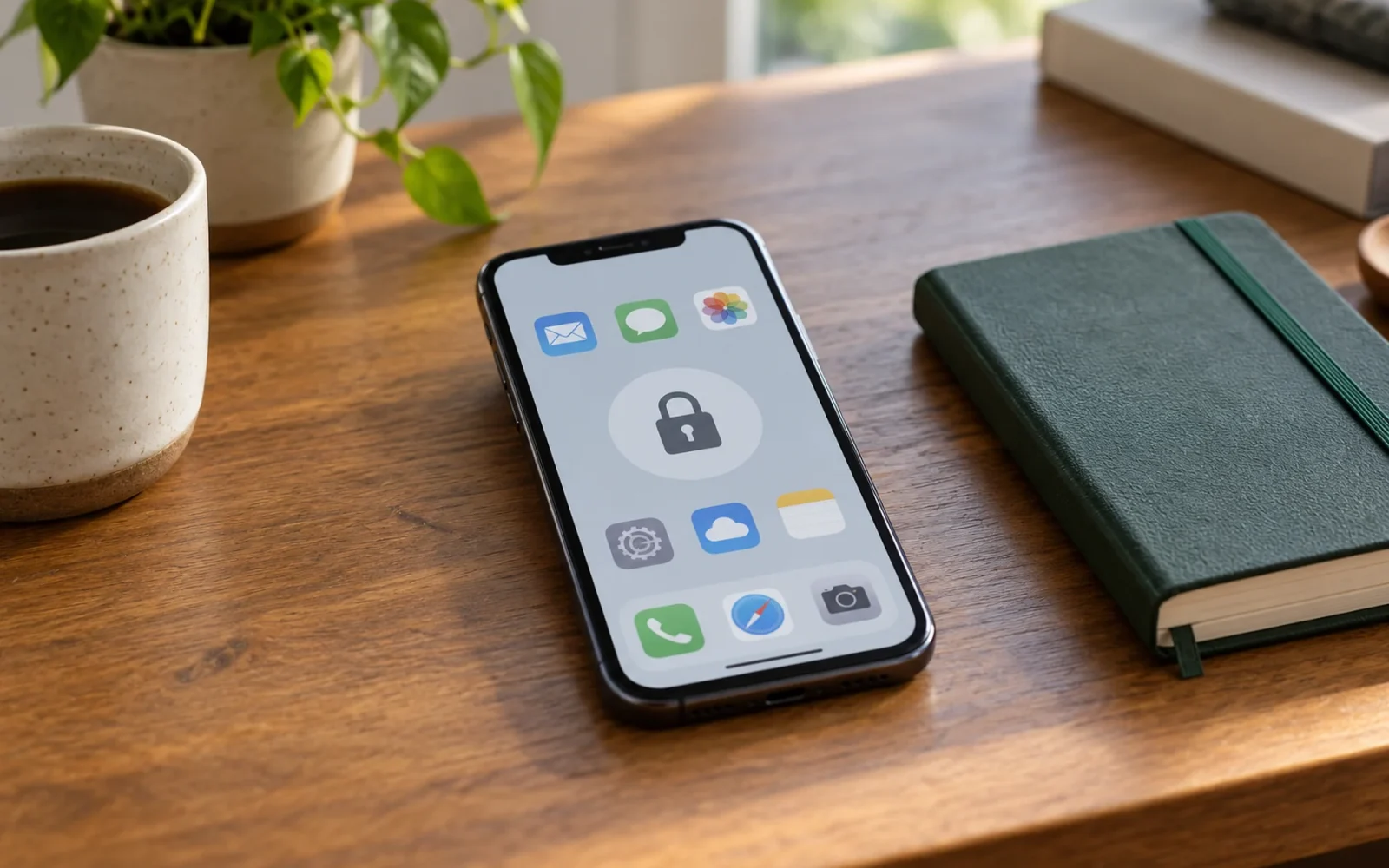
On iOS 18 and later, touch and hold an eligible app, choose Require Face ID, and confirm to lock it. To hide an eligible downloaded app as well, choose Hide and Require Face ID. Touch ID or passcode wording appears on devices using those authentication methods.
Hiding an app does not uninstall it or erase every sign that it exists. Choose the action that solves your actual problem: a less crowded Home Screen, an authentication requirement, or a hidden app icon.
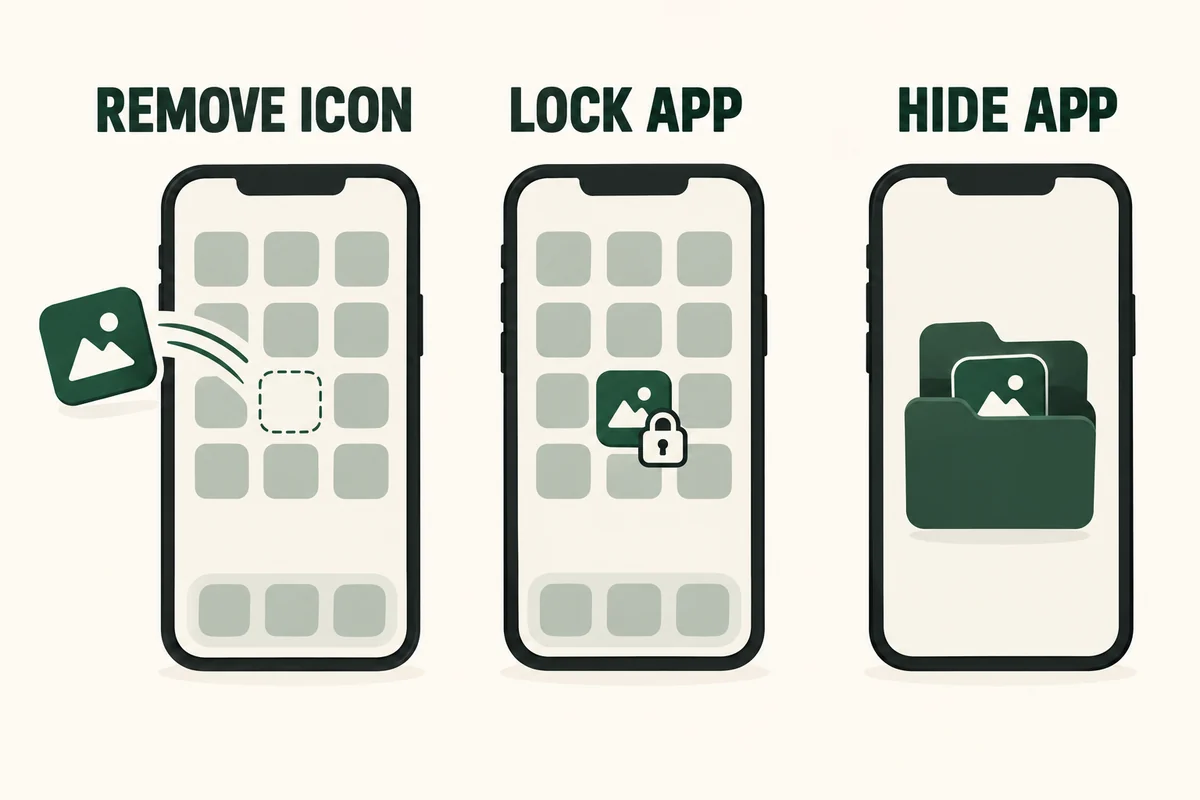
Choose between removing, locking, and hiding
| Your goal | Appropriate action |
|---|---|
| Keep an app off the Home Screen without restricting access | Remove it from the Home Screen |
| Require authentication when someone opens an app | Lock it |
| Lock an eligible app and move it out of ordinary view | Hide it |
| Remove the app and its local content | Consider deletion only after checking its data |
An app removed only from the Home Screen remains available through App Library. This is a layout choice. Our guide to customizing the iPhone Home Screen covers that organization task.
By contrast, Apple’s app locking and hiding guide describes an authentication requirement and a separate Hidden folder. These options are useful when lending someone the phone briefly, but they should not be confused with a separate user account.
Lock an app while keeping its icon visible
- Find the app on the Home Screen and touch and hold its icon.
- Choose Require Face ID, Require Touch ID, or the passcode equivalent.
- Confirm the requirement and authenticate.
- Open the app to check that the intended restriction is active.
To remove the requirement, touch and hold the icon, choose Don’t Require Face ID or its equivalent, and authenticate again.
Some built-in apps cannot be locked. A missing menu item is therefore not automatically a fault. Check the exact app before looking for a system-wide switch or installing a tool that promises to lock everything.
Hide an eligible downloaded app
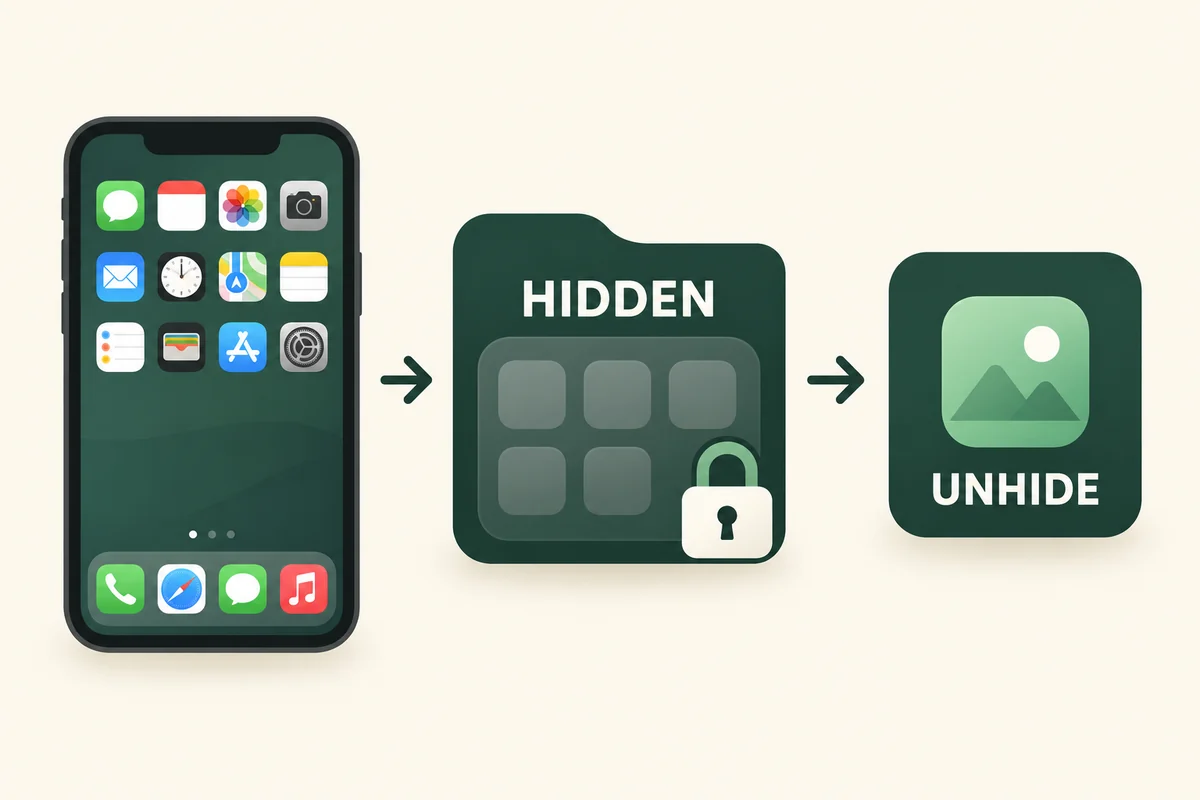
Use the same quick-actions menu, select Require Face ID, then choose Hide and Require Face ID and confirm Hide App. The app moves to the authenticated Hidden folder at the bottom of App Library.
Built-in apps cannot be hidden with this feature. Other restrictions can apply to default browser or marketplace apps and child accounts. On a family-managed device, age and regional rules matter; do not interpret an unavailable option as permission to bypass the family’s settings.
Try this on an app you do not rely on for urgent communication first. Read the confirmation and consider how hiding it changes the way you find and use it. A privacy setting that prevents you from locating a time-sensitive tool is not a helpful setup.
Find and unhide the app again
Swipe left past the Home Screen pages to reach App Library. Open Hidden, authenticate, and open the app from there.
To stop hiding it, touch and hold its icon inside Hidden, choose Don’t Require Face ID or the equivalent, and authenticate. Find it in App Library afterward; add it back to the Home Screen if needed. Unhiding should not be treated as a promise to restore its exact previous position.
If you cannot remember whether the app was hidden or deleted, check the Hidden folder before downloading it again. Searching the ordinary Home Screen is not a complete check.
Understand the privacy boundary
Apple’s personal safety guidance notes that hidden app names can remain visible in places such as Screen Time, authenticated Hidden Apps settings, and purchase history. Locking and hiding also apply to the individual device rather than syncing that status through iCloud.
Do not assume this creates a secret password independent of the phone’s authentication. Someone with authorized access to the device or account may retain other ways to see records or copies. Hiding a messaging app also cannot remove conversations already delivered to another person.
Conclusion
Use locking for access control and hiding for reduced visibility, then verify that you can reopen the app yourself. The feature is most useful when you understand both its protection and the records it deliberately leaves elsewhere.

Ethan Miller
Ethan Miller writes about home improvement, interior design, cleaning, and everyday living at Home & Living Daily. He shares practical tips and simple ideas to help readers create more comfortable and functional homes.


