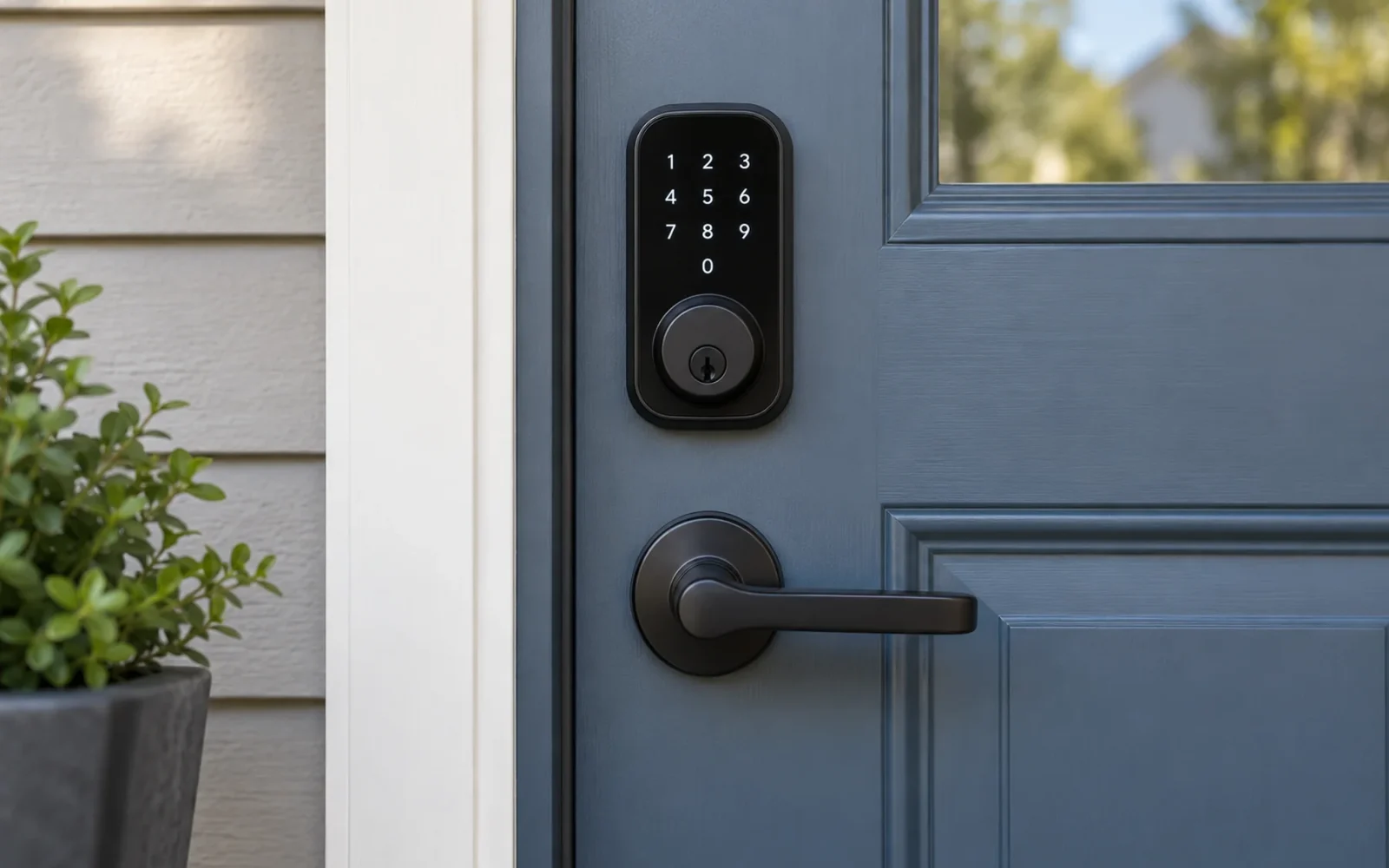
Change a Vivint-connected door-lock code through the authorized user's PIN and door-access settings in the appropriate Vivint panel or app. If the profile has a separate door PIN, edit that credential rather than assuming that a panel-PIN change updates the lock. Then verify the new code and retirement of the old code at the actual door.
Keep the door open and an alternative authorized entry method available during testing. A confirmation on the panel is not enough to prove that a wireless lock received the change.
Identify which code you are changing
Several credentials can be associated with the same home. Changing the wrong one can leave physical access unchanged or disrupt someone else's intended permissions.
| Credential | What it controls | What a change does not establish |
|---|---|---|
| Account password | Sign-in to the online account or app | That a door's keypad code changed |
| Panel or system PIN | The panel functions permitted for that user | That a separately configured door PIN changed |
| Door-lock PIN | Physical keypad access to permitted locks | That online access or every other lock changed |
| Installer or programming credential | Configuration functions on relevant equipment | A normal replacement for a household door-access code |
Identify the user, the intended lock, and whether the person should retain panel or remote access. If a guest no longer needs access, revoke the relevant permissions instead of merely changing a code while leaving other access routes open.
You need the appropriate administrative rights. If you do not know the required panel PIN or cannot access the owner account, use Vivint's account-recovery or support route. Do not factory-reset the lock to work around account access.
Open the correct user's settings
Menu labels depend on the panel generation and software. For the documented SkyControl 3.0 interface, Vivint's Edit Users instructions give this route:
- From the home screen, open the menu at the bottom right.
- Choose Users and enter the authorized four-digit PIN when requested.
- Select the person whose access you intend to change.
- Review that user's PIN and lock-access settings.
Use the instructions matching your equipment if the screen differs. Vivint's Smart Hub getting-started guide likewise describes user-specific PINs and permissions, but it should not be treated as a screenshot of every current app version.
In the user's profile, look for the door-access section and any separate door-PIN option. Edit the intended door credential and complete the save and confirmation prompts. Confirm that the appropriate lock is enabled for that person, especially in a home with several connected locks.
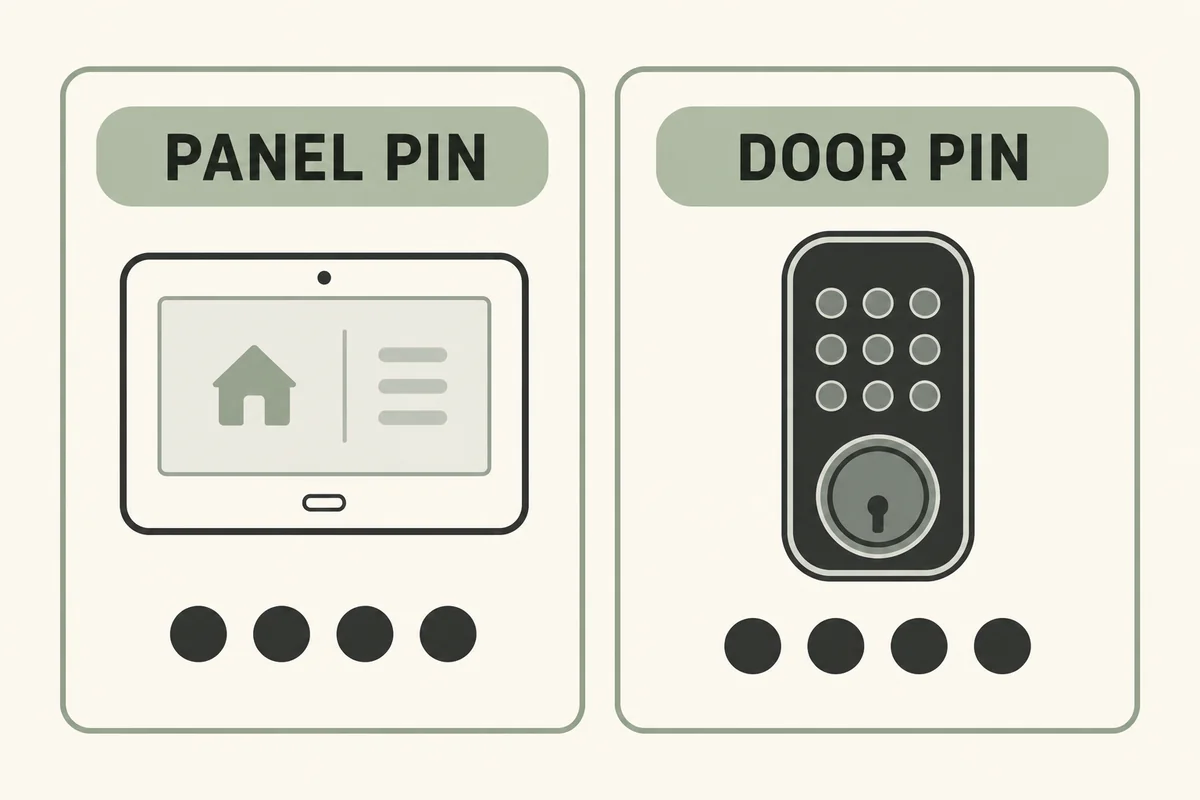
Do not confuse a panel-PIN tutorial with a door-code tutorial
Vivint's Smart Hub panel-PIN procedure selects the primary administrator, edits PIN, saves, and confirms it. That establishes how to update the panel credential described in that document.
It does not prove that a separate door credential was changed or that the physical lock synchronized. If you followed that tutorial and the old door code still works, return to the user's door permissions before concluding that the lock is broken.
Avoid making a guest an administrator just to give them door access. Choose the permissions required for their role and document which doors they may use. Where the system offers separate panel and door access, review those independently.
Prove the change at the door
Wait for the system's update process to complete and resolve any offline or communication warning. Then test with the door open, following the lock's operating instructions. Keep fingers clear of the bolt path.
- Enter the new PIN and confirm the expected lock operation.
- Test the old PIN to establish whether it has actually been retired.
- Check any other door that was meant to change for the same user.
- Confirm the person's intended panel or app permissions separately.
If the old code is also assigned elsewhere or programmed through a different supported route, changing one profile may not remove every matching access path. Review the authorized user list with support rather than repeatedly choosing new PINs without understanding the duplication.
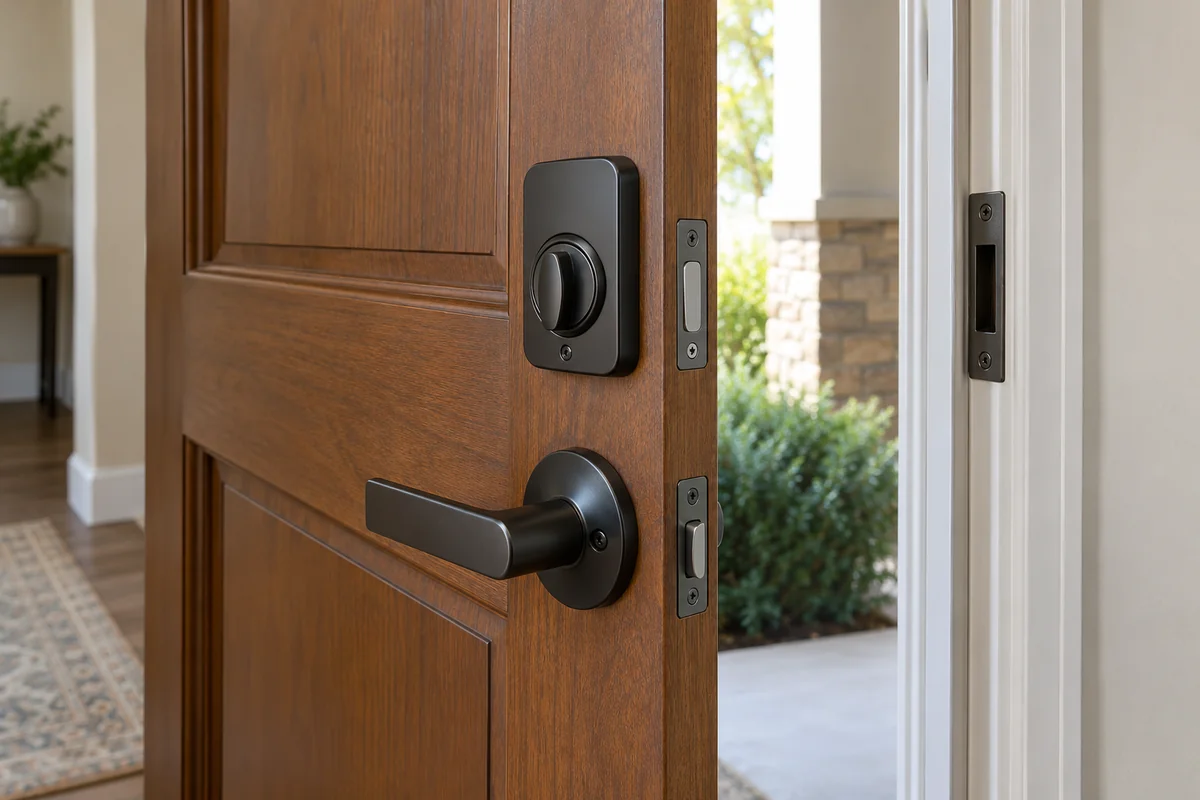
After the open-door test succeeds, check normal closed-door operation with a fallback entry method available. A bolt that works freely with the door open but struggles when closed may have an alignment problem. Changing the PIN again will not correct that mechanical resistance.
If the code will not update, narrow the failure
A “PIN already in use” message, a grayed-out permission, an offline lock, and a code accepted by the panel but rejected by the door are different symptoms. Record the exact message and the affected user and lock, without sharing the actual PIN in public support discussions.
For an offline lock, check its documented battery status and normal communication with the panel. If ordinary remote lock/unlock also fails, that is useful evidence that the problem extends beyond the new PIN. Follow the product's troubleshooting process before removing it from the system.
If the panel shows a completed update but the door rejects the new code, report that distinction to Vivint. Have the panel generation, lock model, attempted change, and test results ready. A system-managed lock may require service-specific programming; a generic Kwikset reset video is not automatically the right procedure for the installed configuration.
A factory reset can erase access codes or integration settings. Reserve it for a documented recovery process with the necessary access and re-enrollment plan, rather than using it as the first response to a failed user edit.
Conclusion
The task is complete only when the intended person has the correct door access and the previous credential no longer grants access where it should not. Edit the relevant user and door settings, then verify the result on each affected lock before relying on the change.

Ethan Miller
Ethan Miller writes about home improvement, interior design, cleaning, and everyday living at Home & Living Daily. He shares practical tips and simple ideas to help readers create more comfortable and functional homes.