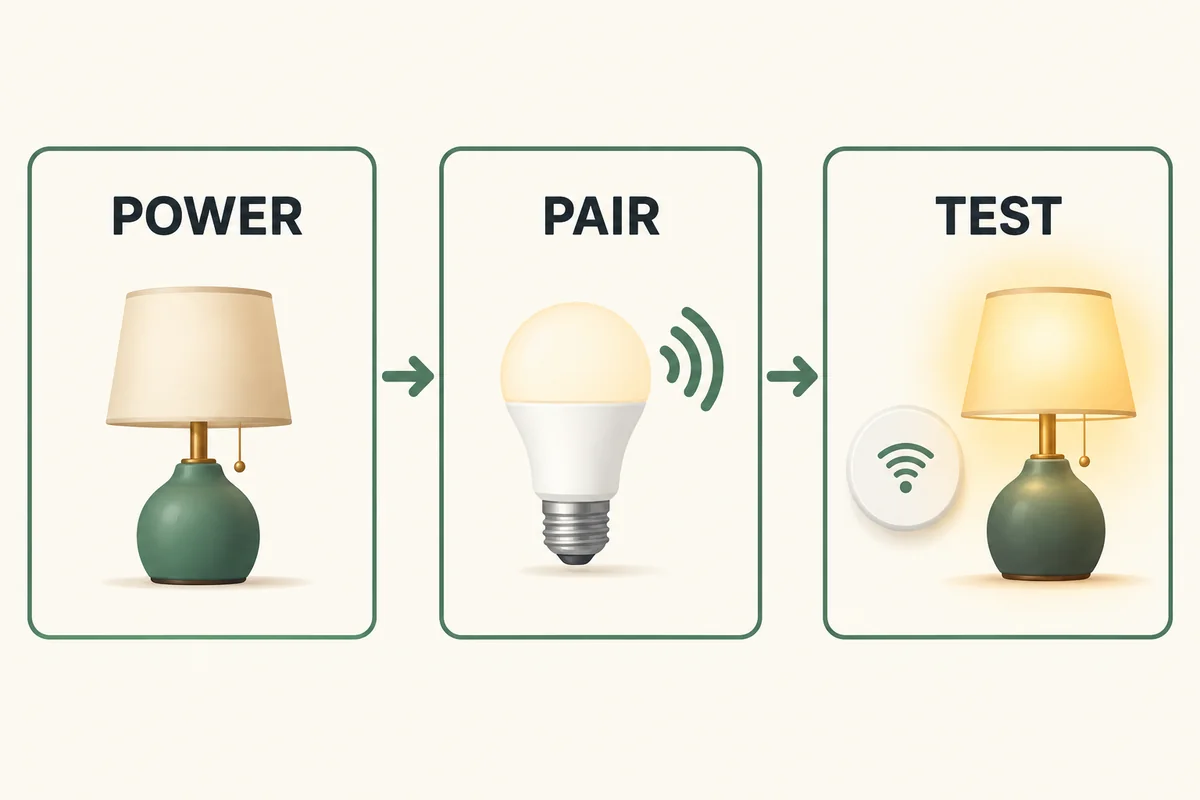
Reset a smart bulb using the instructions for its exact model and hardware version, then add it through the supported app or platform. Start with a network-only reset when the manufacturer provides one and you want to keep settings. A factory reset is a more destructive step and may require rebuilding groups, schedules, and integrations.
There is no universal “flip the switch five times” procedure. Even bulbs sold under the same brand can use different counts and timing. Identify the bulb before repeating a sequence found for another product.
Check whether the bulb actually needs resetting
Confirm that the lamp's normal power switch is on and the bulb is installed in a compatible fitting. If every device on one bridge is missing, investigate the bridge and its network first. If the manufacturer's app works but voice control does not, the failed part may be the integration rather than the bulb.
A restart interrupts and restores power without deliberately erasing configuration. A network reset clears or changes the connection settings specified by the maker. A factory reset returns the device to its stated defaults. Removing a device from an account can have additional effects and is not identical across brands.
| Your situation | Least disruptive starting point |
|---|---|
| Bulb briefly lost connection on an unchanged network | Check power, network status, and documented restart or recovery |
| New Wi-Fi name or password | Use a supported in-app network change or network reset |
| Bulb belongs to a different account | Follow the maker's ownership-transfer and removal process |
| Reconfiguration from scratch is necessary | Record settings, then use the exact factory-reset procedure |
Do not reset the household router or every light because one bulb is unavailable. That widens the problem and removes information that could help identify it.
Record the model and preserve the settings first
Find the model number, hardware version where listed, and correct app. If you need to handle the bulb to read its label, turn off power and let it cool first. Keep its setup code available before putting it in a difficult-to-reach fixture.
Take notes or screenshots of room assignments, groups, scenes, schedules, and linked platforms. Do not assume a factory reset will leave those working. When transferring a used bulb, have the previous authorized owner remove or release it as required; a physical reset does not universally resolve account ownership.
Use a suitable ordinary switched lamp if the manufacturer permits it and the existing circuit controls several bulbs together. Do not improvise live socket connections or operate fixed wiring to isolate one lamp.
Match the reset procedure to the product
Kasa bulbs: hardware versions change the count
TP-Link's Kasa reset guide separates model groups. Examples include:
| Listed model group examples | Soft reset count | Factory reset count |
|---|---|---|
| LB100, LB110, LB130, KL110 1.0 | 3 switch repetitions | 5 switch repetitions |
| KL50, KL60, KL110 2.0 or 3.0, listed KL125 versions | 5 switch repetitions | 10 switch repetitions |
Use the guide's starting state, roughly one-second intervals, and confirmation for your listed model. A count alone is incomplete. Do not substitute a smart-strip button procedure for a screw-in bulb's switching sequence.
A KL125 discussion on Reddit shows owners struggling with ambiguous counts and timing. Replies report different outcomes. It is a useful reason to verify the hardware and timing, not evidence that one comment's method works on every Kasa bulb.
Tapo bulbs: check whether Wi-Fi can be changed in the app
TP-Link's Tapo reset instructions distinguish Wi-Fi-only models from Bluetooth-enabled models. Supported Bluetooth-enabled bulbs can change networks through Device Settings > Network Connection > Switch Wi-Fi, avoiding a reset.
For the Wi-Fi-only group described there, soft reset uses five off/on cycles and factory reset uses ten, with specified pauses and a three-blink confirmation. The Bluetooth-enabled group uses a different physical factory-reset sequence. Follow the matching section and product manual rather than applying the Wi-Fi-only count to every Tapo bulb.
Feit Electric: use the documented Smart Wi-Fi procedure
Feit's Smart Wi-Fi bulb reset page specifies one second on and one second off, repeated three consecutive times; rapid flashing indicates readiness for setup. Follow that page and your model's instructions for the final state and app process.
This is not the same as Feit's older HomeBrite procedure or the instructions for every other Feit lighting product. For another brand or model, stop here and obtain its own reset guide rather than trying these counts in succession.
Reconnect through the correct pairing route
Once the documented confirmation appears, open the official app and choose the correct device type. Provide the network or scan the setup code as instructed. A Zigbee light normally rejoins its compatible hub; it should not be forced through a Wi-Fi-bulb setup screen.
For a model requiring 2.4 GHz Wi-Fi, confirm that the network provides it. Follow the onboarding instructions for Bluetooth, temporary device Wi-Fi, and local-network permissions as applicable. Do not disable network security or enable unrelated router features as a generic pairing fix.
If setup stalls, note the exact stage: no reset confirmation, device not discovered, network credentials rejected, or device added but unavailable. Those observations narrow the next support request. Trying near the router can help distinguish a coverage issue from a procedure issue, but successful pairing there still needs testing at the final location.
Test normal use before rebuilding everything
Check on/off, brightness, and any supported color control in the original app. Give the bulb a recognizable name, place it in its room, and install supported updates. Then restore groups and integrations through their documented processes.
Test one scene and one automation. Check that the platform is controlling the new live entry rather than an obsolete duplicate. Our smart-lighting setup guide covers room controls and routines once pairing works.
If the expected reset indication never appears after a careful attempt with the correct model's instructions, stop cycling indefinitely. Check fixture compatibility and contact support with the model, hardware version, sequence used, and observed light pattern.
Conclusion
Use the smallest recovery step that addresses the failed connection. The successful endpoint is a bulb that works from its final location with the intended controls—not merely a flashing lamp or a newly created entry in an app.

Ethan Miller
Ethan Miller writes about home improvement, interior design, cleaning, and everyday living at Home & Living Daily. He shares practical tips and simple ideas to help readers create more comfortable and functional homes.


