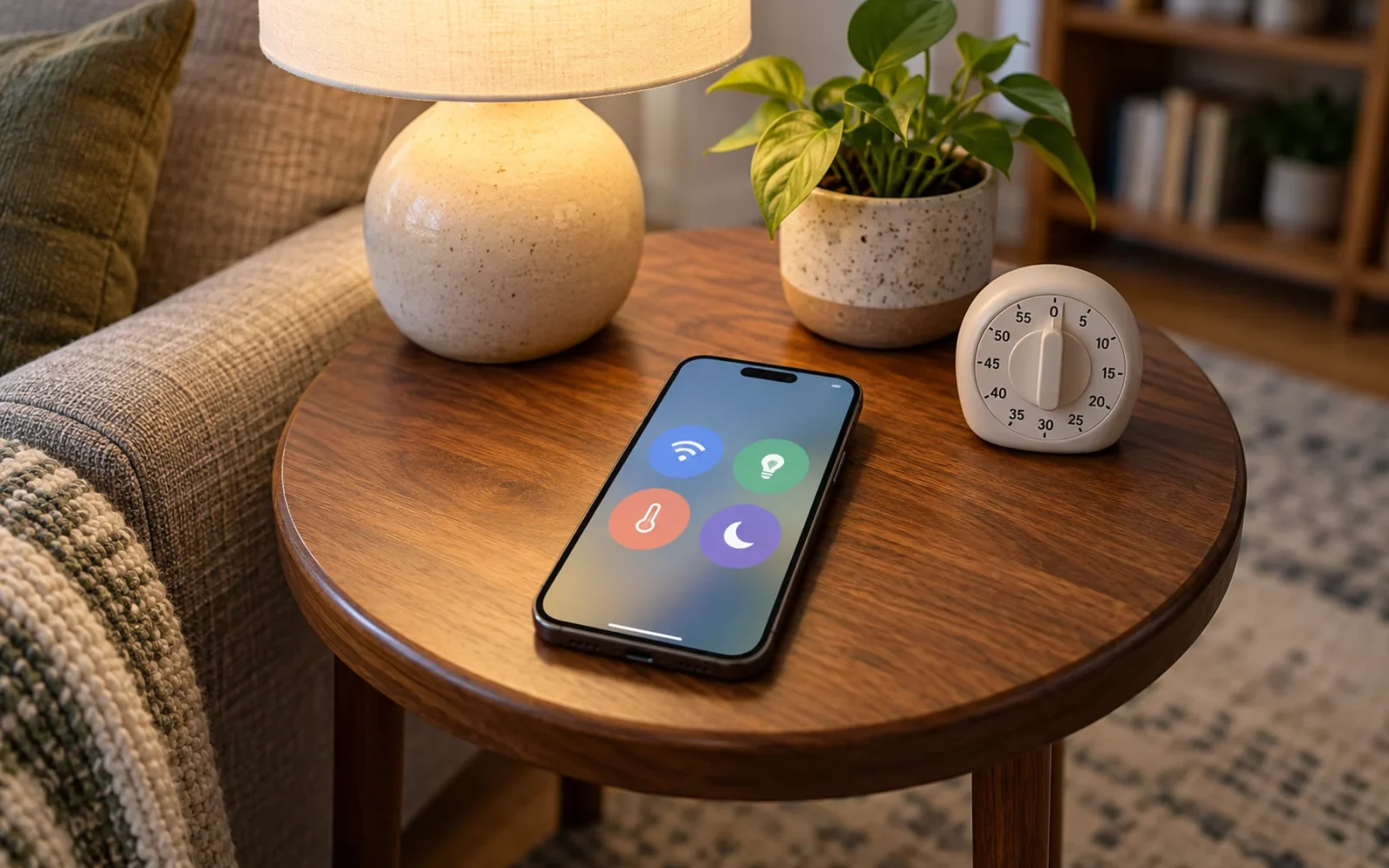
On iOS 18 and later, open Control Center, tap its + button, and use Add a Control to choose shortcuts. Drag controls to rearrange them and use available resize handles to change their size. If you want to start over, look under Settings > Control Center > Reset Control Center; that reset option was added in iOS 18.1.
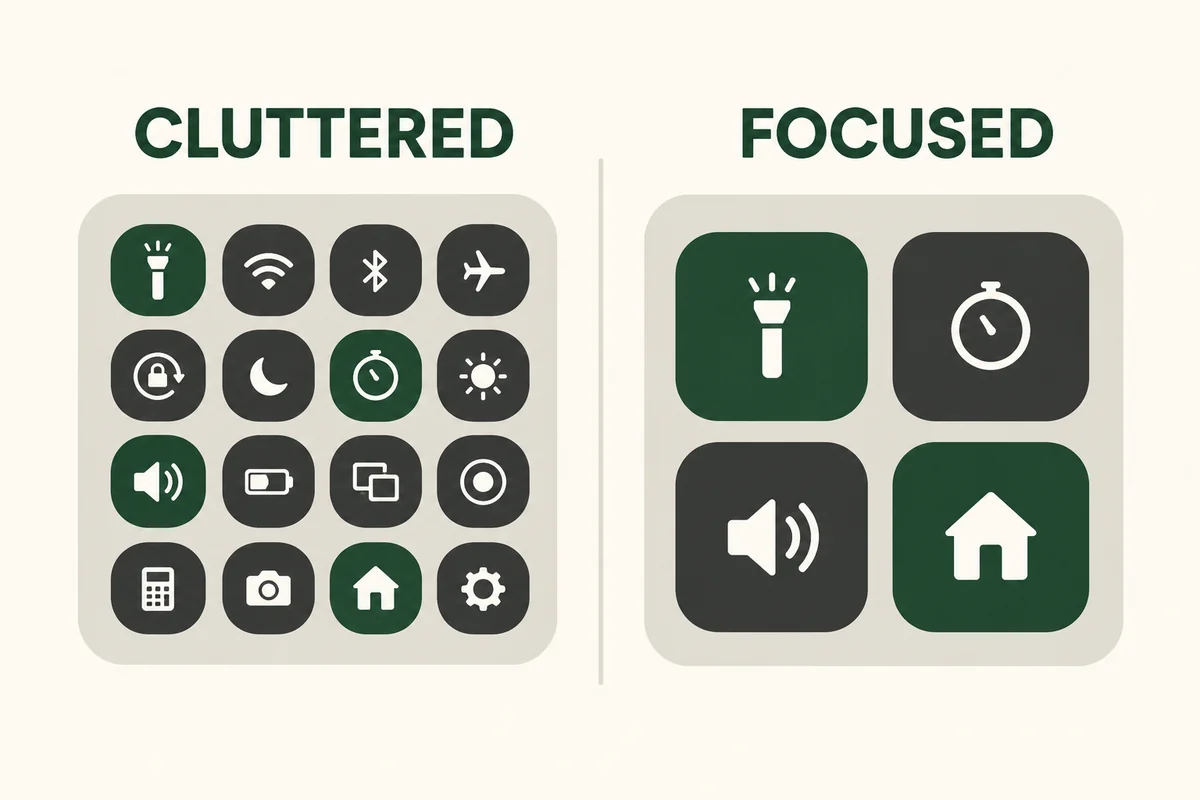
Build the first page around actions you need quickly. A larger collection of controls is not automatically a more useful one.
Open the controls editor
On an iPhone with Face ID, swipe down from the top-right corner. On an iPhone with a Home button, swipe up from the bottom. Once Control Center is open, tap + to edit.
Apple’s Control Center guide covers adding, moving, removing, and resizing controls. The important distinction is where you are editing: this is the quick-controls panel, not the Home Screen app layout.
If you want to change app icons or widgets instead, use our separate Home Screen customization guide. Moving a flashlight shortcut in one place does not mean an app icon has moved in the other.
Arrange controls around a real routine
Start with a short list of actions you actually use. For example, a household setup might prioritize a timer, flashlight, audio playback, and an available Home control. A travel setup might give connectivity and brightness more room. These are layout examples, not requirements to add every available feature.
Place the most useful controls where you can identify and reach them comfortably. Enlarge a control when its available larger format makes it easier to recognize; avoid filling space merely because a resize handle permits it.
Remove a control with its minus button. Removing it from the panel is different from uninstalling an app or permanently disabling the feature. If you change your mind, look for it in Add a Control again.
Keep extra groups deliberate
Additional groups can separate occasional controls from everyday ones. Apple describes creating another group by dragging a control below the current page or adding controls in a new section. The available gallery depends on the system and installed apps.
Test the result after leaving edit mode. Open the panel as you normally would, find the intended control, and try its action. A layout that looks orderly while editing may require too many swipes during actual use.
If a control seems missing, check the other groups before adding a second copy. If its behavior is unclear, touch and hold it to inspect available expanded options rather than assuming the small tile shows everything it can do.
Reset the layout without resetting the phone
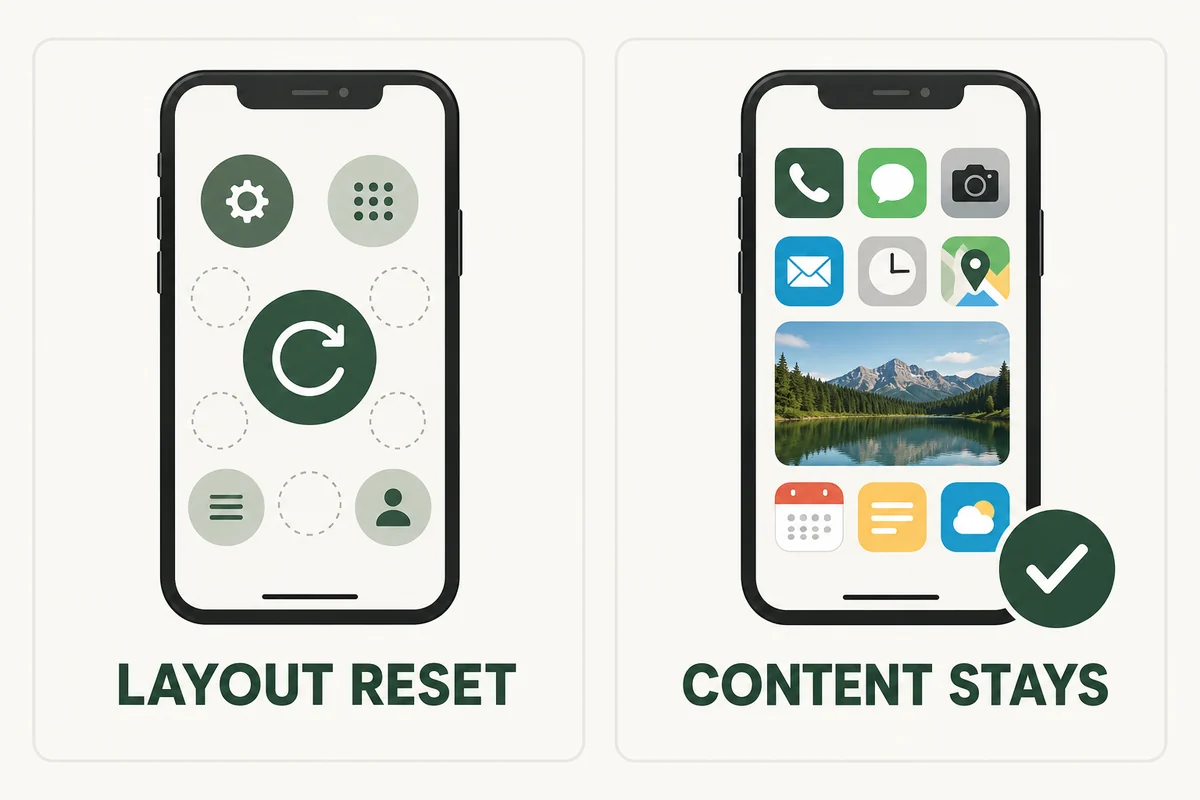
Open Settings > Control Center and choose Reset Control Center, then confirm. Apple’s iOS 18 release notes document the option added in iOS 18.1.
This is a layout reset. There is no need to choose Reset All Settings or Erase All Content and Settings just to reorganize shortcuts. If the narrow reset is unavailable on your installed release, remove and rebuild the relevant controls manually or check the software version before following newer instructions.
Take a reference screenshot if there are parts of the existing layout you want to reconstruct. Resetting everything makes sense when the whole arrangement is confusing; moving one misplaced button is usually the shorter solution.
Wi-Fi and Bluetooth buttons have a specific meaning
A common source of confusion is treating a Control Center tap as identical to turning a radio fully off in Settings. Apple’s guide explains that the Wi-Fi and Bluetooth controls can disconnect connections while leaving features that use those radios available.
When troubleshooting, check Settings > Wi-Fi or Settings > Bluetooth for the full setting and actual connection. A visual change in the quick panel should not be your only evidence that a device has disconnected or that a connection problem is fixed.
Conclusion
A good Control Center reduces the effort needed to perform familiar actions. Keep the first group focused, test the layout outside edit mode, and use the narrow layout reset when starting over is genuinely easier than repairing one misplaced control.

Ethan Miller
Ethan Miller writes about home improvement, interior design, cleaning, and everyday living at Home & Living Daily. He shares practical tips and simple ideas to help readers create more comfortable and functional homes.


