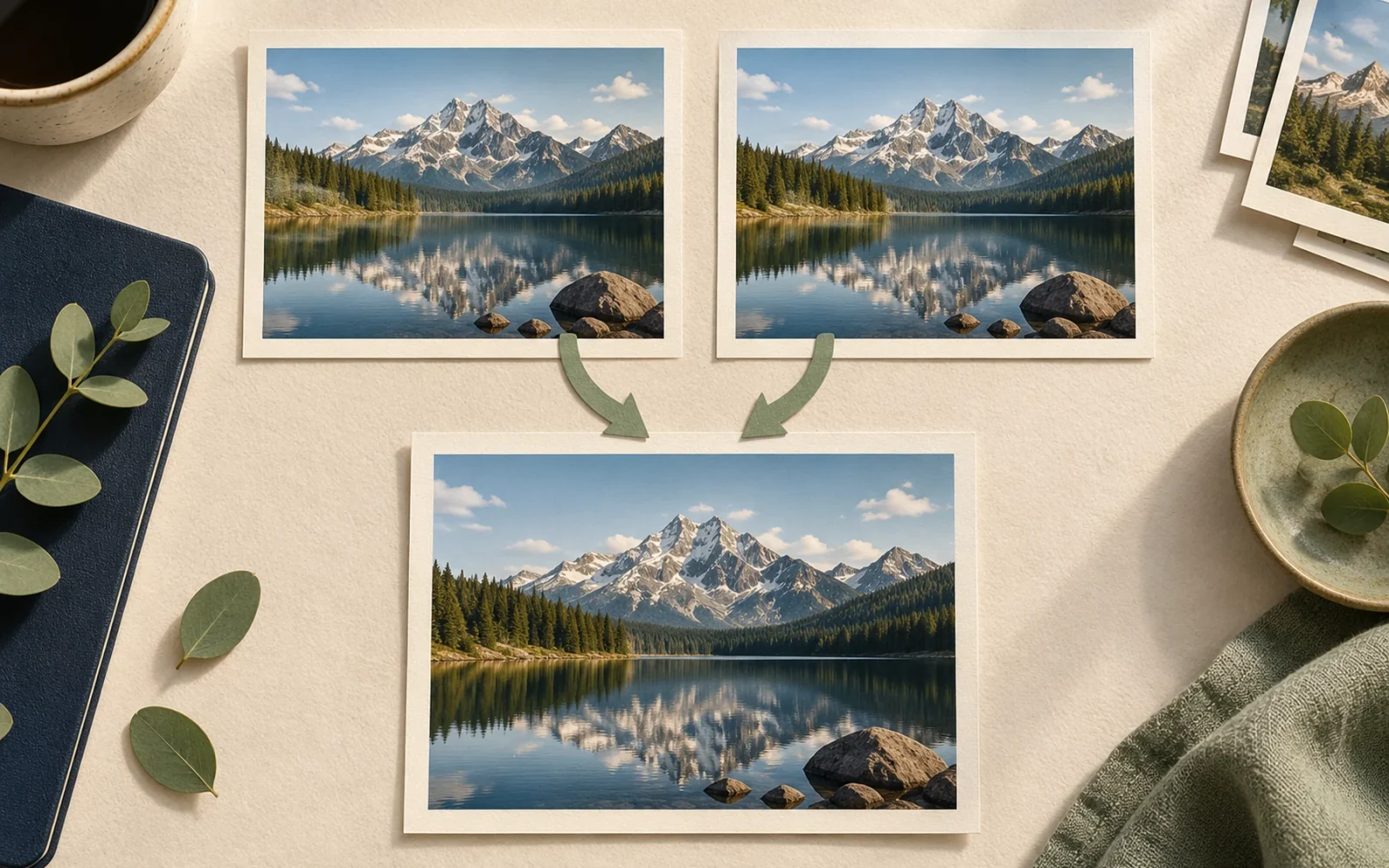
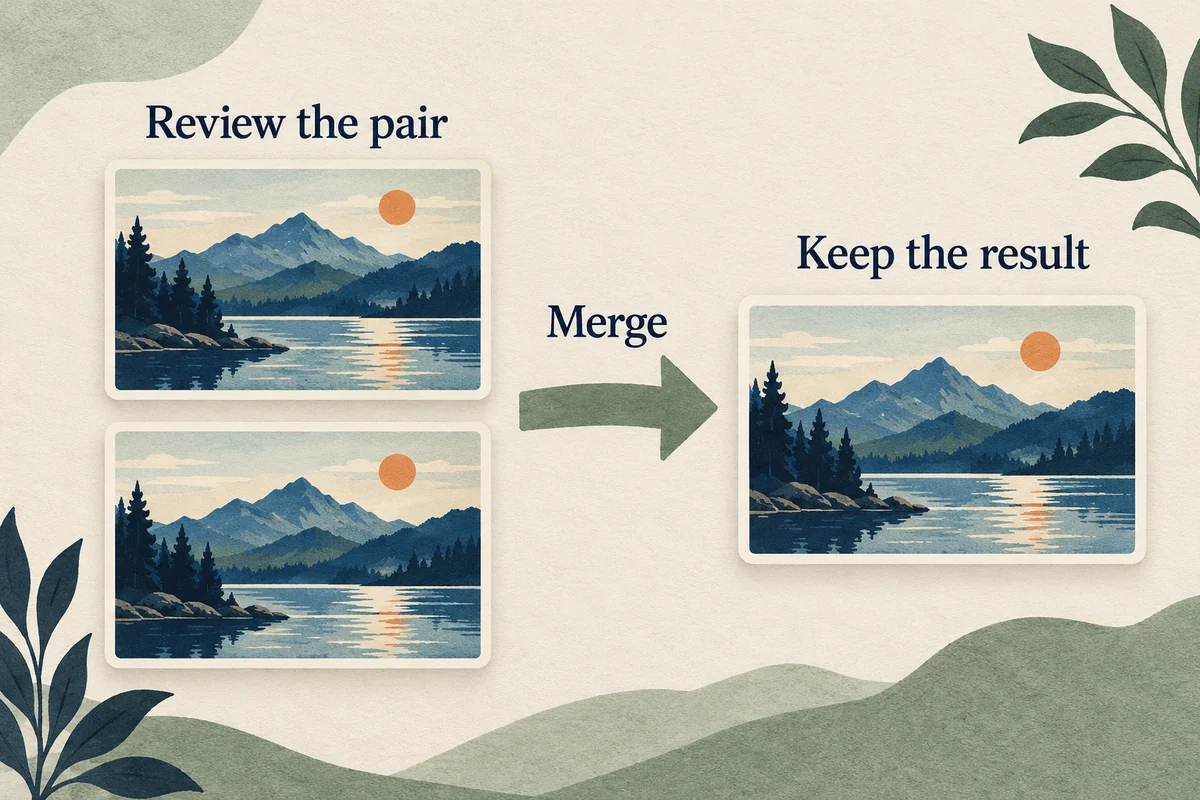
Open Photos, find Utilities, and choose Duplicates. Review a set and tap Merge to keep a combined best version instead of manually guessing which copy to delete. On iOS 18, scroll down the main Photos view; on versions with Collections, open that tab first.
If Duplicates is missing, the phone may not have finished analyzing the library or may not have identified any duplicates. Similar-looking photos are not always duplicates, so the tool is not a substitute for choosing the best shot from a sequence.
Review one set before merging a whole library
In Duplicates, compare the displayed items and open them if you need a closer look. Tap Merge beside a set, then confirm the number of items. Apple’s duplicate-merging guide documents the built-in collection and merge action.
Merging is designed to retain the best available quality and relevant metadata rather than simply keeping the first thumbnail. Redundant items move to Recently Deleted. That is usually a better starting point than manually trashing a copy solely because its file appears smaller.
Begin with one obvious pair, such as an image imported twice. Check the result in the library before selecting many sets. For pictures with deliberate edits or other differences you value, review carefully rather than treating every suggested group as something to dismiss without looking.
If the Duplicates collection is not visible
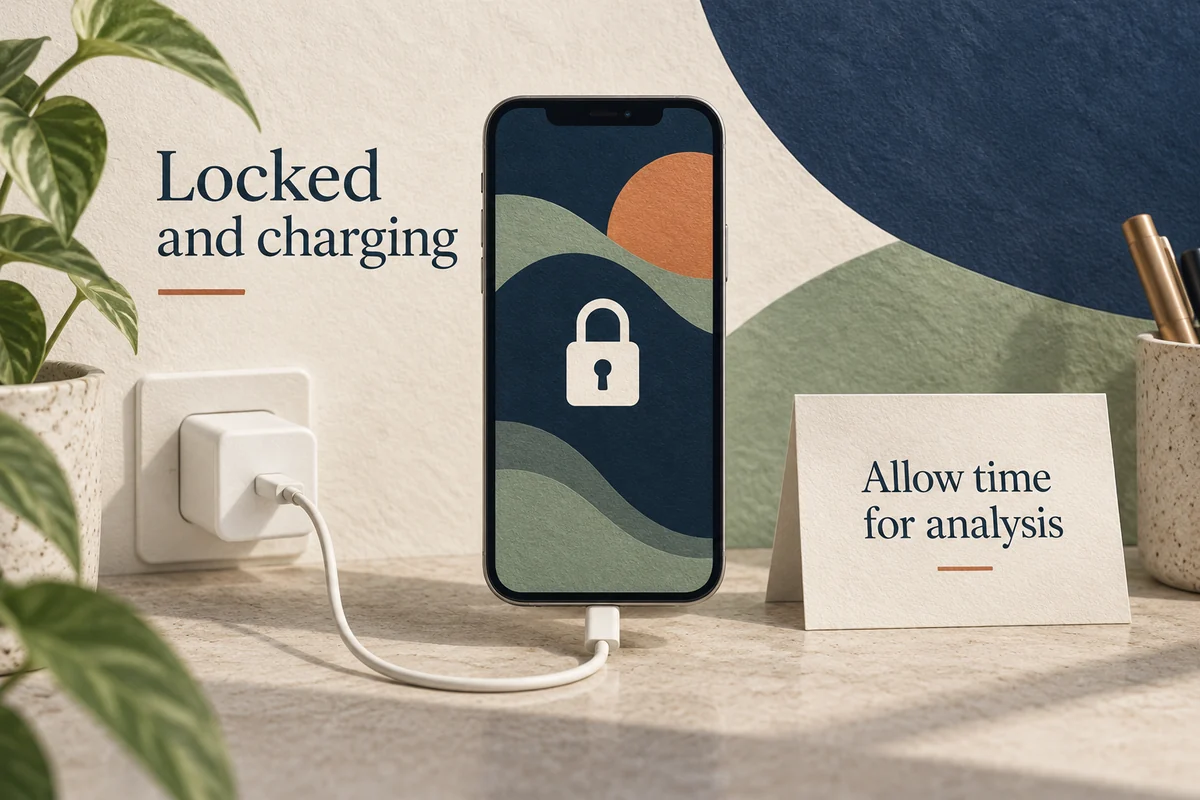
Apple explains in its missing-Duplicates troubleshooting note that Photos must index the library and identify duplicates first. The iPhone needs time while locked and connected to power; analysis can take a few days depending on the library and background work.
Leave the phone charging and locked when practical, particularly after a large import or software update. Then check again. Restarting the same scan repeatedly or immediately installing a cleaner is not a reliable way to speed up the built-in analysis.
The collection does not appear if Photos has found no duplicates. That does not prove there are no near-identical pictures, screenshots of photos, or repeated views of the same scene. It means the automated collection has not identified a group to show you.
Separate true duplication from similar shots
Imagine three photographs of a pet: one with closed eyes, one sharp, and one with a different expression. They may be similar, but each captures a different moment. Decide which you want to keep by looking at the image, not just the overall color or thumbnail.
Likewise, a screenshot of a photo may contain borders, interface controls, or lower detail than the original. If it is not offered as a duplicate, compare it manually rather than assuming the tool has failed. The question is whether the extra file serves a purpose you still need.
For a large cleanup, work by event or month. This creates a manageable decision set and reduces the chance of deleting an intentionally different edit among many nearly matching thumbnails.
Check storage and recovery before permanent deletion
Do not rush to empty Recently Deleted immediately after a large merge. Review important results while the normal recovery window is still available. If iCloud Photos is enabled, these library changes can sync to your other devices; another signed-in phone is not necessarily an independent backup.
Also compare the right storage figure. Device storage and iCloud storage are separate, and removing duplicates does not guarantee an immediate reduction equal to a rough thumbnail count. For a broader storage decision, our iPhone storage guide explains why capacity should be judged against your actual library and use.
Avoid giving a cleaning app broad photo access merely because it promises dramatic savings. First see what the built-in collection finds and what you can review yourself. If you later choose another tool, assess its permissions, pricing, and selection controls before approving a bulk deletion.
Conclusion
Merge obvious duplicates in small, reviewed groups and give Photos time to finish its analysis. Use manual judgment for different moments and edits. The goal is a cleaner library with the pictures you value intact, rather than the largest possible deletion count.

Ethan Miller
Ethan Miller writes about home improvement, interior design, cleaning, and everyday living at Home & Living Daily. He shares practical tips and simple ideas to help readers create more comfortable and functional homes.


