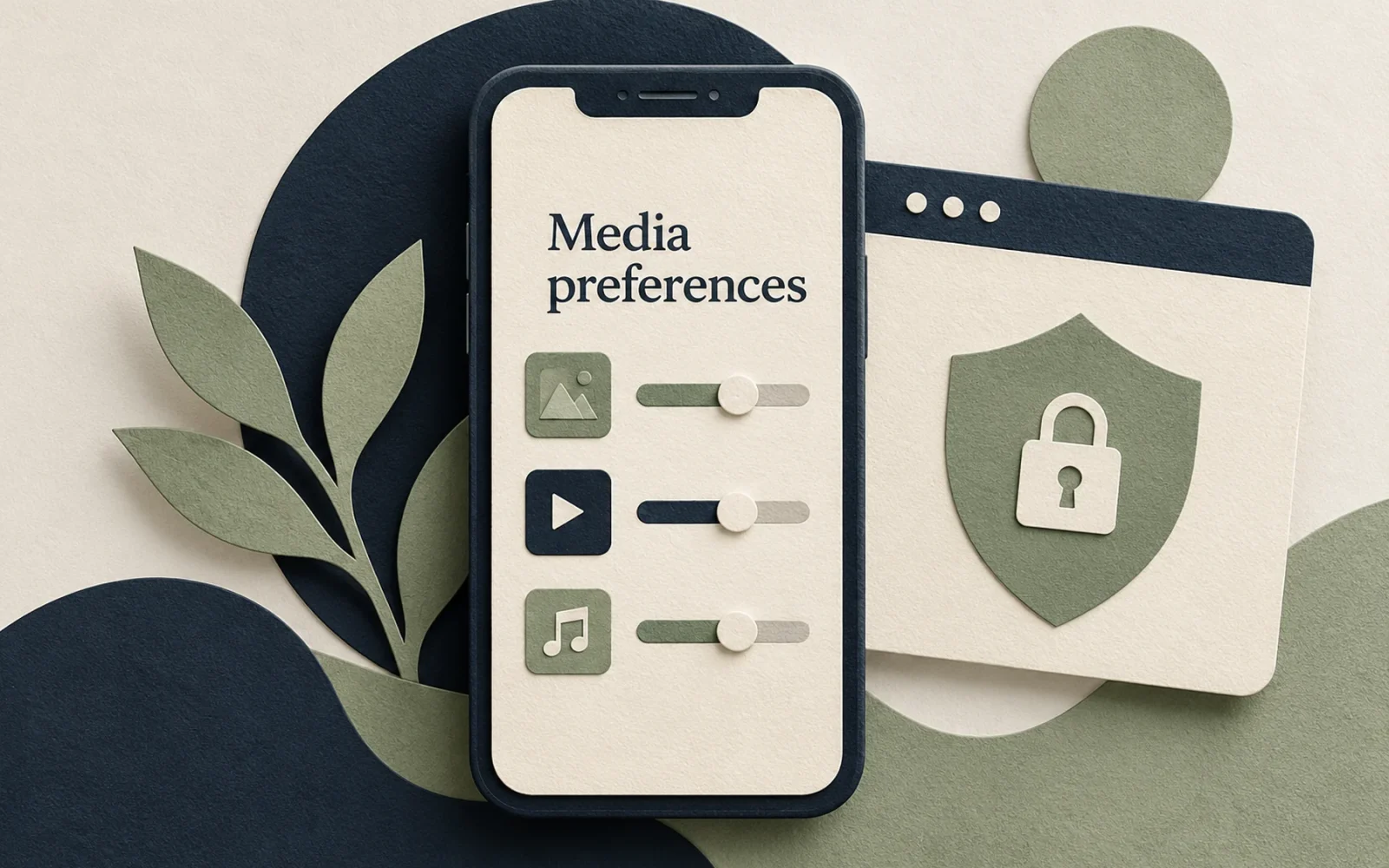
If the sensitive-media setting is missing from the X app on your iPhone, sign in to x.com in Safari and check Settings and privacy, Privacy and safety, then Content you see. Eligible accounts can use the option labeled “Display media that may contain sensitive content” to manage media warnings. Search filtering is a separate control.
These preferences do not override age restrictions, local requirements, or content removed under X’s rules. Use your real account information and the platform’s verification or appeal process if a restriction appears incorrect.
Change the media preference through the website
The iPhone app and the website do not always expose the same settings. If a guide shows a checkbox you cannot find in the app, opening the signed-in website is a useful first step.
- Open Safari and visit x.com directly.
- Sign in to the account whose settings you want to change.
- Open Settings and privacy, then Privacy and safety.
- Choose Content you see.
- Review the sensitive-media display option if it is available to your account.
Enable the display preference if you want eligible sensitive media shown without the default warning, or leave it disabled if you prefer warnings. X confirms that its privacy and safety settings control media warnings. Availability and wording can change, so an absent control is not proof that your iPhone is malfunctioning.
Afterward, return to the app and reopen the relevant post. Confirm you are using the same account in both places; changing a preference on one account does not establish that another account has the same setting.
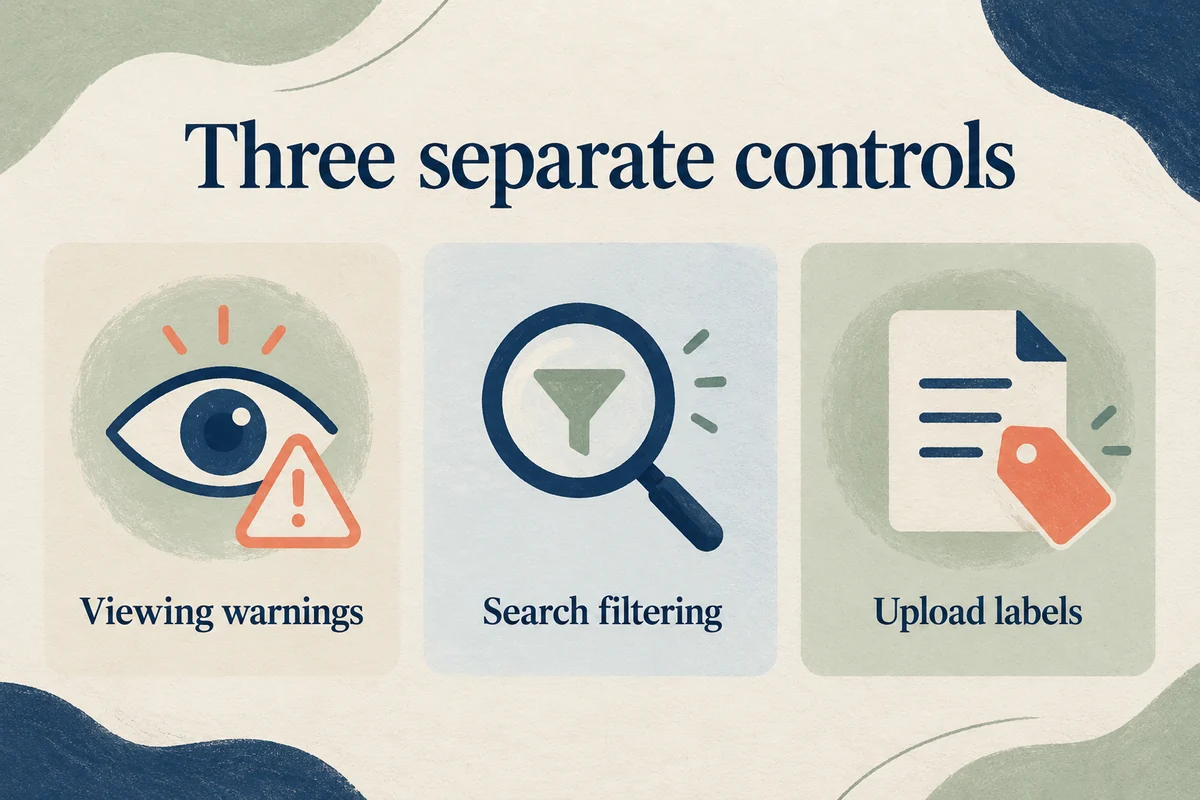
Review search filtering separately
Within Content you see, open Search settings if shown. The option commonly labeled Hide sensitive content controls filtering in search results. It serves a different purpose from the media-warning preference.
For example, an eligible account might allow a labeled image when opening a direct post yet still exclude some results from a search. That does not necessarily mean the display preference failed. Check the control associated with the activity you are trying to change.
Changing search filtering also does not promise a particular result will appear. Account access, deleted posts, moderation decisions, and search availability can affect what you can retrieve. Avoid treating every missing post as a hidden device setting.
Do not confuse viewing preferences with posting labels
X also has a setting for labeling media you upload as potentially sensitive. Its media settings policy explains that responsibility for your own posts.
That upload label does not unlock other people’s content. Conversely, changing what you can view does not remove the requirement to label your own media appropriately. If your goal is simply to control what appears in your feed, leave the posting setting out of the troubleshooting process.
Your iPhone’s system-level Sensitive Content Warning is another separate feature. A setting inside X should not be confused with a warning shown by an Apple app or another service.
What to do when the option remains unavailable
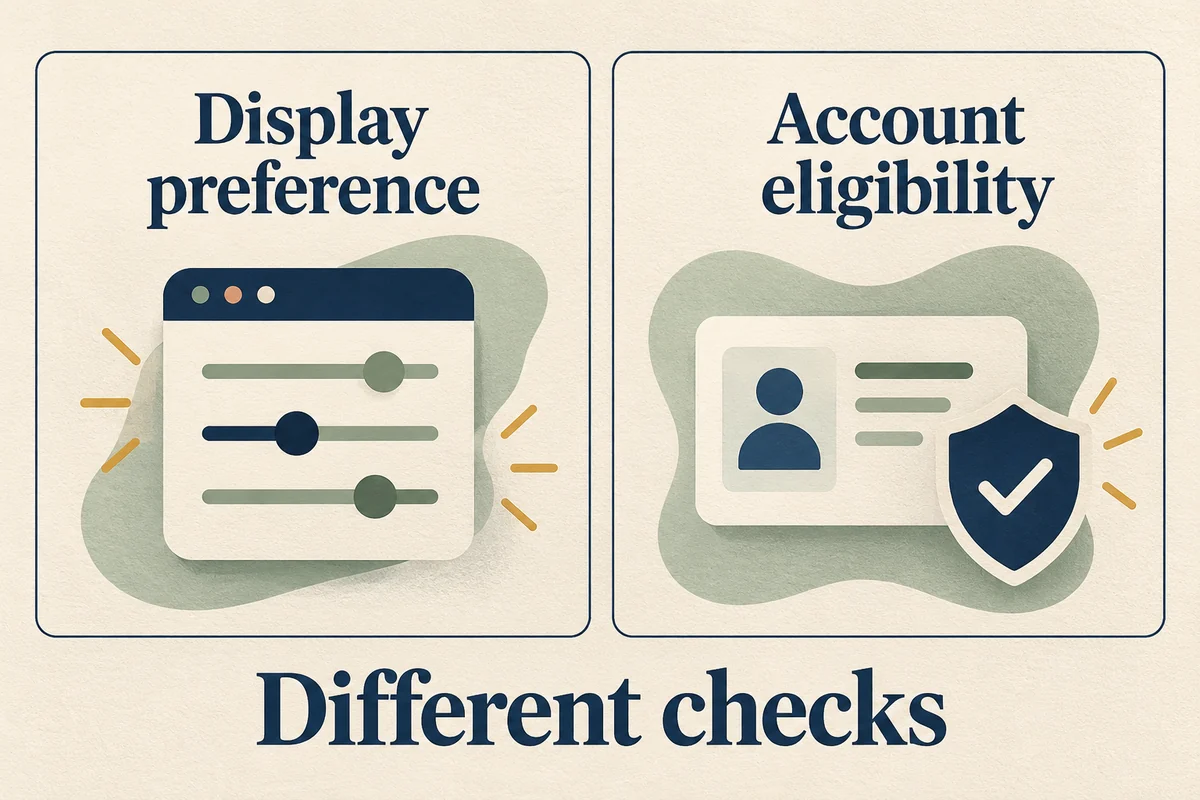
Check which account is signed in, reload the website, and review any account notice before reinstalling apps or resetting the phone. If X asks for age assurance, follow its official age-assurance process. A preference checkbox cannot substitute for eligibility.
Do not give a third-party “unlock” website your password or change your birth date to evade a restriction. If the platform has recorded something incorrectly, use its account support route. There is no reason to erase the iPhone for an account-level content restriction.
Conclusion
Use the website when the iPhone app lacks the relevant control, and distinguish media warnings from search filtering and upload labels. Make the change that matches your goal, then check it in the same account. Restrictions tied to eligibility require X’s own review process rather than another phone setting.

Ethan Miller
Ethan Miller writes about home improvement, interior design, cleaning, and everyday living at Home & Living Daily. He shares practical tips and simple ideas to help readers create more comfortable and functional homes.


