Ordinary screenshots saved as images are stored in Photos. Find them under Media Types, Screenshots: on iOS 18, scroll down the main Photos view; on versions with a Collections tab, open Collections first. A full-page capture saved as a PDF goes to the location you chose in Files instead.
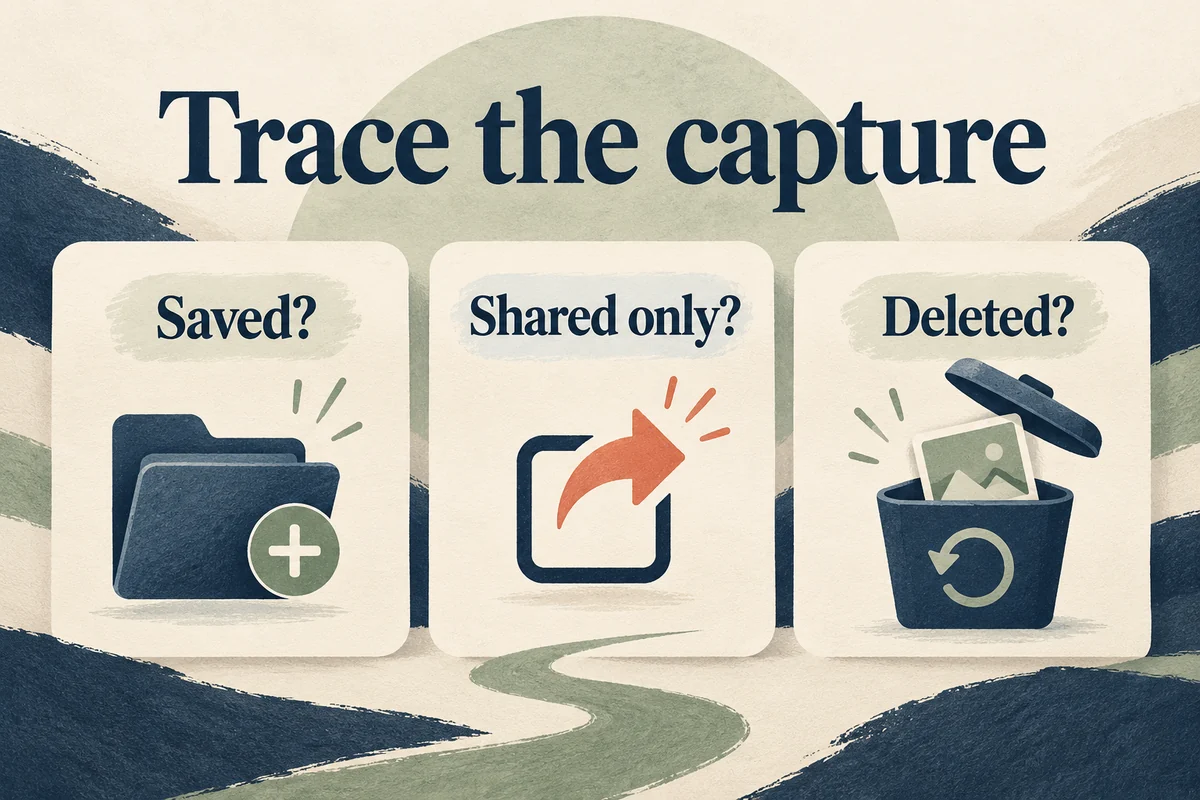
If a screenshot is missing, first establish whether it was saved to Photos, saved to Files, shared without keeping a copy, hidden, or deleted. Those possibilities require different checks.
Find ordinary screenshots in Photos
Open Photos and go to Media Types, then Screenshots. Apple’s screenshot guide identifies this collection. You can also look near the capture time in the main library if you know when you took the image.
The Photos layout matters. An older tutorial may tell you to open Albums, while iOS 18 uses a single scrollable Photos view and later versions use Collections. Look for the category name rather than assuming your photo was lost because a tab moved.
If you received someone else’s screenshot in a message, it may still be only in that conversation until you save it. Being able to open an image in Messages does not prove it has been added to your Photos library.
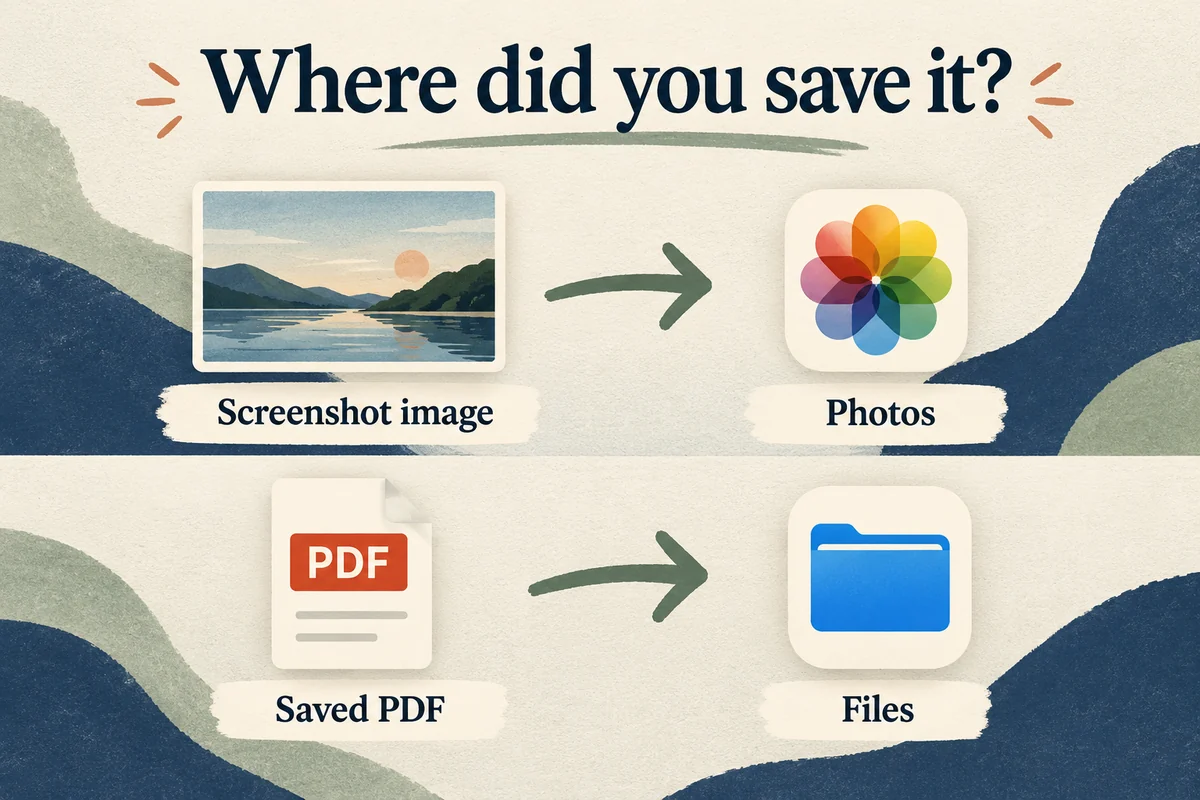
Check Files for a full-page PDF
Safari and other supported capture contexts can offer a Full Page option. When you save that capture as a PDF, you choose a destination in Files rather than the ordinary screenshot collection in Photos. Some versions also offer an image-saving option, so the choice you made is important.
Open Files and check Recents, then the folder you selected. Browse both iCloud Drive and On My iPhone if you are unsure. Search by the filename if you remember it, or use a relevant page title and inspect likely PDFs.
For a document you will need again, rename it and place it in an identifiable folder at the time of saving. “The PDF of the booking page” is easier to retrieve when its name includes the trip or date rather than a generic webpage filename.
Verify that the capture was actually saved
Taking a screenshot, editing it, sharing it, and saving it are separate actions in some workflows. If you opened the editor, sent the capture to someone, and then chose to delete it, the copy may exist in that conversation without remaining in Photos.
On iOS 18, the small screenshot thumbnail can disappear while the ordinary image remains saved. Newer versions can use a different full-screen preview. Read the save and delete choices shown on your version rather than assuming closing every preview has identical behavior.
If you are testing where captures go, take a harmless new screenshot and save it deliberately. Find that one in Photos before investigating the older item. This confirms the current workflow without repeatedly recapturing private information or changing broad settings.
Look for hidden, deleted, or unsynced copies
If the screenshot once existed in Photos, check Hidden and Recently Deleted under Utilities. Apple’s missing-photo checklist also covers account, library, and sync issues. Authentication may be required to open protected collections.
For a capture taken on another Apple device, verify that the same intended library and account are in use and that syncing has completed. A screenshot visible on an iPad is not guaranteed to appear instantly on an iPhone with a different account or paused syncing.
If you know the image was deleted, look promptly: Recently Deleted has a limited recovery period, and manually removing it there can end recovery sooner. If it was a PDF in Files, inspect that app’s Recently Deleted area instead of searching only Photos.
Conclusion
Start with Photos for an image and Files for a PDF, then check whether you actually kept a copy. The capture’s format and save choice usually explain its location more clearly than the device model. Once you find it, a recognizable filename or a purposeful album makes the next search much easier.

Ethan Miller
Ethan Miller writes about home improvement, interior design, cleaning, and everyday living at Home & Living Daily. He shares practical tips and simple ideas to help readers create more comfortable and functional homes.


