
iOS 18 introduced more flexible Home Screen layouts, customizable app colors, a redesigned Control Center and Photos app, a separate Passwords app, and new Messages tools. Apple Intelligence features arrived in later point releases and required supported hardware; they were not all present in the first iOS 18 release.
If you are checking an older iPhone today, start with the exact installed version and the feature you want. “Runs iOS 18” is too broad to establish whether a particular tool is available.
The everyday changes in the original release
The most noticeable differences were in familiar places. Home Screen customization let users arrange icons with more gaps and apply a tinted or dark appearance. Control Center gained a more flexible layout. Photos reorganized browsing into collections, changing where people found familiar utilities.
Messages added options such as text formatting, effects, and scheduling an iMessage for later. RCS support improved communication with compatible non-Apple phones where supported by the carrier. The standalone Passwords app gave saved credentials a dedicated home instead of leaving users to look for the old Settings location.
These changes solve different problems. Someone who primarily wants easier access to saved logins does not need every visual customization or an AI-capable phone. Begin with one task you do regularly rather than trying to redesign the whole device after an update.
What the point releases added
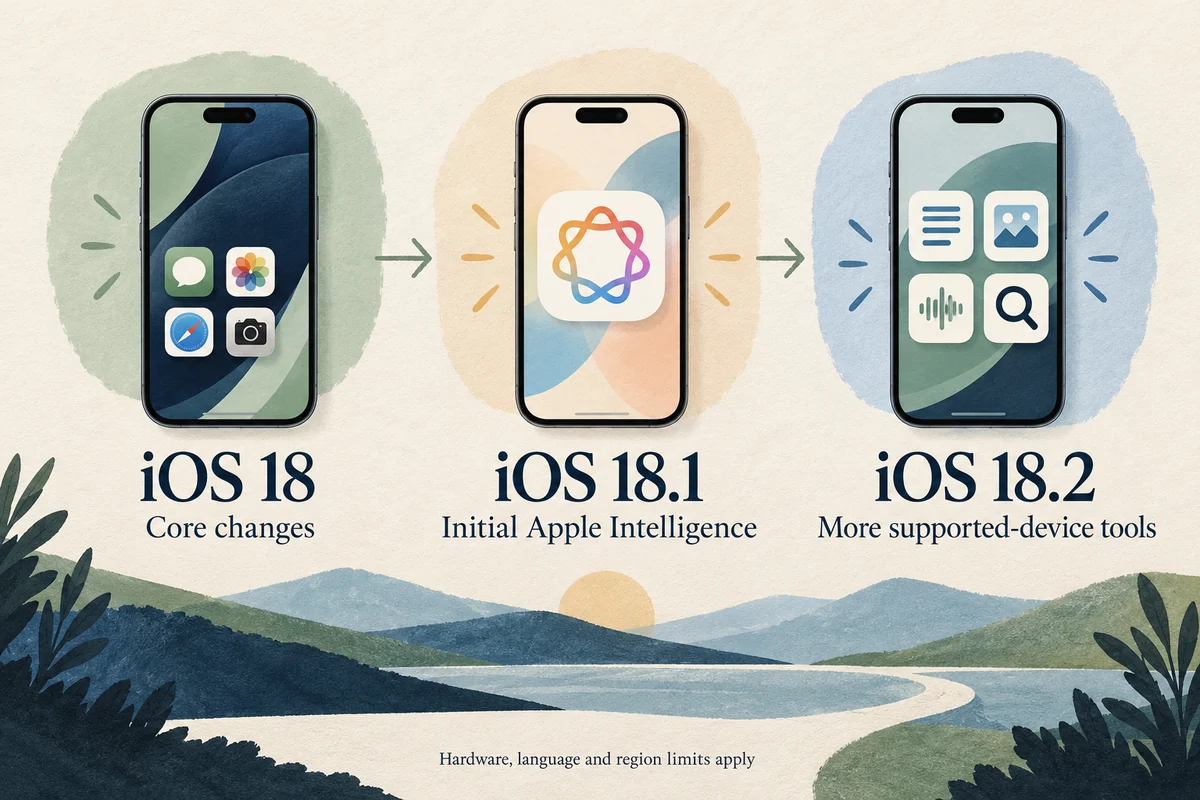
Apple’s iOS 18 update notes separate the releases. A useful reading of that history is:
| Release stage | Main distinction |
|---|---|
| iOS 18 | Core interface, Photos, Passwords, and communication changes |
| iOS 18.1 | Initial Apple Intelligence tools, including Writing Tools and Clean Up on eligible devices |
| iOS 18.2 | Additional supported-device tools such as Genmoji, Image Playground, and ChatGPT integration |
| iOS 18.4 | More Apple Intelligence languages and additions such as Priority Notifications where supported |
| Later maintenance updates | Fixes and security updates rather than a completely new feature set each time |
This table is a guide to the major distinctions, not a promise that every item works in every language, region, or app. Check the particular tool’s requirements when it is the reason for updating.
Why an advertised feature may be missing
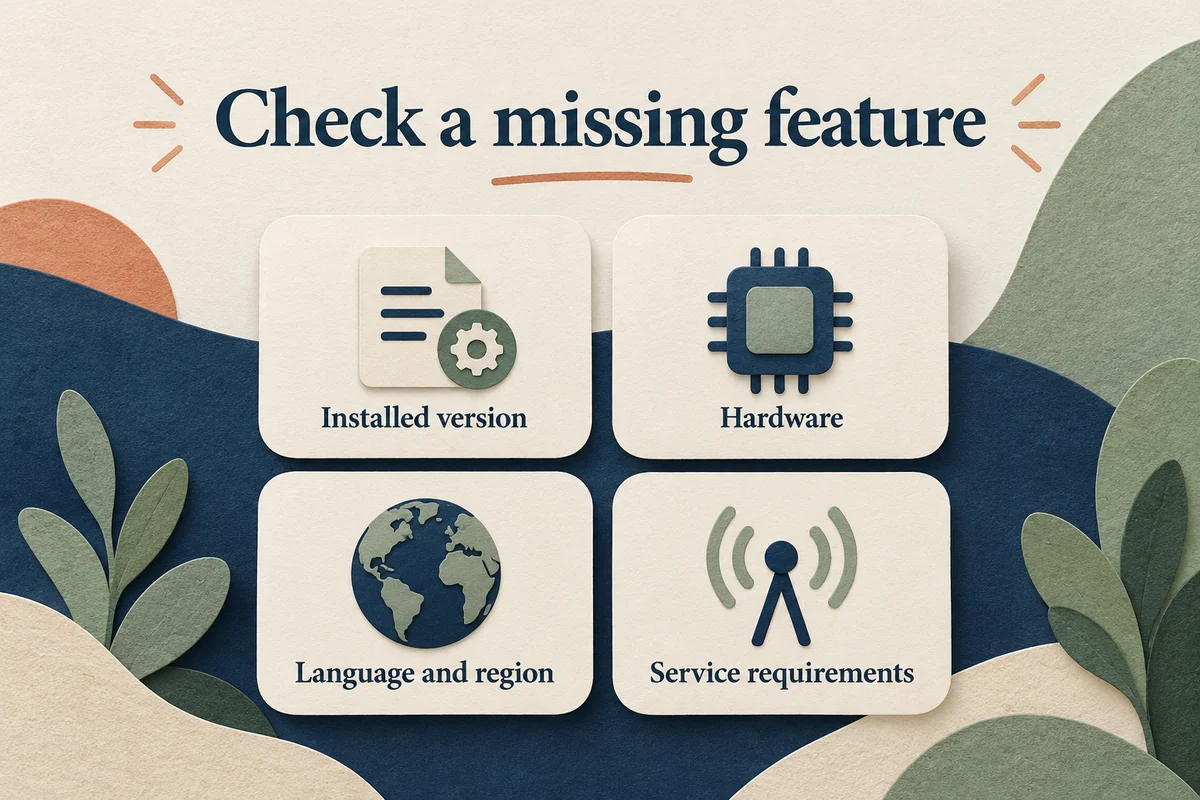
First compare hardware. iOS 18 supported many older iPhones, while its Apple Intelligence requirements were narrower. For example, an iPhone 11 can run the software branch without acquiring the Apple Intelligence capabilities of an eligible later model.
Next compare the installed point release. A feature introduced after 18.0 cannot be assumed present on 18.0. Then check the relevant language, region, carrier, and account conditions. The result may be a normal eligibility limit rather than a failed installation.
Also distinguish an interface change from lost data. When Photos looks different, check its collections and utilities before assuming images were deleted. When the former password location has moved, open Passwords before resetting working accounts.
Use the release history to answer your own question
If your question is “Should I install this update?”, inspect the update offered in Settings, General, Software Update and its release notes. Do not treat a historical iOS 18 feature list as advice to install an old branch that is no longer offered to your model.
If your question is “When did this change happen?”, our iOS 18 release-date guide separates the original launch from later additions. That distinction is useful when a tutorial or review discusses a feature as though it arrived on day one.
For a practical check after updating, try the one feature you intended to use, confirm that important apps still work, and leave time for background syncing. You do not need to change every preference just because a new control appeared.
Conclusion
iOS 18 was a series of changes, rather than one fixed bundle of features delivered to every supported iPhone. Use the release number, hardware, and actual task together. That gives you a more reliable answer than assuming either that all advertised features must be present or that a missing option means the update failed.

Ethan Miller
Ethan Miller writes about home improvement, interior design, cleaning, and everyday living at Home & Living Daily. He shares practical tips and simple ideas to help readers create more comfortable and functional homes.


