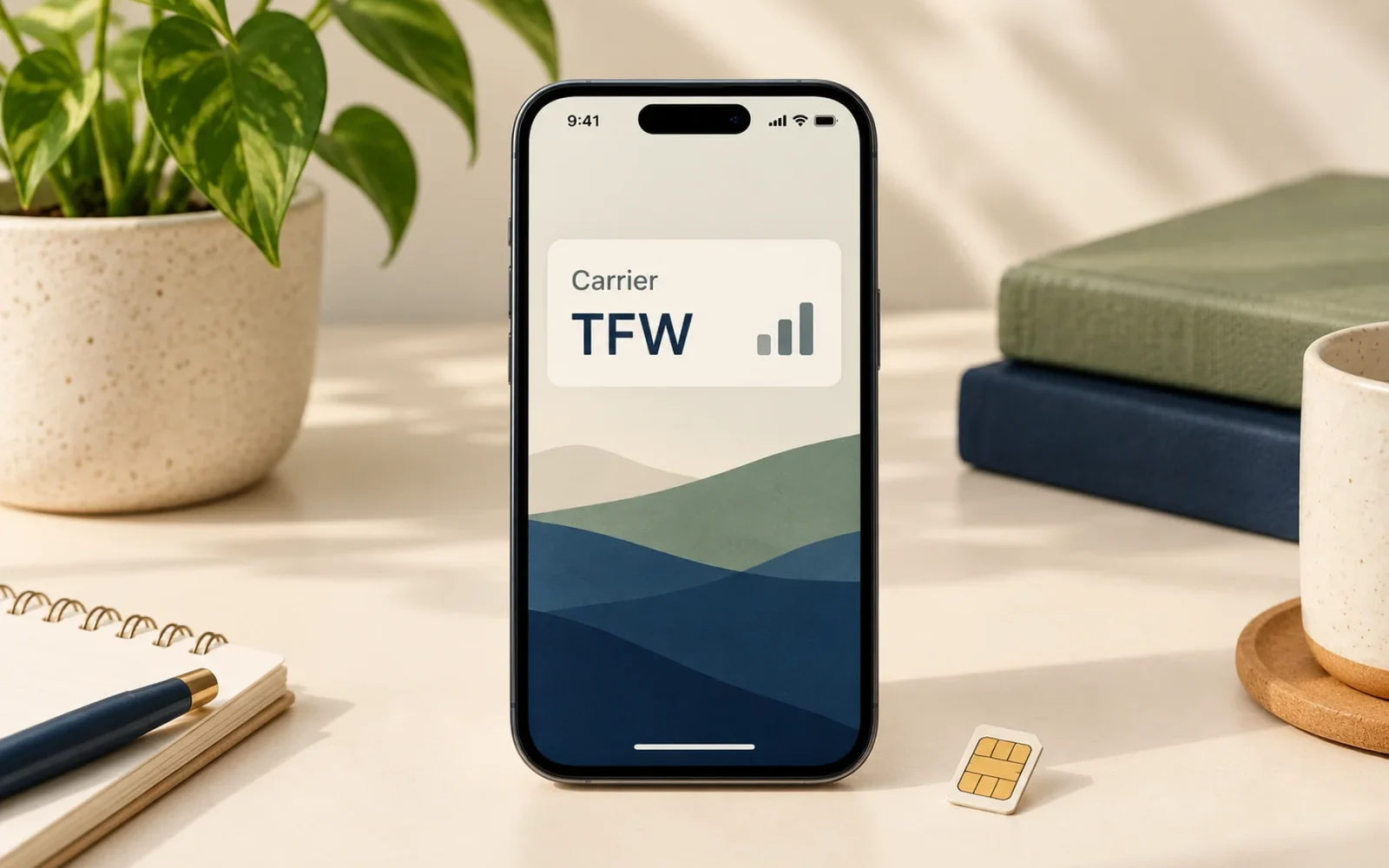
TFW stands for TracFone Wireless and is a carrier label associated with TracFone-family service, including brands such as Straight Talk and Total Wireless. If that is the service you use, seeing TFW does not by itself indicate a fault, a virus, or a different iPhone model.
The more useful question is whether calls and mobile data work. A carrier name, signal indication, and account status are related pieces of information, but the name alone cannot establish that every part of your service is functioning.
Why a different brand name appears
A phone’s carrier settings can use a label associated with the service provider’s wider brand family rather than the name on your latest bill. Total Wireless’s carrier-settings help refers to its “Carrier Bundle (TFW).” Straight Talk’s eSIM connection guidance also describes TFW appearing in an iPhone’s Control Center.
That is why the letters can be expected on a phone using those services. It does not mean you bought a special TracFone hardware edition simply because the display contains TFW.
The exact position and visibility depend on the iPhone and interface. On newer designs, opening Control Center can reveal carrier information that is not continuously visible in the small status area. Check the information associated with the relevant line if the phone has more than one SIM or eSIM.
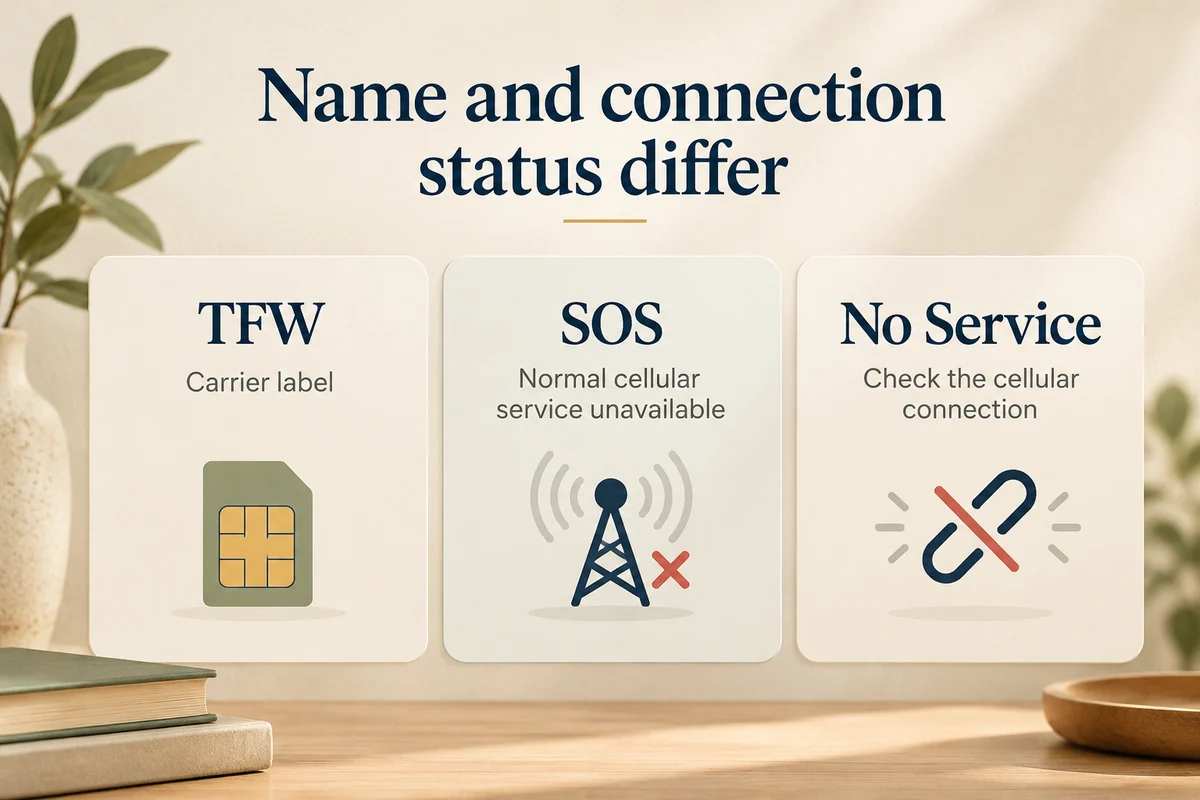
TFW is different from SOS or No Service
TFW identifies a carrier label. SOS or No Service describes a connection problem. The presence of one familiar label should not be used to dismiss a real failure to make calls or use mobile data.
| What you see or experience | What to investigate |
|---|---|
| TFW, with calls and data working | Usually no corrective action for the label itself |
| TFW, but mobile data fails | Data settings, the selected line, account provisioning, and coverage |
| SOS or No Service | Loss of the normal cellular connection |
| Unexpected carrier after a change | Which line is active and whether the transfer completed |
For the SOS case, our iPhone SOS troubleshooting guide explains how to work through coverage, activation, and line checks. It is a different task from renaming the carrier display.
What to check when service does not work
First identify the symptom. Can you place an ordinary call? Does data work with Wi-Fi off? Is only one SIM or eSIM affected? These answers help your carrier distinguish a label question from an activation, plan, or connection problem.
Check that the intended line is enabled and selected for the task you are testing. A working Wi-Fi connection is not proof that mobile data is functioning. If you recently switched providers or transferred a number, verify the account and activation status with the carrier rather than repeatedly deleting and recreating an eSIM.
Apple explains how to check for a carrier-settings update through Settings > General > About. Install an update when one is offered, but do not change unrelated settings simply to make the displayed letters look different.
Avoid copying an APN configuration from a random post. Settings can depend on the carrier, line, device, and provisioning. Use the instructions for your actual service and contact that provider if the account or connection remains unresolved.
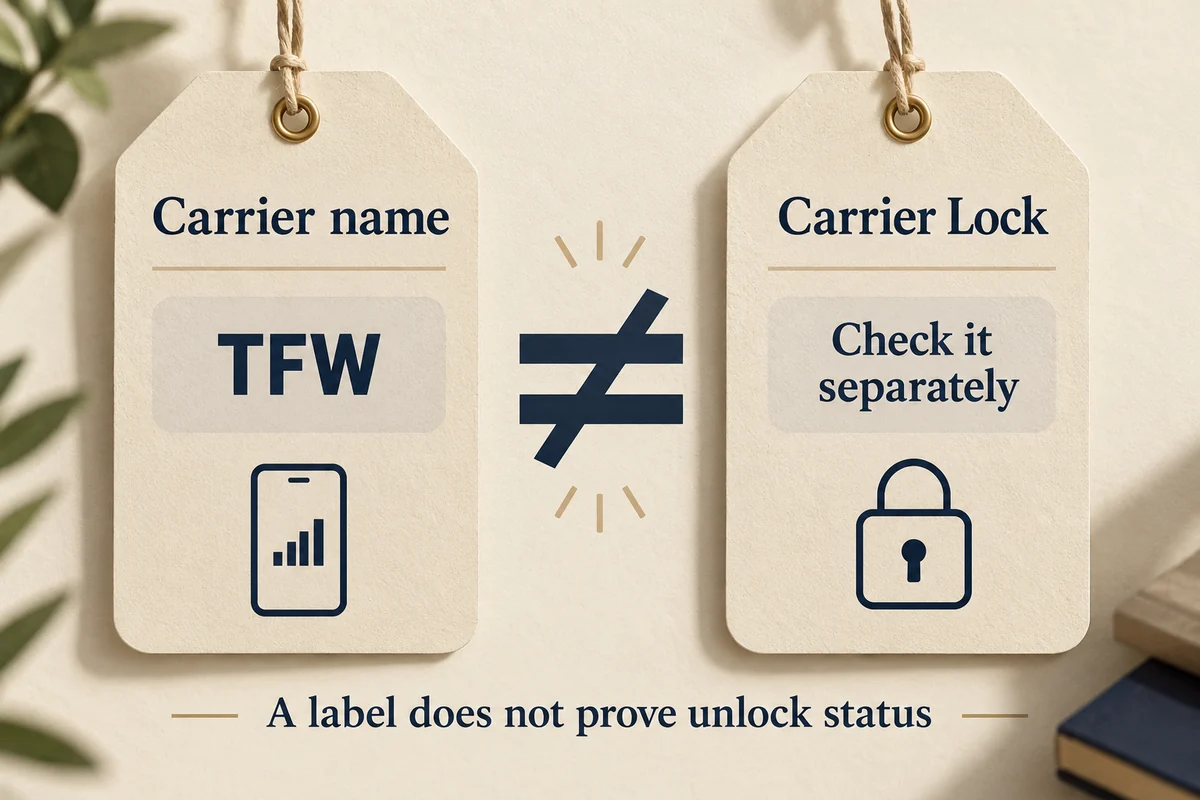
Does TFW tell you whether the phone is unlocked?
No. The displayed carrier name and carrier-lock status are different information. To check an existing iPhone, open Settings > General > About and read Carrier Lock. Apple’s unlocking guidance says “No SIM restrictions” indicates an unlocked iPhone, and only the carrier can authorize a carrier unlock.
This is particularly useful when buying a used handset. A screenshot showing TFW does not establish compatibility with your intended service, prove the device is fully paid off, or replace a proper unlock check.
If you do not recognize the carrier, inspect the active lines and your account records first. An unexpected name deserves investigation when it does not fit your service history, but the letters alone are not evidence that the phone has been hacked.
Conclusion
Treat TFW as carrier information and investigate actual service symptoms separately. When calls and data work on the service you expect, the label usually needs no fix; when they do not, the active line, account, and connection are more useful targets than the displayed name.

Ethan Miller
Ethan Miller writes about home improvement, interior design, cleaning, and everyday living at Home & Living Daily. He shares practical tips and simple ideas to help readers create more comfortable and functional homes.


