iOS is Apple’s operating system for the iPhone: the main software that makes the phone work and lets you run apps. The “OS” means operating system, and the name grew from the earlier name iPhone OS. In everyday use, “an iOS app” means an app made for Apple’s iPhone software platform.
An iPhone is the physical device. iOS is software installed on it. You can keep the same iPhone while updating iOS, just as a computer can receive a system update without being replaced.
What the name tells you
iOS is commonly expanded as “iPhone operating system,” reflecting its origin. The useful distinction is that it names a software platform, not a particular phone, mobile carrier, or internet subscription. Apple was using the name iOS 4 in its June 2010 iPhone 4 announcement.
Write it as iOS: a lowercase i followed by uppercase OS. A number after it identifies a software release. An instruction that requires “iOS 17 or later,” for example, is specifying a minimum system version. It is not asking for an iPhone 17.
Older articles may also describe iOS as the iPad’s operating system. That reflects the shared history, but current iPads use iPadOS. Apple Watch uses watchOS, and Macs use macOS. They can share services without running an identical operating system.
What iOS does when you use your iPhone
iOS coordinates the phone’s hardware, built-in functions, and installed applications. It manages the touch interface, permissions, notifications, connections, and the system services that apps need.
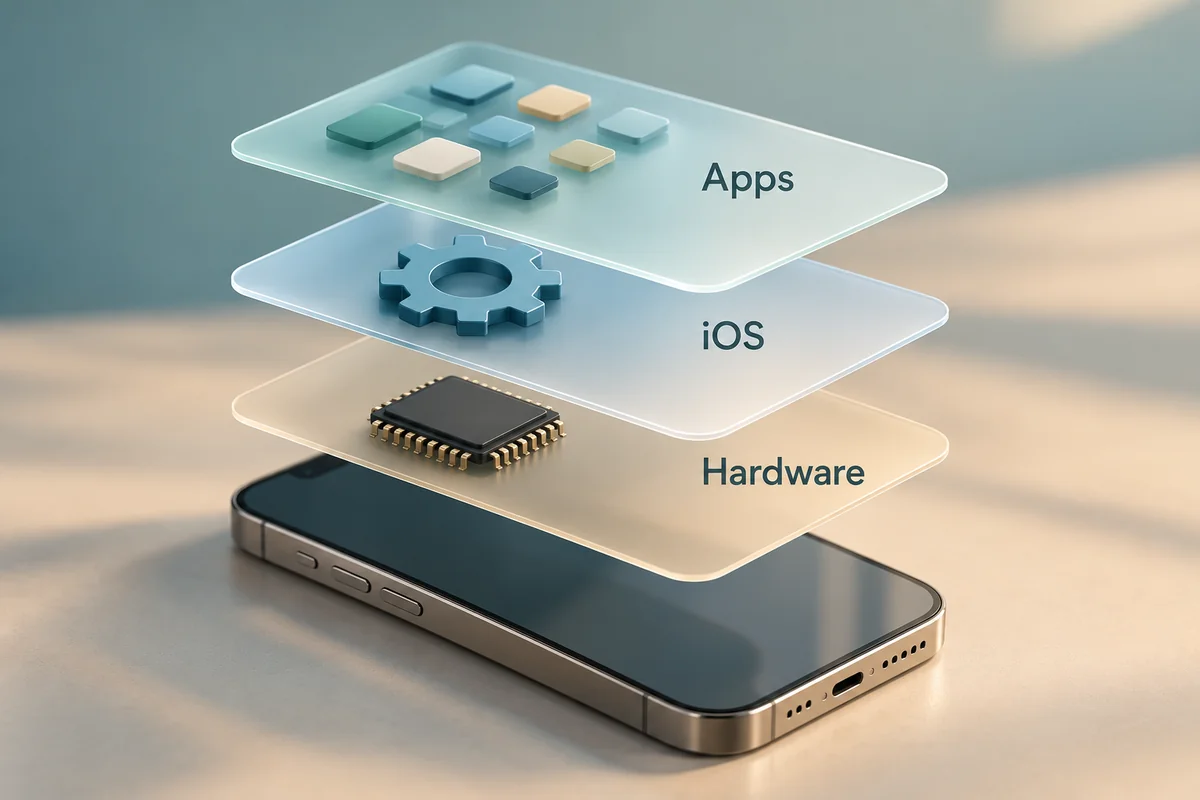
When you take a photo, for instance, the Camera app uses the phone’s camera through the operating system. When a different app asks to use the microphone, iOS presents a permission request. When you connect headphones, the system manages the Bluetooth connection and where audio plays.
These functions explain why a system update can change several parts of the phone at once. It can adjust menus, add features, repair problems, or include security fixes. Updating a single app generally affects that app; updating iOS can affect the environment in which many apps run.
You do not open iOS as a separate app. It is already working when you unlock the phone, move between apps, or use Settings. A search for an “iOS icon” will therefore lead you in the wrong direction.
iOS, iPhone, iCloud, and apps are different things
You may see these names together while setting up a phone. Knowing which one an instruction refers to makes support advice much easier to follow.
| Term | What it means | Example of what you might change |
|---|---|---|
| iPhone | The physical handset and its hardware model | Replace an older phone with a newer model |
| iOS | The iPhone’s operating system | Install an available system update |
| App | A program that performs a task within the platform | Update a messaging app in the App Store |
| iCloud | Apple’s cloud service for supported storage and syncing functions | Adjust a backup or sync setting |
| Apple Account | Your account for Apple services | Change your account password |
Buying more iCloud storage does not install a newer iOS version. Changing your Apple Account password does not change the phone’s hardware model. These distinctions matter when an app says it cannot install: the relevant problem may be software compatibility rather than your account or storage plan.
Android is another mobile operating-system platform used by many other phone manufacturers. A Samsung phone does not become an iOS phone because you install an Apple service’s app on it. Likewise, an Android app download is not the iPhone version of that app.
Find the iOS version installed on your phone
Open Settings > General > About and look for iOS Version. Older software may label the field Software Version. The number shown there is the version currently installed on this specific phone.
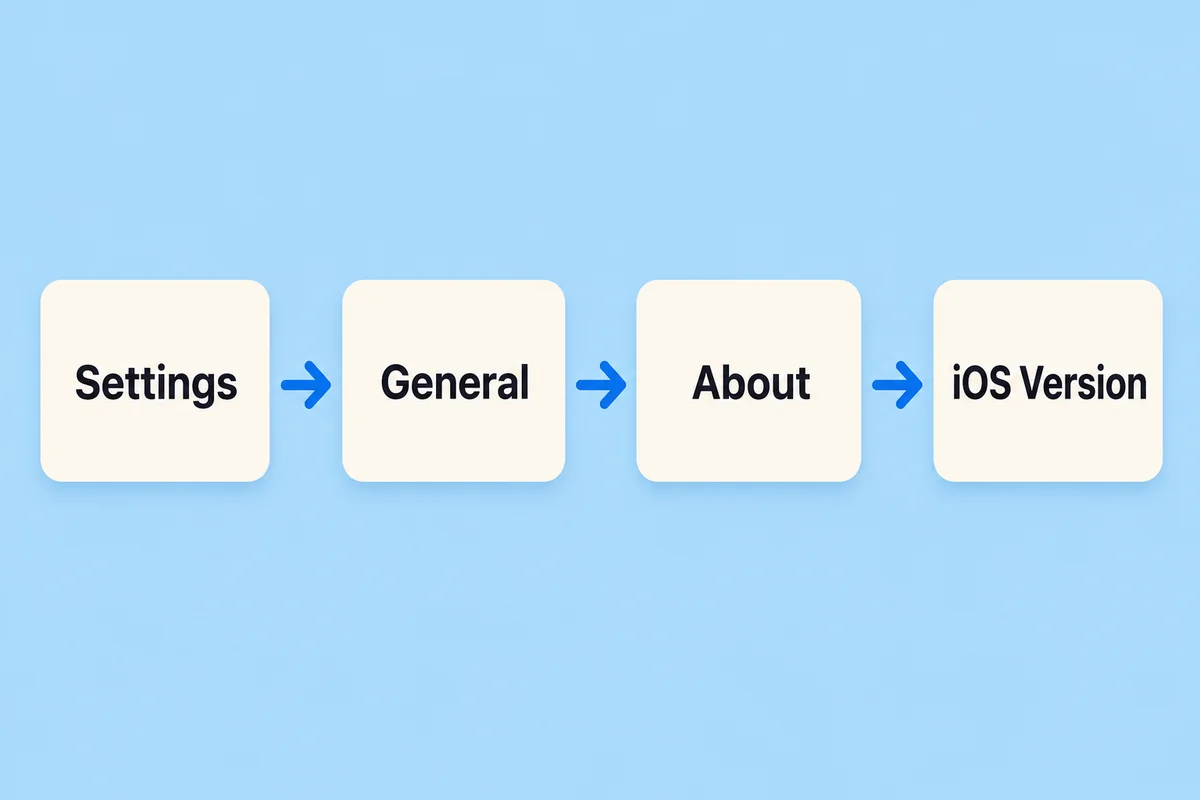
Do not confuse it with Model Name or Model Number on the same page. Those fields identify the device. For a support request, write down the Model Name and iOS Version separately; that gives the person helping you both pieces of information without needing your serial number.
For example, a set of instructions may describe a menu that your phone does not show. Comparing your installed iOS version with the guide’s stated version is a useful first check. Search within Settings for the control before assuming your phone lacks the feature entirely.
Check for an update and understand app requirements
Go to Settings > General > Software Update to see the updates available for your phone. Apple’s iPhone update instructions explain the process, including backing up first, connecting to power and Wi-Fi, and following the options shown on screen. Available releases depend on device compatibility.
An older iPhone may be unable to install the newest major iOS version. If an app requires a later version than your phone supports, deleting photos or changing accounts will not fix that requirement. Check the app’s compatibility information in the App Store and the updates offered in Settings before deciding whether you need a different app or phone.
Conversely, a compatible iPhone may simply have an update waiting. Check rather than guessing from the phone’s age. Keep app updates and system updates separate in your mind: updating the app cannot always substitute for meeting its minimum iOS requirement.
Conclusion
When an instruction mentions iOS, think about the iPhone’s system software. Check the installed version in About, then use Software Update if you need to see what your phone can install. Keeping the model, system version, app, and cloud account distinct will resolve much of the confusion in everyday iPhone advice.

Ethan Miller
Ethan Miller writes about home improvement, interior design, cleaning, and everyday living at Home & Living Daily. He shares practical tips and simple ideas to help readers create more comfortable and functional homes.


