
Open Photos and find Utilities, then Recently Deleted. Authenticate with Face ID, Touch ID, or your passcode, select the photos, and choose Recover. On iOS 18, scroll down the main Photos view to reach Utilities; on versions with a Collections tab, open Collections first.
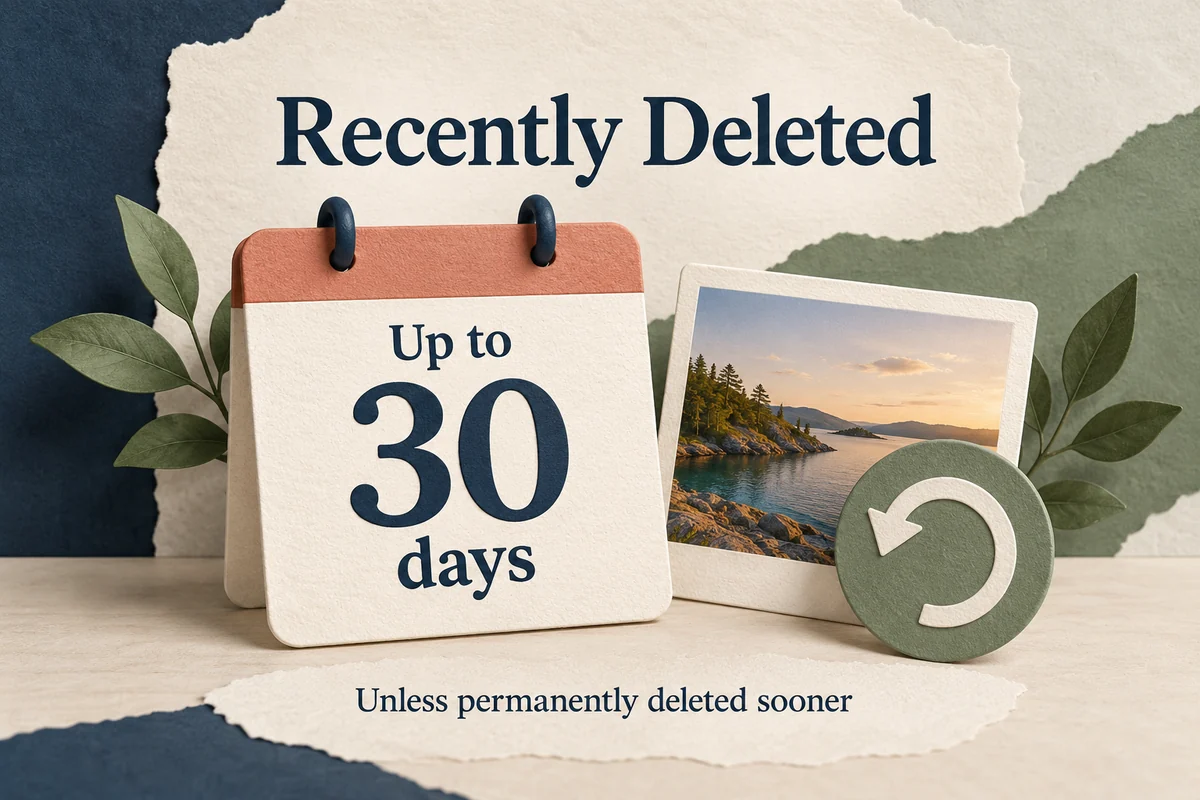
Deleted photos normally remain recoverable there for 30 days unless you permanently delete them sooner. If a picture is not in Recently Deleted, do not assume that a recovery app or an old phone backup can bring it back.
Restore a photo from Recently Deleted
Use Apple’s deleted-photo recovery steps for your installed version:
- Open Photos and go to Recently Deleted under Utilities.
- Tap View Album if shown and authenticate.
- Open the photo and choose Recover, or use Select for several items.
- Confirm recovery. In layouts that group actions in More, open that menu to find Recover.
After restoring it, look in the library around the photo’s original date. Recovery does not necessarily turn an old image into the newest item by capture date. Search for the event, location, or month if it is difficult to spot in a large library.
If you are working through several items, recover the ones you recognize first. Do not use Delete All as a cleanup shortcut while you are still deciding what to keep.
Understand the 30-day limit and iCloud syncing
Recently Deleted is a temporary holding area, rather than a second permanent archive. The remaining time shown for an item matters. Manually deleting it from that area ends the ordinary recovery window sooner.
When iCloud Photos is enabled, deletion and recovery are part of the synced library. Seeing a photo disappear from both your iPhone and another signed-in device does not establish that you have two independent backups. They may be displaying the same synchronized change.
If the iPhone is unavailable, check the Photos area on iCloud.com using the correct Apple Account and look for Recently Deleted there. Confirm that it is the library you actually used; a second Apple Account can make an intact library appear missing.
Check these places if the picture is not there
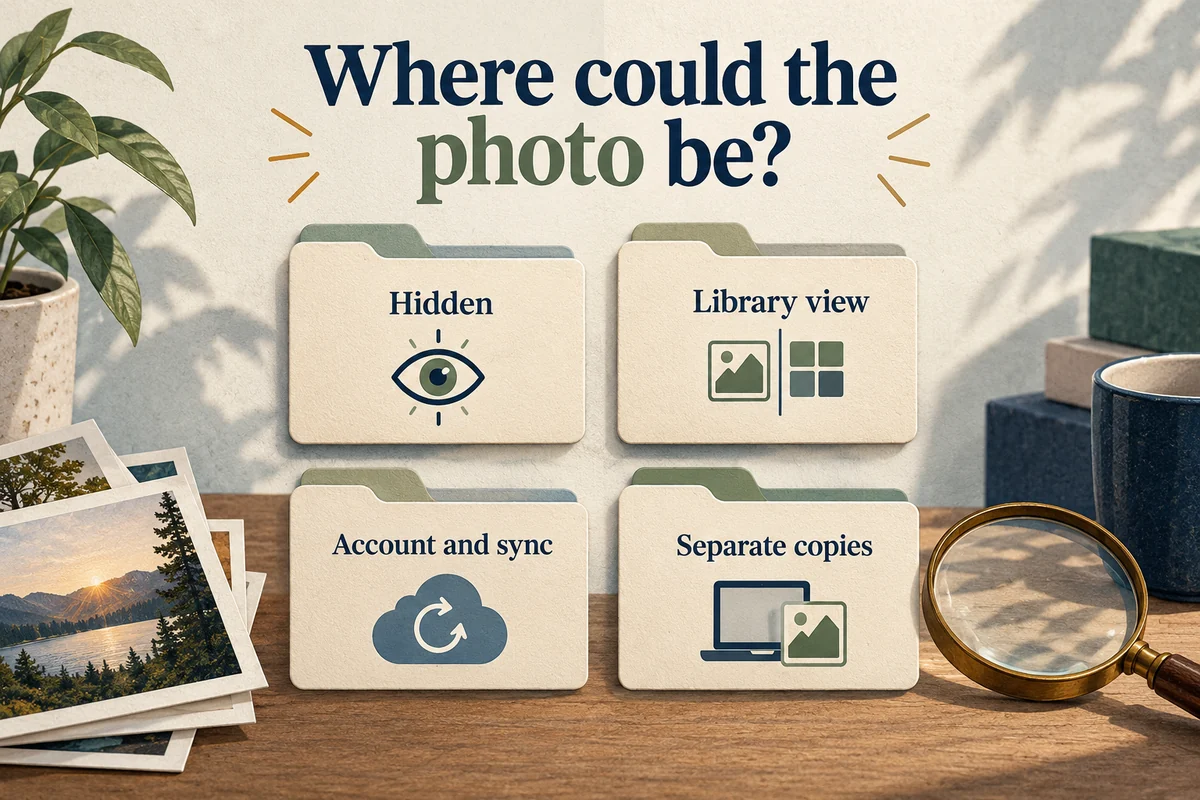
Apple’s missing-photo checklist includes Hidden, the selected library view, and syncing. Work through those explanations before starting an invasive restore.
- Hidden: an intentionally hidden picture leaves ordinary library views but is not deleted.
- Shared Library views: make sure the current view includes the library where the photo belongs.
- Other copies: check the original message, email, computer import, memory card, or independent backup from which the picture came.
- Wrong account or unfinished syncing: compare account identity and library status on the device that previously held it.
If someone sent you a photo but you never saved it, it may still be in the conversation rather than Photos. That is a retrieval problem, not a deleted-library recovery problem.
Avoid turning one missing photo into a larger restore problem
A whole-device restore can replace current information and may not contain the photo you want. In particular, a synced iCloud Photos library should not be assumed to exist as a separate historical copy inside every device backup.
Before restoring anything, establish when and where the wanted image was last known to exist, what the proposed backup actually contains, and what newer information could be overwritten. A file recovered from an independent computer backup is a different proposition from a service promising to reverse permanent deletion without evidence.
If the photo was permanently removed and no separate copy remains, be realistic about the limits. Do not give a recovery vendor account access merely because its advertising says it can recover “any” deleted photo.
Conclusion
Check Recently Deleted promptly and restore the specific items before their remaining time expires. If they are absent, investigate Hidden, library selection, accounts, and independent copies. The most useful recovery plan starts with where a real copy could still exist, rather than with the most dramatic restore procedure.

Ethan Miller
Ethan Miller writes about home improvement, interior design, cleaning, and everyday living at Home & Living Daily. He shares practical tips and simple ideas to help readers create more comfortable and functional homes.


