To turn off vibration for iPhone calls and alerts, open Settings > Sounds & Haptics > Haptics and choose Never Play, if that menu appears on your iOS version. To disable every vibration, use Settings > Accessibility > Touch > Vibration instead. The second option also disables vibration for emergency alerts, so choose it only if that is the result you want.
If the buzzing happens only while typing, you need the Keyboard Feedback setting. Silent mode, alert vibration, keyboard feedback, and system haptics have separate controls; changing one may leave the others active.
Choose which vibrations to stop
Match the setting to the interruption. A phone buzzing on a desk during calls needs a different adjustment from a keyboard that gives a tiny tap with every letter.
| What you want | Setting to check | Scope |
|---|---|---|
| No vibration for calls and alerts | Sounds & Haptics > Haptics > Never Play | Ring and alert haptics |
| No call or alert vibration in Silent mode | Haptics > Don't Play in Silent Mode | Silent-mode behaviour |
| No vibration while typing | Sounds & Haptics > Keyboard Feedback | Keyboard feedback |
| No taps from interface interactions | Sounds & Haptics > System Haptics | System feedback |
| No vibration of any kind | Accessibility > Touch > Vibration | All vibration, including emergency-alert vibration |
Menu wording varies with iOS. If your screen differs, use Settings search for Haptics or Vibration and check the description of the control before changing it. Older versions may show separate ring and silent switches rather than a single list of choices.
Turn off vibration for calls and alerts
Open Settings > Sounds & Haptics. If you see a Haptics menu for ringtones and alerts, choose Never Play. You can keep an audible ringtone if you still want sound; vibration and ringtone volume are different decisions.
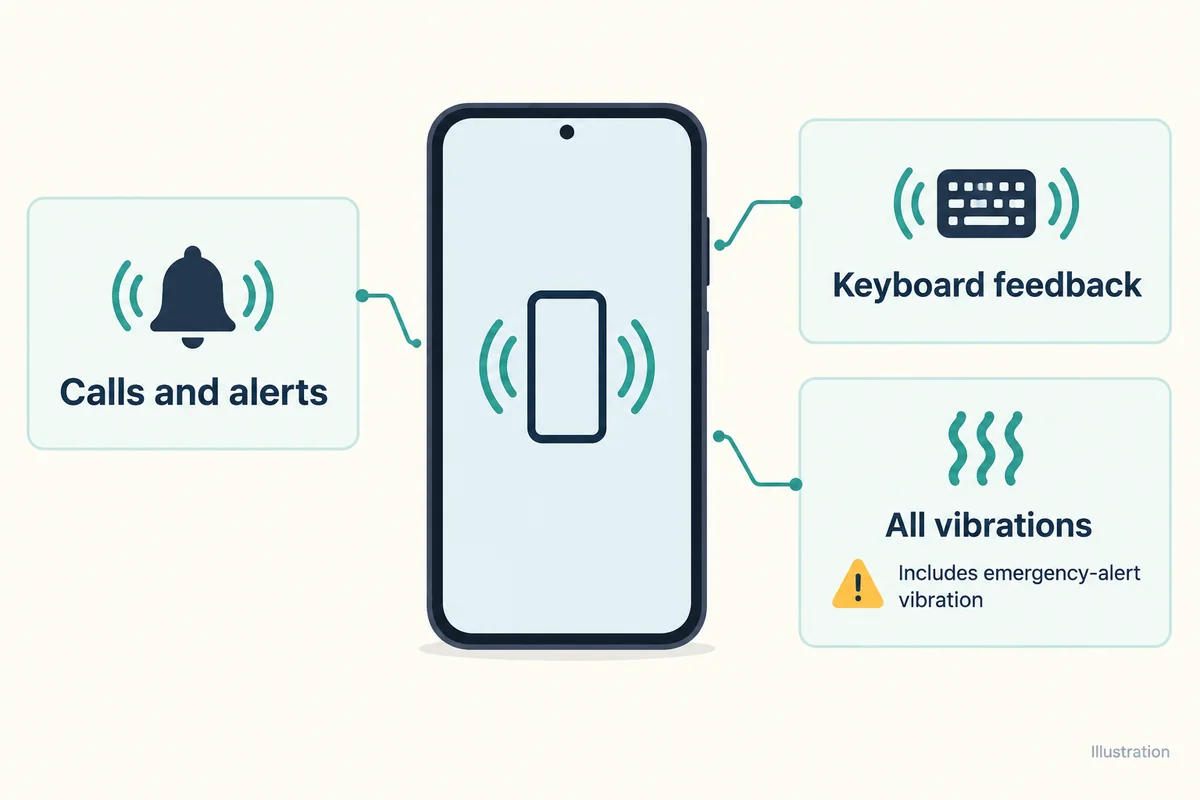
Apple's sounds and vibrations guide describes the Haptics choices, including Always Play, Play in Silent Mode, Don't Play in Silent Mode, and Never Play. These choices control incoming calls and alerts. They are not a promise that typing and every interface interaction will also stop producing feedback.
After changing the setting, have someone call you while you watch the phone. Then send a test message. Testing those two events is more useful than waiting for an unexpected buzz and trying to remember which control you changed.
If only one type of alert is a problem, adjust that category rather than turning off all alert haptics. Open Ringtone, Text Tone, or the relevant sound category, look for Haptics, and select None where available. Check any custom contact alert too if one particular person still triggers an unwanted pattern.
Stop vibration while the iPhone is on Silent
Choose Don't Play in Silent Mode in the alert Haptics menu. This suits someone who wants the phone completely quiet during a meeting but still wants vibration when it returns to Ring mode.
Silent mode alone is not enough. Apple explicitly notes that an iPhone may still vibrate in Silent mode. Flipping the Ring/Silent switch, or activating Silent mode with the Action button, can therefore stop a ringtone while leaving the buzzing intact.
Check both states when you finish. Put the phone in Silent mode and receive a test call, then return it to Ring mode and test again. If you want calls never to vibrate in either state, Never Play is the closer match.
Disable keyboard and system haptics separately
For vibration with each keystroke, open Settings > Sounds & Haptics > Keyboard Feedback and turn Haptic off. Sound is a separate switch on that screen, so turn it off too if you also want to remove keyboard clicks.
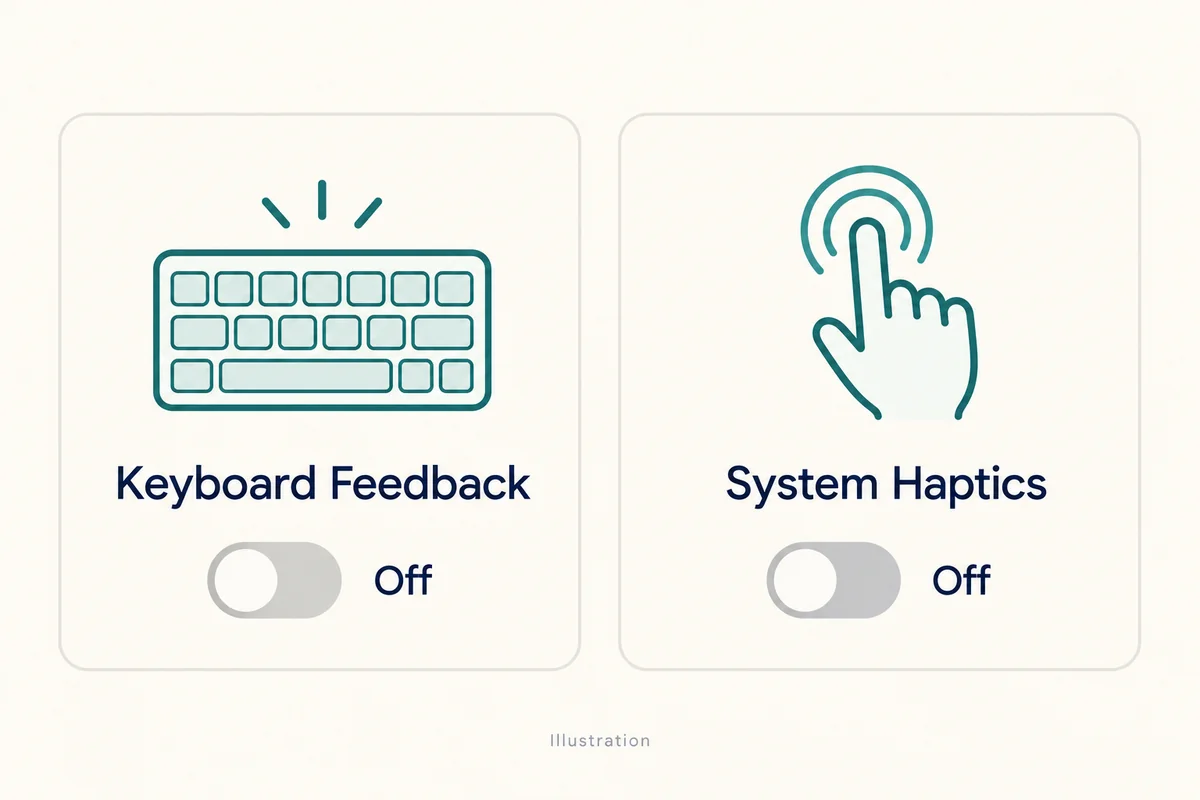
For small taps during system interactions, return to Sounds & Haptics and turn System Haptics off. Apple's current guide to sound and feedback settings distinguishes these controls.
Make these changes one at a time. Open Notes and type a sentence after changing Keyboard Feedback. Then try the system interaction that bothered you. This isolates the cause instead of leaving you with several disabled settings and no clear idea which one helped.
A third-party keyboard or an app's own feedback may have an additional setting inside that app. If the built-in keyboard is quiet but a particular app still buzzes, inspect that app before changing unrelated phone-wide controls.
Turn off all iPhone vibration
For the broadest setting, open Settings > Accessibility > Touch and turn Vibration off. This is the appropriate control when you want the vibration mechanism disabled throughout the phone rather than changing individual notification behaviours.
Apple's all-vibration instructions state that this also disables vibrations for earthquake, tsunami, and other emergency alerts. That consequence matters if you rely on a tactile warning when the phone is muted or out of sight.
If ordinary calls and typing are the only issue, use the narrower controls first. You can return to Accessibility > Touch and turn Vibration back on later, then keep your preferred individual haptic settings off.
If the phone still seems to vibrate
Identify the trigger before repeating the whole process. Does it happen when a call arrives, while typing, during one app's notification, or when you press a control? Those patterns point to different settings.
Also check which device is vibrating. An Apple Watch alert or another nearby phone can be mistaken for feedback from the iPhone on your desk. Test with the iPhone held separately so the source is clear.
If a reproducible vibration persists after the global Vibration switch is off, restart the iPhone and check for an available iOS update. Record the exact trigger if you contact support. A factory reset is a disproportionate first response to an unidentified buzz.
Conclusion
Use the smallest change that solves the interruption: alert haptics for calls, Keyboard Feedback for typing, or the Accessibility switch for a complete shutdown. A quick test with the event that bothers you will confirm whether you changed the right control while preserving the alerts you still want.

Ethan Miller
Ethan Miller writes about home improvement, interior design, cleaning, and everyday living at Home & Living Daily. He shares practical tips and simple ideas to help readers create more comfortable and functional homes.


