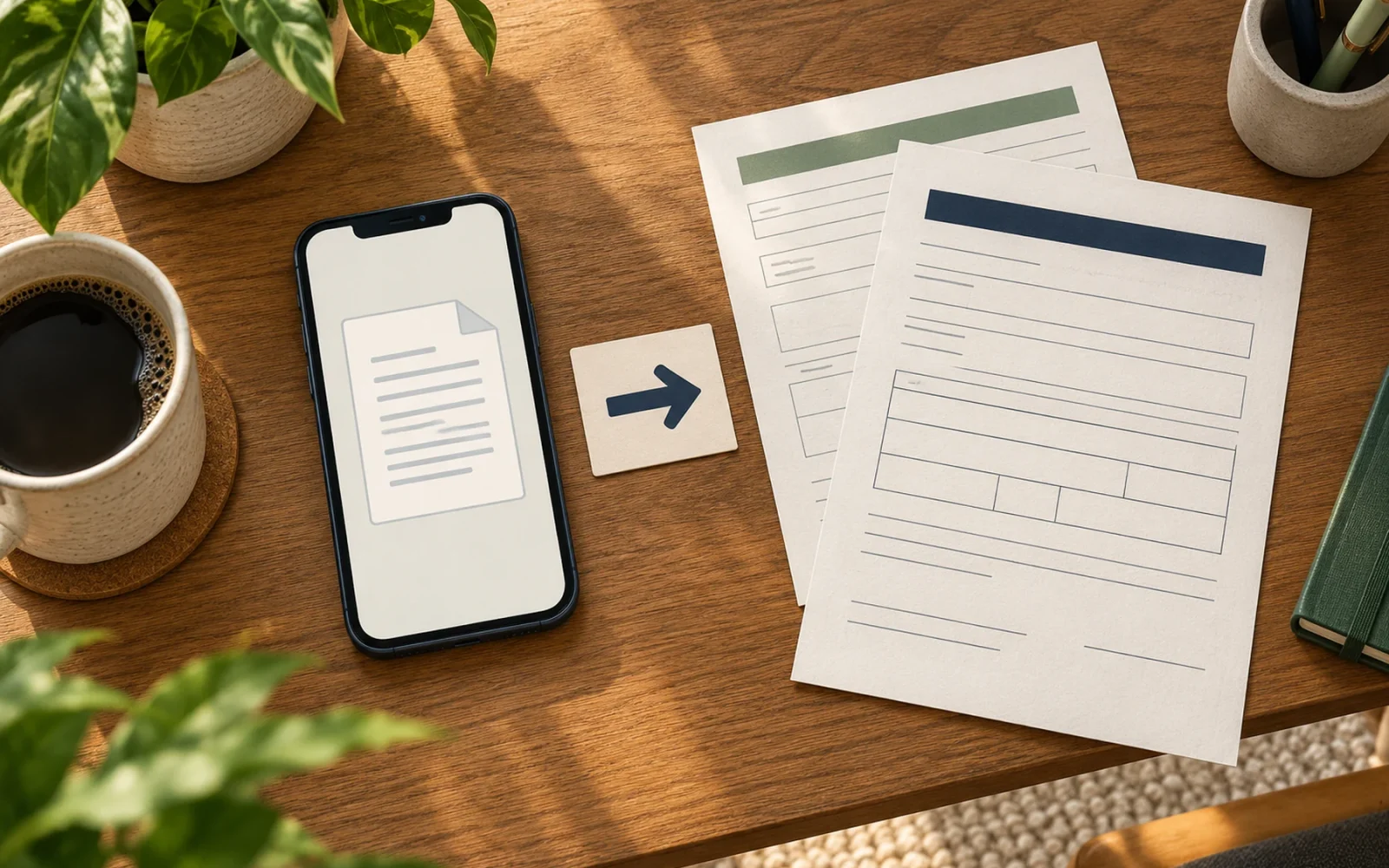
To send a fax from an iPhone, scan your document into a readable PDF, upload it to an online fax service, enter the recipient’s fax number, and check the delivery report. You do not need a landline or a physical fax machine. The iPhone itself does not include a built-in fax-sending feature, so a fax app or a service’s website handles transmission.
Before paying for anything, ask the recipient whether fax is required. A secure upload portal may be an easier option, particularly when the document already exists as a file.
Check the destination before scanning
Get the complete fax number directly from the organization, including the country code for an international destination. Also ask whether a cover sheet, department name, reference number, or signature is required. A successful transmission to the wrong office still leaves your application unfinished.
Check how many pages you need to send. A two-page form plus a cover sheet is a three-page transmission, which matters when a service charges by the page. If you only need one fax, look for a clearly priced one-time option rather than assuming a free app means free delivery. Review renewal terms before starting a trial.
For sensitive paperwork, use the recipient’s approved channel and review the fax provider’s privacy and retention terms. Avoid putting account numbers or medical details in a cover sheet unless the receiving office requests them.
Scan a clean, complete document
If you already have a legible PDF, use that file instead of photographing a printout. For paper documents, Apple’s document-scanning instructions explain the built-in Notes and Files options.
In Notes, open a note, tap the attachment button, and choose Scan Documents. Capture each page, adjust the corners when necessary, and keep the scans. In Files, the More menu also offers Scan Documents.
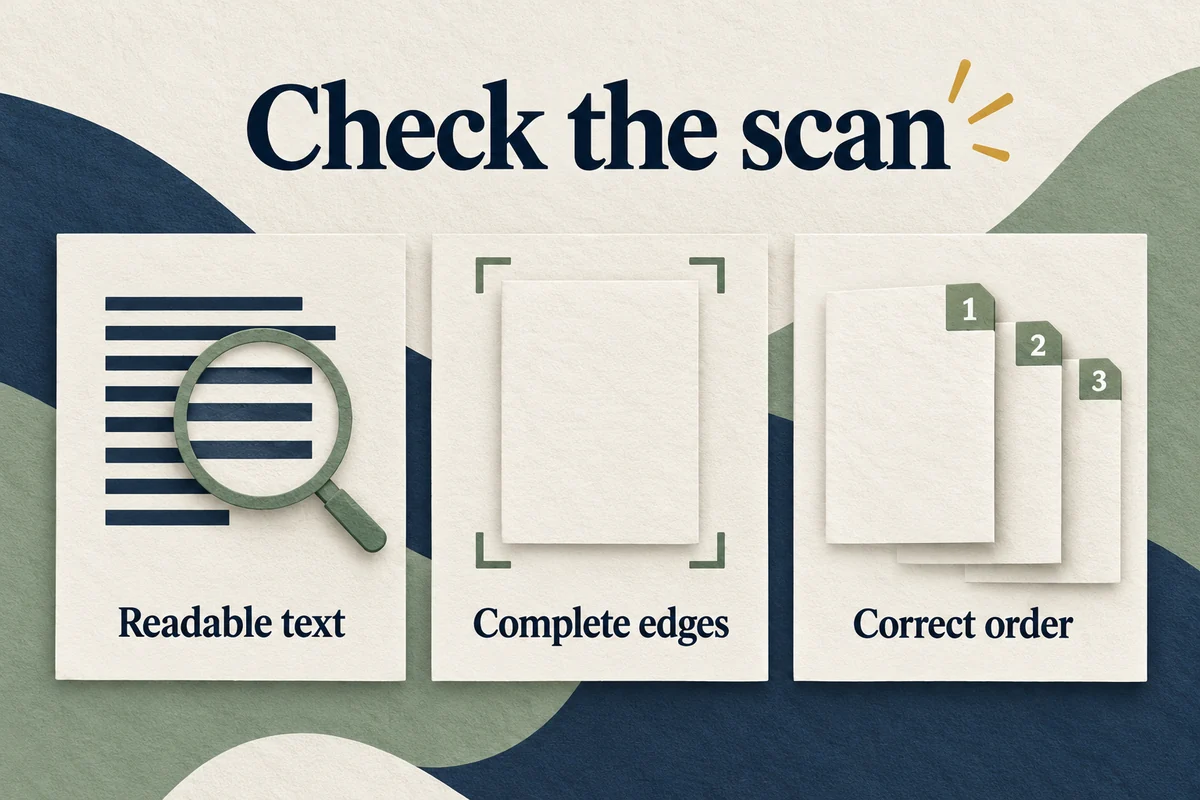
Before uploading, open the saved file and check three things: the smallest text is readable, every page faces the right way, and nothing important is cut off. Shadows across a signature or a cropped reference number can make an otherwise successful fax unusable. Scan against a plain contrasting surface with even light, then inspect the actual file rather than relying on its small preview.
Upload the file and send it
The exact buttons depend on the provider. For example, the Fax.Plus iPhone workflow supports uploading documents through its app or web service. That is an example of the process, rather than a recommendation to buy a particular plan.
- Sign in to the fax service and open its send-fax screen.
- Enter the verified destination number.
- Attach your scanned PDF or supported document file.
- Put the pages in the intended order and add a cover sheet if requested.
- Review the destination, page count, and charge before sending.
You can use a provider’s mobile website in Safari if it supports sending there; installing an app is not always necessary. Receiving faxes is a separate service feature and may require a paid incoming number, even when occasional outgoing faxing is available.
Keep proof and handle failed delivery
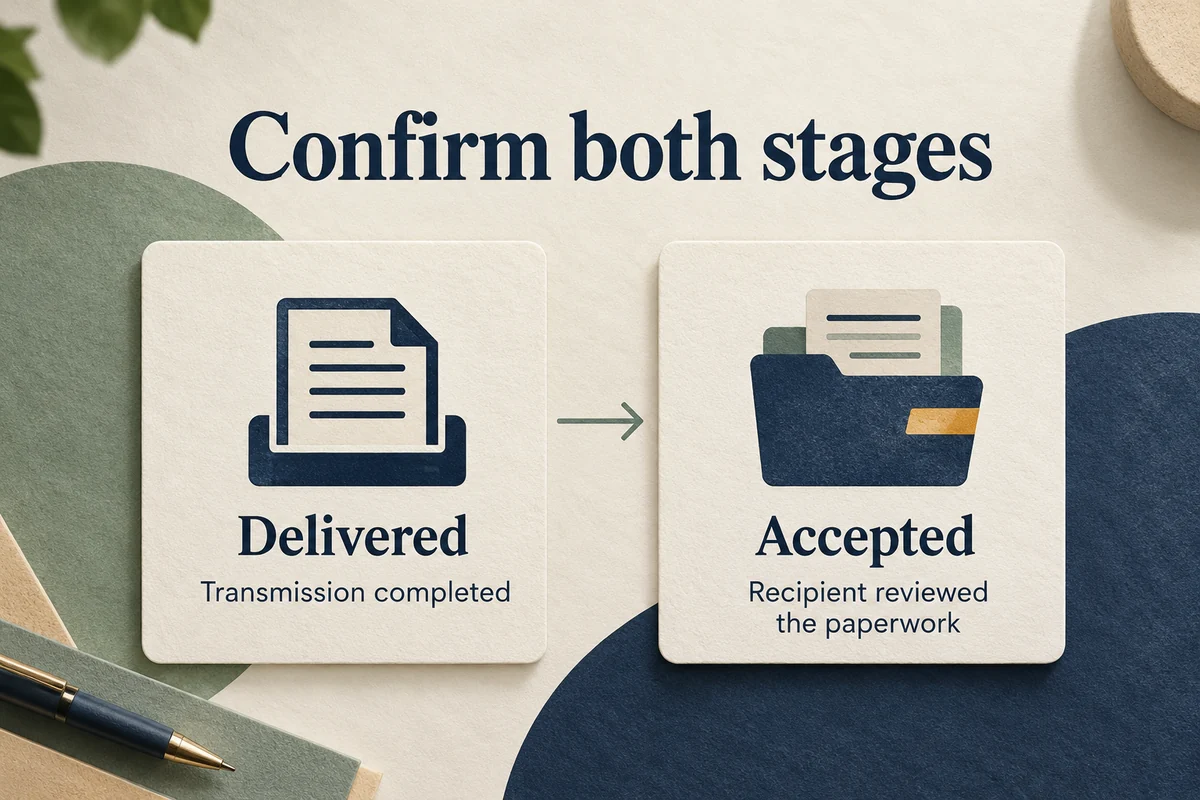
Wait for a final delivery result. An “uploaded” or “queued” message only shows that the service accepted your file for processing. Keep the delivery report with the date, destination, and page count until the recipient confirms the paperwork has been processed.
If delivery fails, first compare the number with the recipient’s instructions. Then check whether the report mentions a busy line, no answer, or a file problem. Repeatedly sending the same fax without reading the error can create duplicate submissions or repeated charges. Contact the office if its line remains unavailable.
A delivered fax is also different from an accepted form: missing signatures or unreadable pages may still need correction. For a deadline, ask the office how to confirm receipt rather than treating the transmission report as the final decision on your request.
Conclusion
The useful result is a readable document reaching the correct office with proof of transmission. Confirm the channel and destination first, inspect the file before paying, and keep the report until the recipient acknowledges it. That approach usually matters more than which fax app you choose.

Ethan Miller
Ethan Miller writes about home improvement, interior design, cleaning, and everyday living at Home & Living Daily. He shares practical tips and simple ideas to help readers create more comfortable and functional homes.


