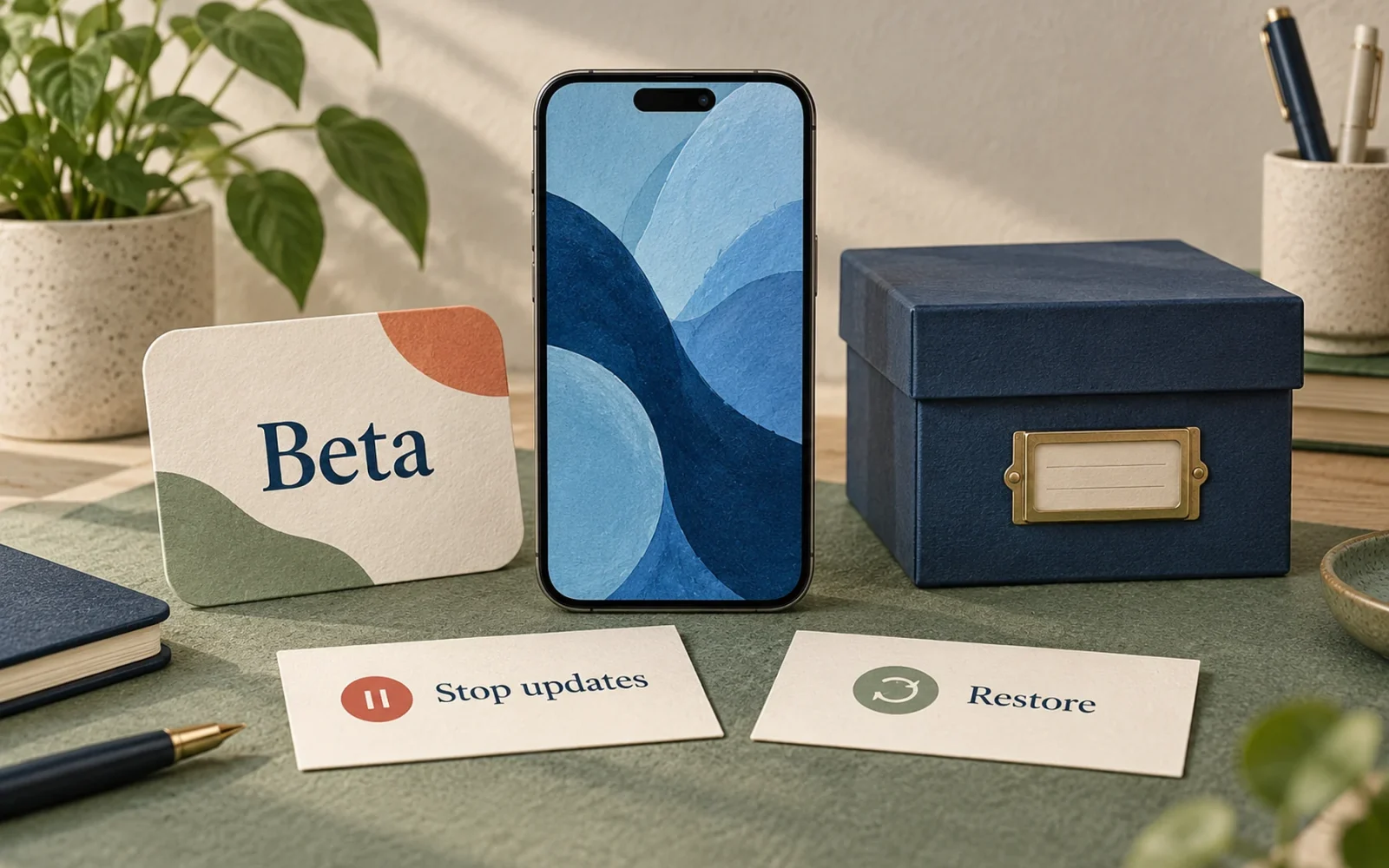
To stop receiving beta updates, open Settings, General, Software Update, Beta Updates and choose Off. That does not uninstall the beta already on your iPhone. To remove an installed beta immediately, Apple’s supported route involves erasing and restoring the phone to the current public software available for that model.
Choose between those two goals before starting. If the phone works well enough to keep using, waiting for an eligible public update is usually less disruptive than an immediate restore.
First decide whether you need to stop updates or erase the beta
| Your goal | Appropriate starting point |
|---|---|
| Stop future beta downloads | Turn Beta Updates off |
| Move to a compatible public release when offered | Turn beta updates off, then check Software Update |
| Remove the installed beta immediately | Review the computer-based erase-and-restore route |
| Return specifically to an old iOS 18 version | Check actual installation availability; leaving beta does not guarantee this |
Apple explains the distinction in its beta-removal instructions. Do not use an old tutorial’s “delete the beta profile” step as the normal iOS 18 procedure. The Beta Updates control replaced that enrollment method on newer systems.
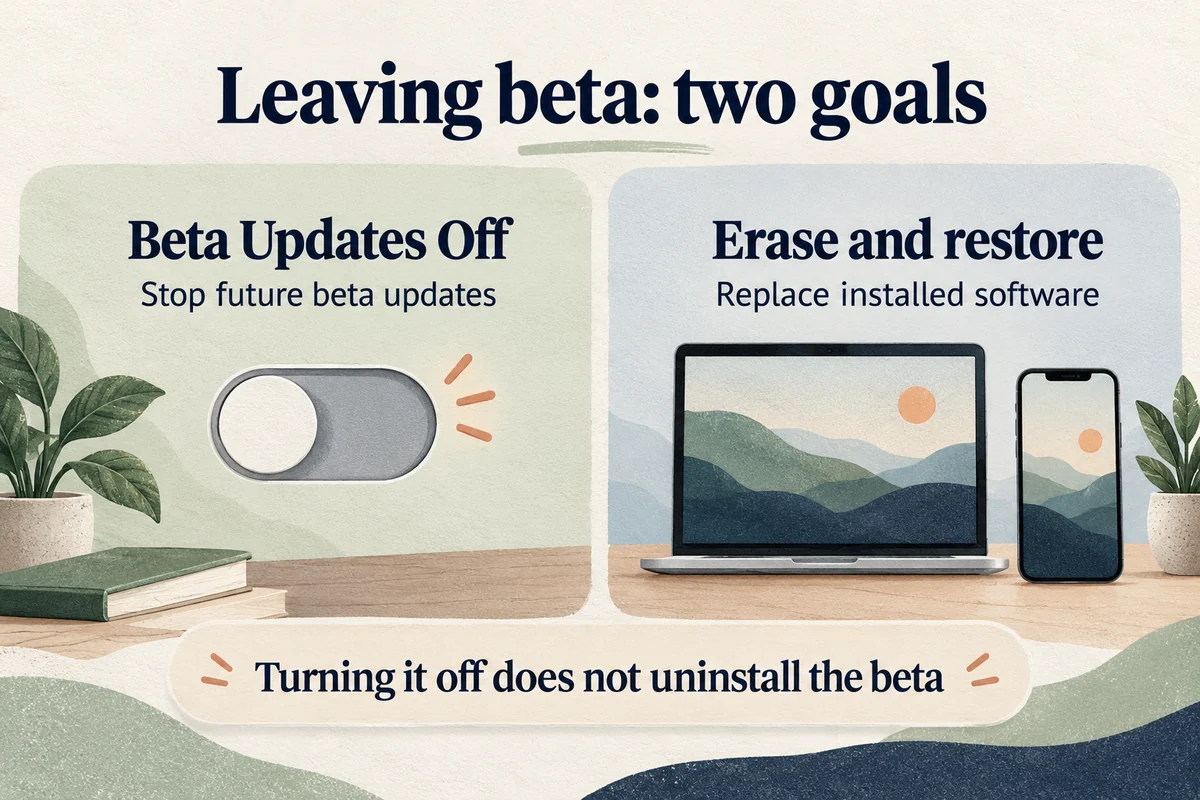
Stop beta updates without erasing the phone
Go to Settings, General, Software Update, Beta Updates, then Off. Return to Software Update and inspect what is offered.
The installed beta remains until you install an eligible replacement. A public build with a familiar version name is not automatically available as an in-place update from every beta. If no suitable update appears, turning the setting off again or restarting repeatedly will not create one.
If a public update is offered, back up the device and follow the normal update process. Verify the installed version afterward in Settings, General, About. The label in Beta Updates describes future enrollment; About tells you what is actually running.
Prepare before an immediate restore
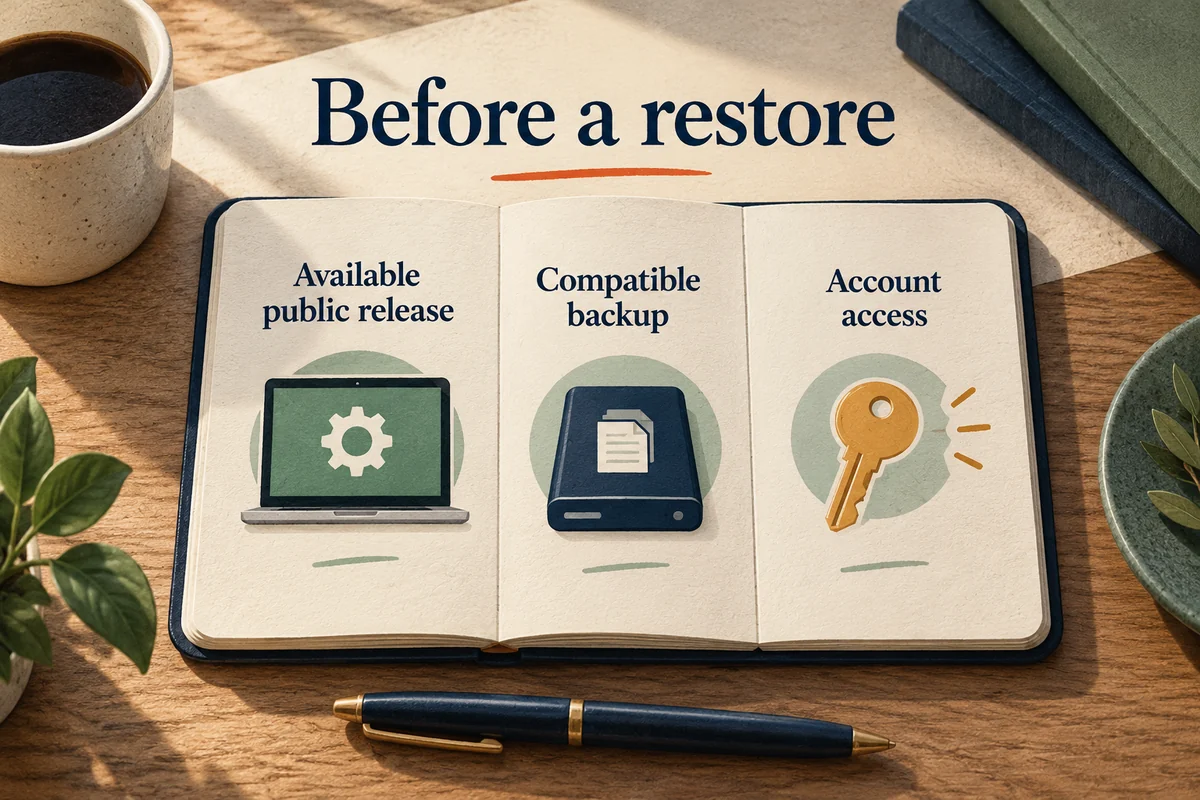
An immediate beta removal is a data-management decision as much as a software decision. Check which information is synced to its own service and which information exists only on the phone. Keep access to the Apple Account, trusted number, and other sign-in methods you will need after setup.
A backup made on a beta may not restore to an earlier public version. Do not assume that creating a new backup immediately before erasing guarantees a complete return to the system you want. If you have an archived backup from before beta installation, establish which version it was made on and whether it is usable for the intended restore.
For example, a person who only wants to stop the next beta download may have no reason to erase several weeks of local app data. Someone whose test phone cannot run a required app may accept that disruption. The right route depends on the problem, not merely the word “beta” in Settings.
Restore only after checking the target and data plan
Use a Mac or a Windows computer with Apple’s supported device-management software, and follow the recovery-mode sequence for your iPhone in Apple’s beta-removal guide. The restore installs the available public release; it is not a menu for choosing any historical iOS version.
Allow time to download software, erase the device, complete activation, and restore compatible information. Use a reliable cable and connection. Keep the phone connected until the computer’s process finishes rather than interrupting it when the screen changes.
After setup, check important services individually: calls, messages, photo syncing, email, authentication apps, and work access. Reinstalling an app does not prove that all of its local data or credentials have returned.
Conclusion
Turn Beta Updates off if your goal is to leave the testing track. Reserve an immediate restore for a problem serious enough to justify erasing the device, after confirming the available public target and a workable data plan. Those checks prevent a routine enrollment change from becoming an unnecessary recovery project.

Ethan Miller
Ethan Miller writes about home improvement, interior design, cleaning, and everyday living at Home & Living Daily. He shares practical tips and simple ideas to help readers create more comfortable and functional homes.


