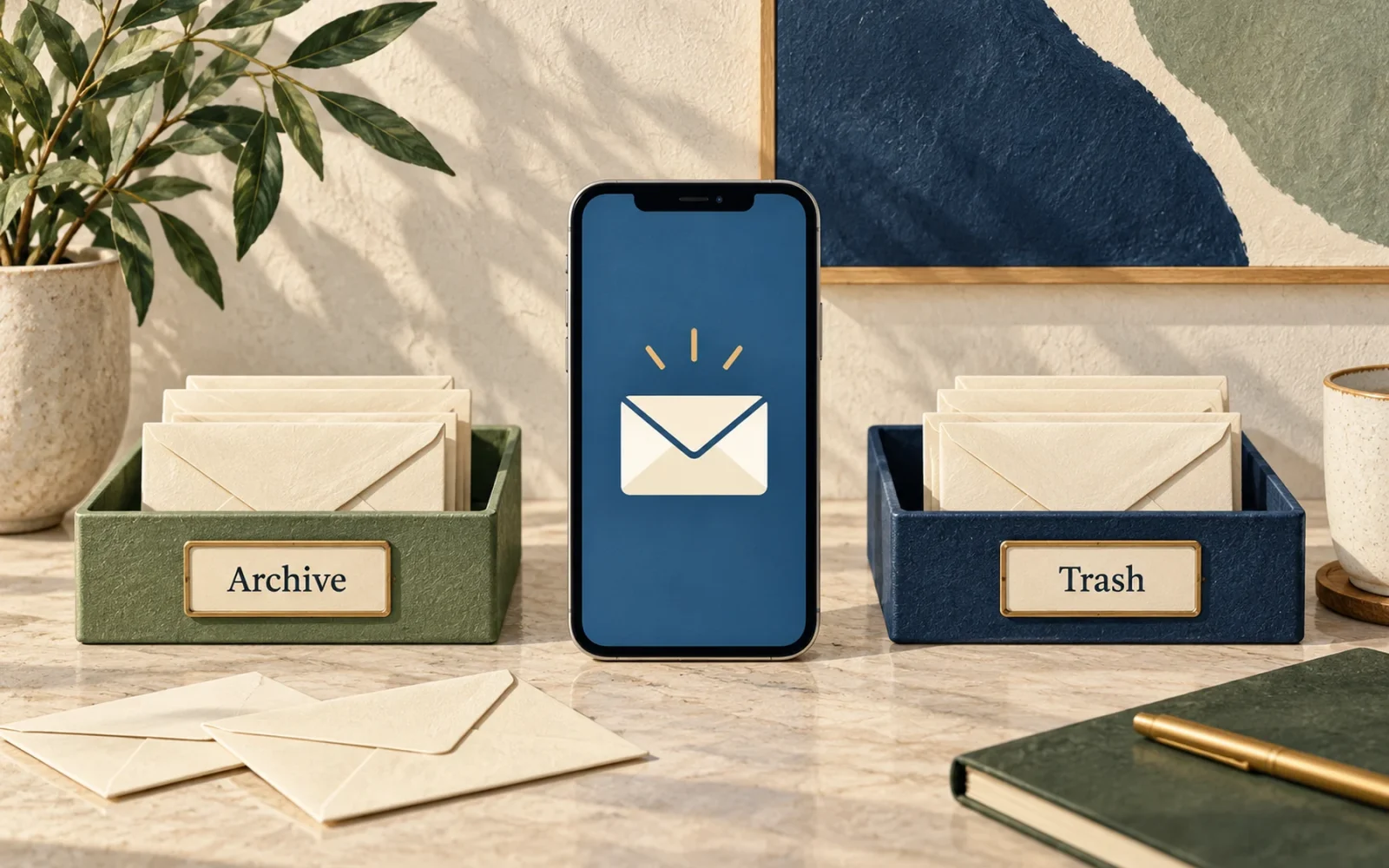
In Apple’s Mail app, open a message and tap the trash button, or select several messages in a mailbox and choose Trash. If you see Archive instead, your account is configured to archive discarded messages; you can usually hold the archive button to reveal a trash option or change that account’s mailbox behavior.
Deleting a message is different from removing an email account from your iPhone. With a synced account, deleting mail may also remove it from the server and your other devices, so check the selection before a bulk cleanup.
Delete one message or a selected group
For a single message, open it and look for the trash button. In a message list, swiping left may expose Trash or More, depending on the account and swipe configuration.
To remove several messages, open the intended inbox or folder and enter selection mode. On iOS 18 builds, the control may appear as Edit or Select; newer Mail layouts can put Select inside the More menu. Select the checkboxes for the messages you want, then tap Trash. Apple documents the available controls in its Mail deletion guide.
Start with a small group if you are unfamiliar with the account. Confirm that the messages moved to its Trash mailbox before using Select All. That also helps you detect a mistaken Archive action before processing hundreds of messages.
Why Mail offers Archive instead of Trash
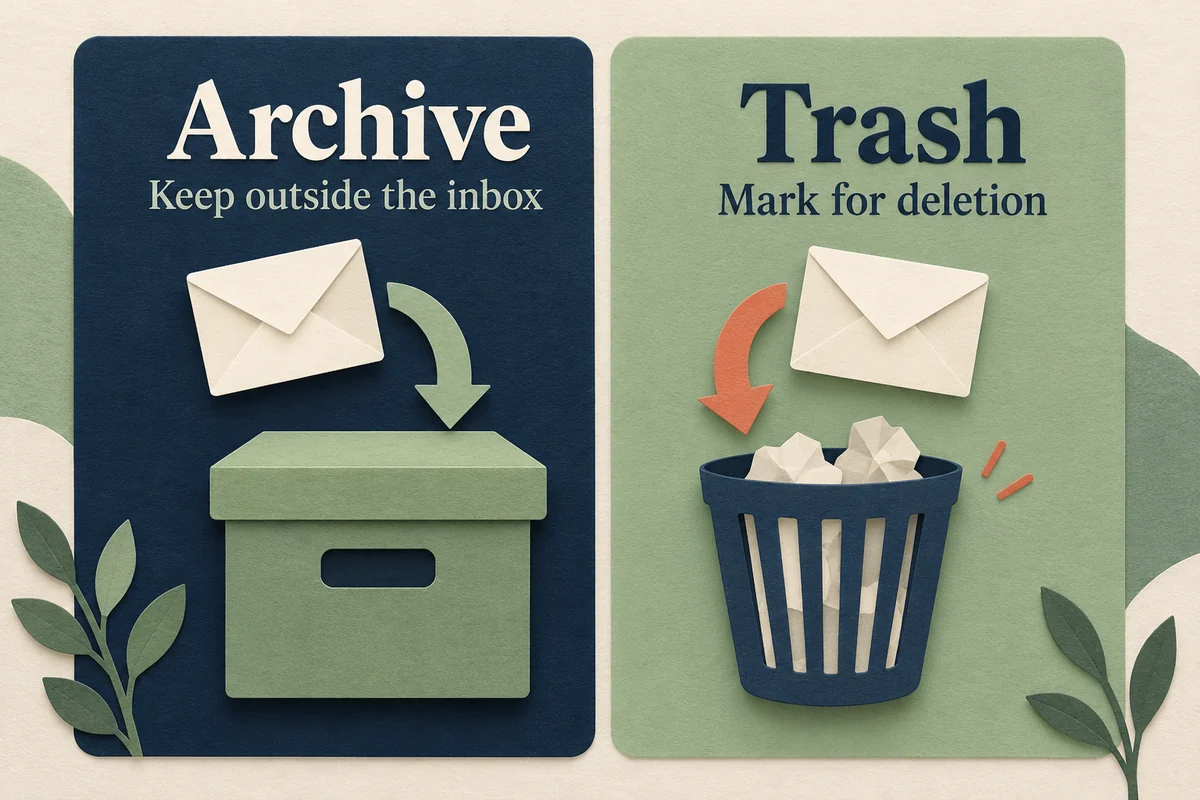
Archive removes a message from the inbox while retaining it in the account. Trash marks it for deletion. Neither action means “remove only this copy from this iPhone.”
To use deletion as the account’s discard action on iOS 18 or later, open Settings, Apps, Mail, then Mail Accounts. Choose the account and look for Account Settings, Advanced, and the setting for where discarded messages move. Select the deleted mailbox where available. iCloud has its own Mailbox Behaviors controls. Providers and account types can expose different options, so do not expect every account to show identical fields.
You do not have to change the default just to delete an occasional message. Holding the archive button can provide a one-off Trash Message action. Keep Archive as the default if retaining mail is normally what you intend.
Check the scope before deleting everything
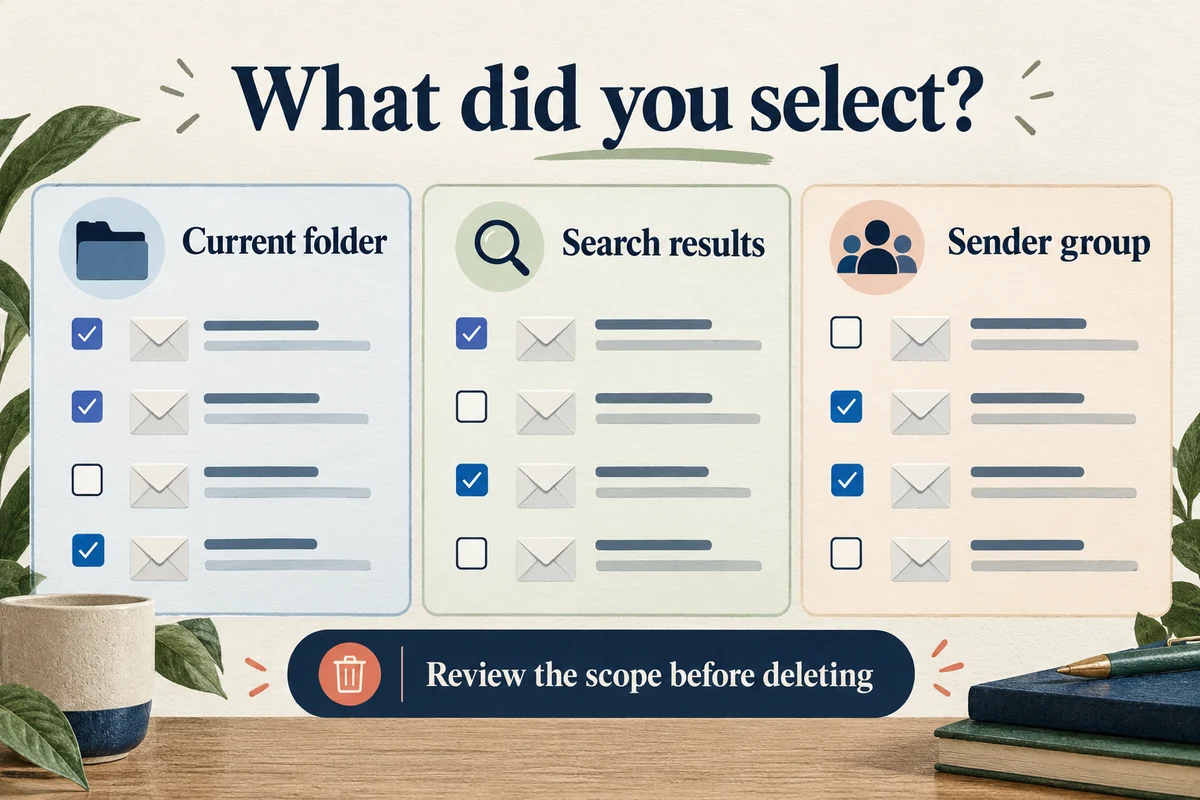
“All” applies to the current view, not necessarily the entire account. A search result, a filtered inbox, and a provider’s folder can each show different sets of messages.
Mail categories add another complication. Apple’s iOS 18 Mail guide notes that selecting a sender in certain categories can select that sender’s grouped messages. Inspect the selected count and confirmation rather than assuming you chose one email.
For a practical cleanup, choose a narrow target: one newsletter sender, an old notification folder, or a date range you have reviewed. Keep receipts, account recovery information, and messages with attachments you still need. Clearing an inbox is an organizational choice; it does not require permanently destroying every message it contained.
Recover mistakes before emptying Trash
Return to Mailboxes, open the appropriate account’s Trash, select the message, and move it back to the inbox or another folder. If several accounts are connected, make sure you are checking the account that received the message.
Retention periods depend on the provider and account configuration. Do not assume all services hold deleted mail for the same number of days. Emptying Trash or choosing a permanent-delete command may remove your opportunity to recover it through the normal mailbox.
If mail reappears, check the same account in its website before repeatedly deleting it. Compare the account, folder, and sync status. A message still visible in a search or archive may be a different mailbox view rather than evidence that Trash failed.
Conclusion
Choose Trash when you want deletion and Archive when you want the message retained outside the inbox. For bulk cleanup, the most important check is the selected scope. Verify a small batch, then expand it, and leave permanent deletion until you are confident the account contains nothing you need to restore.

Ethan Miller
Ethan Miller writes about home improvement, interior design, cleaning, and everyday living at Home & Living Daily. He shares practical tips and simple ideas to help readers create more comfortable and functional homes.


