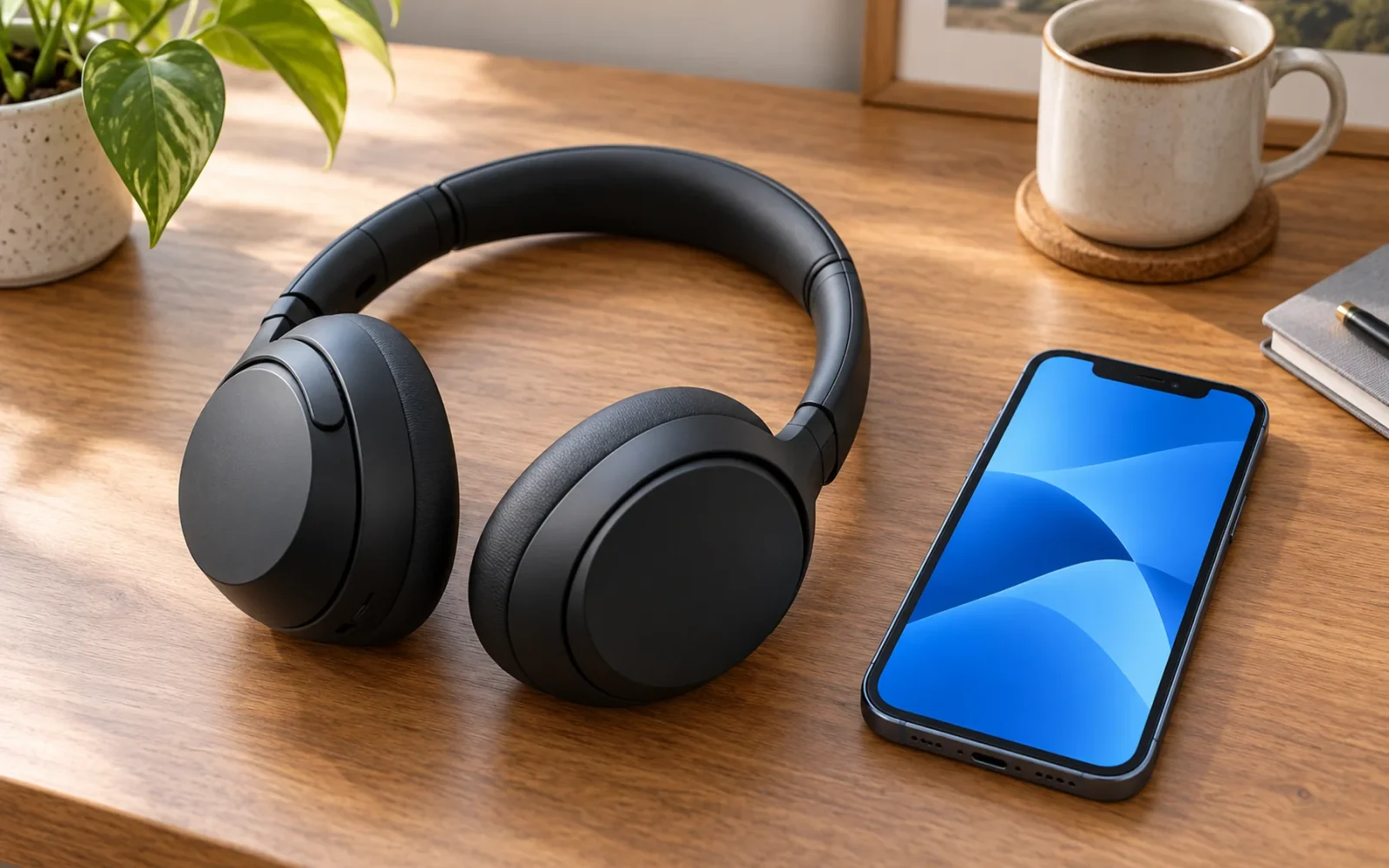
To connect Sony Bluetooth headphones to an iPhone, put the headphones into pairing mode, open Settings > Bluetooth on the iPhone, and tap the headphones’ model name when it appears. Wait for Connected, then play some audio. You do not need a cable or the Sony app for an ordinary Bluetooth audio connection.
The part that varies is how you activate pairing mode. Turning headphones on is not always enough, especially if they have already been paired with another phone or computer. Use the instructions for the exact model rather than assuming every Sony headset uses the same button sequence.
Put your Sony headphones into pairing mode
Charge the headphones first and keep them close to the unlocked iPhone. If they are currently connected to another device, temporarily disconnect that device so you can tell which connection you are establishing.
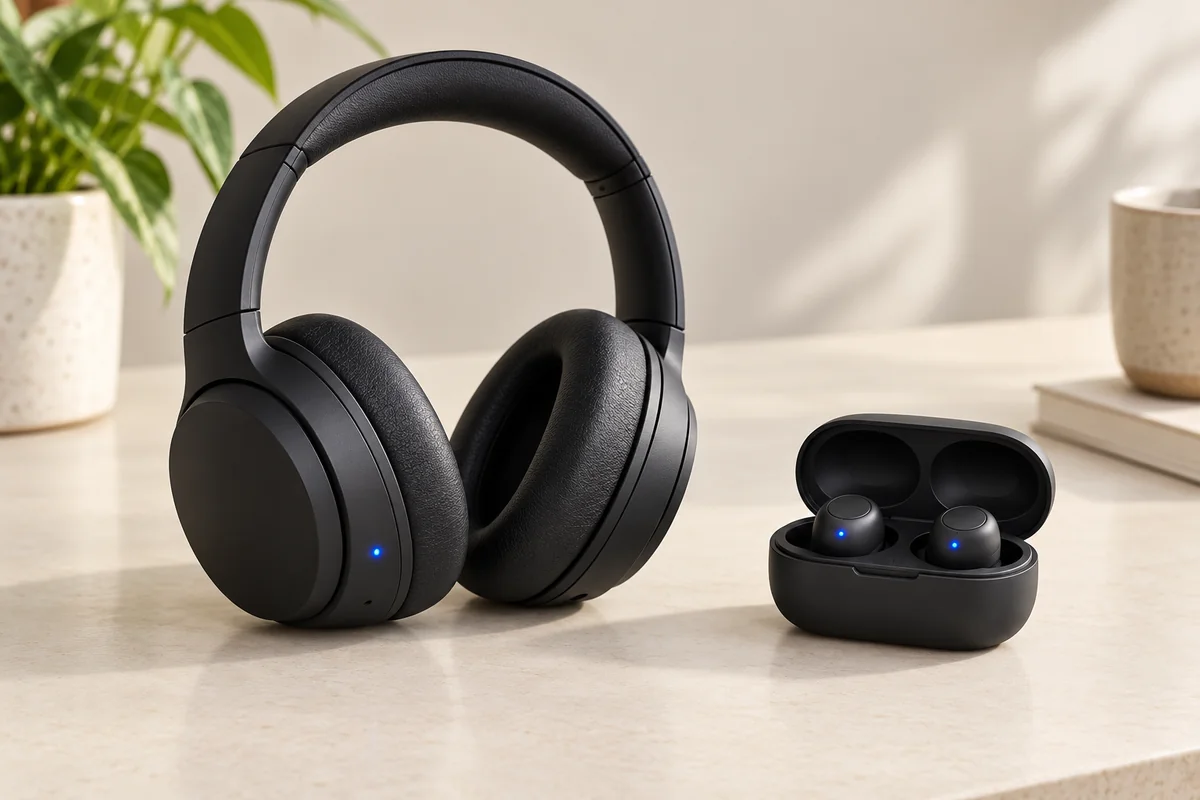
Headband headphones
Look for a power or Bluetooth button and use the model’s pairing instructions. Some Sony headphones enter pairing automatically the first time you turn them on. For a later device, you usually need a longer button press until a pairing announcement or a distinctive flashing indicator confirms that they are discoverable.
Sony’s general pairing guide gives a seven-second power-button hold as one example, but explicitly says the procedure depends on the model. Do not release the button at an ordinary power-on sound and assume pairing mode has started. Equally, do not keep holding indefinitely: use the timing and indicator described in your model’s Help Guide.
True wireless earbuds
The charging case may control pairing, so a headband-headphone tutorial can lead you astray. On the WF-1000XM5, first-time pairing starts automatically when you remove both earbuds from the case. For another device, put both earbuds in the case, leave the lid open, and hold the rear pairing button for about five seconds or longer until the blue indicator repeatedly flashes twice. These are Sony’s WF-1000XM5 iPhone instructions, not a universal sequence for every WF or LinkBuds model.
Check the letters as well as the number on the product. WH-1000XM5 and WF-1000XM5 are different headphones, despite the similar names. A missing case button is a reason to find the right manual, not to try pressing unrelated controls harder.
Select the headphones on your iPhone
Once pairing mode is active, complete the connection in the full Bluetooth settings screen. This makes the device list and connection status visible.
- Open Settings > Bluetooth and turn Bluetooth on.
- Keep this screen open while the iPhone looks for nearby accessories.
- Tap the Sony model name under Other Devices when it appears.
- Accept a pairing request if shown, then wait for Connected beside the device.
- Start a familiar song or spoken recording at a comfortable volume to confirm that sound reaches the headphones.
If a passkey is requested, check the model guide. The WF-1000XM5 guide specifies 0000; that is a Bluetooth accessory pairing code, not your iPhone passcode or Apple Account password.
On later visits, the headphones normally sit under My Devices because the phone remembers the pairing. Tap that saved entry if they do not reconnect automatically. You should not have to forget and pair them from scratch every time you listen.
If the Sony headphones do not appear in Bluetooth
Start by checking discoverability. A headset can be powered on and ready to reconnect to an old device without advertising itself for a new pairing. In a Sony user discussion about missing XM5 connections, one reply specifically identified this distinction. It is a useful troubleshooting question, not proof that every connection failure has the same cause.
Use this order so each change tests a plausible cause:
- Confirm the model and deliberately re-enter its pairing mode. If pairing mode has timed out, simply waiting on the iPhone will not restart it.
- Bring the devices close together and make sure the headphones have charge. For case-controlled earbuds, check that they are seated and the lid is in the required position.
- Temporarily turn off Bluetooth on a previously connected laptop or phone, then scan again on the iPhone.
- If there is an old saved entry, tap its information button, choose Forget This Device, and pair again. This removes that iPhone’s saved connection, so you will need to complete pairing afterward.
- Restart the iPhone and headphones if discovery still fails.
Save a factory initialization of the headphones for the model’s troubleshooting procedure. It can erase saved pairings and settings. Resetting the iPhone’s network settings is also a broad change; it is not the sensible first response to one missing accessory.
If the headphones connect but you cannot hear anything
A Connected label means you should check the audio destination before repeating pairing. Open Control Center, open the audio output selector in the playback controls, and choose the Sony headphones if sound is still going to the iPhone or another device.
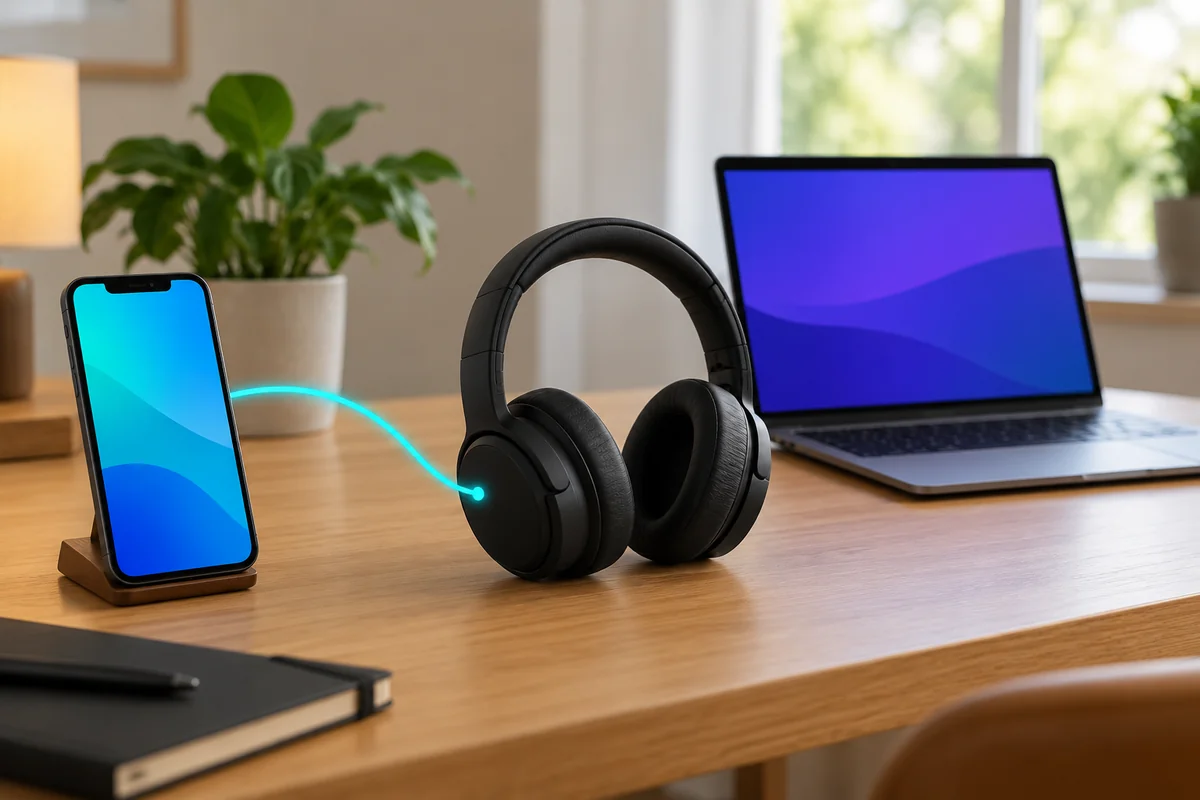
Check both the iPhone’s media volume and any volume control on the headphones. Try a second audio app. If music works but a call does not, inspect the Audio destination during the call; a call can use a different route from the one you expected.
For example, you might finish a laptop meeting and then start music on your iPhone while the headphones are still dealing with the laptop connection. Pause the laptop’s audio or disconnect it temporarily. If that solves the problem, investigate the headphones’ supported multipoint settings rather than treating the iPhone pairing as broken.
Use Sony Sound Connect after basic pairing
Sony Sound Connect can provide supported features such as equalizer adjustments, noise-control preferences, firmware updates, and connection management. Available controls vary by model. Older guides call it Sony Headphones Connect; Sony’s WH-1000XM5 Help Guide notes the October 2024 name change.
If Bluetooth audio works but the app cannot see the headphones, those are two different checks. Confirm that the app supports the model and has Bluetooth access in iPhone privacy settings. An app registration problem does not automatically mean you need to erase a working audio pairing.
Conclusion
The decisive step is getting the correct Sony model into its actual pairing mode. Once the iPhone remembers it, use the saved connection and audio selector for everyday listening. Troubleshoot the stage that failed—discovery, connection, or sound output—before erasing settings that already work.

Ethan Miller
Ethan Miller writes about home improvement, interior design, cleaning, and everyday living at Home & Living Daily. He shares practical tips and simple ideas to help readers create more comfortable and functional homes.


