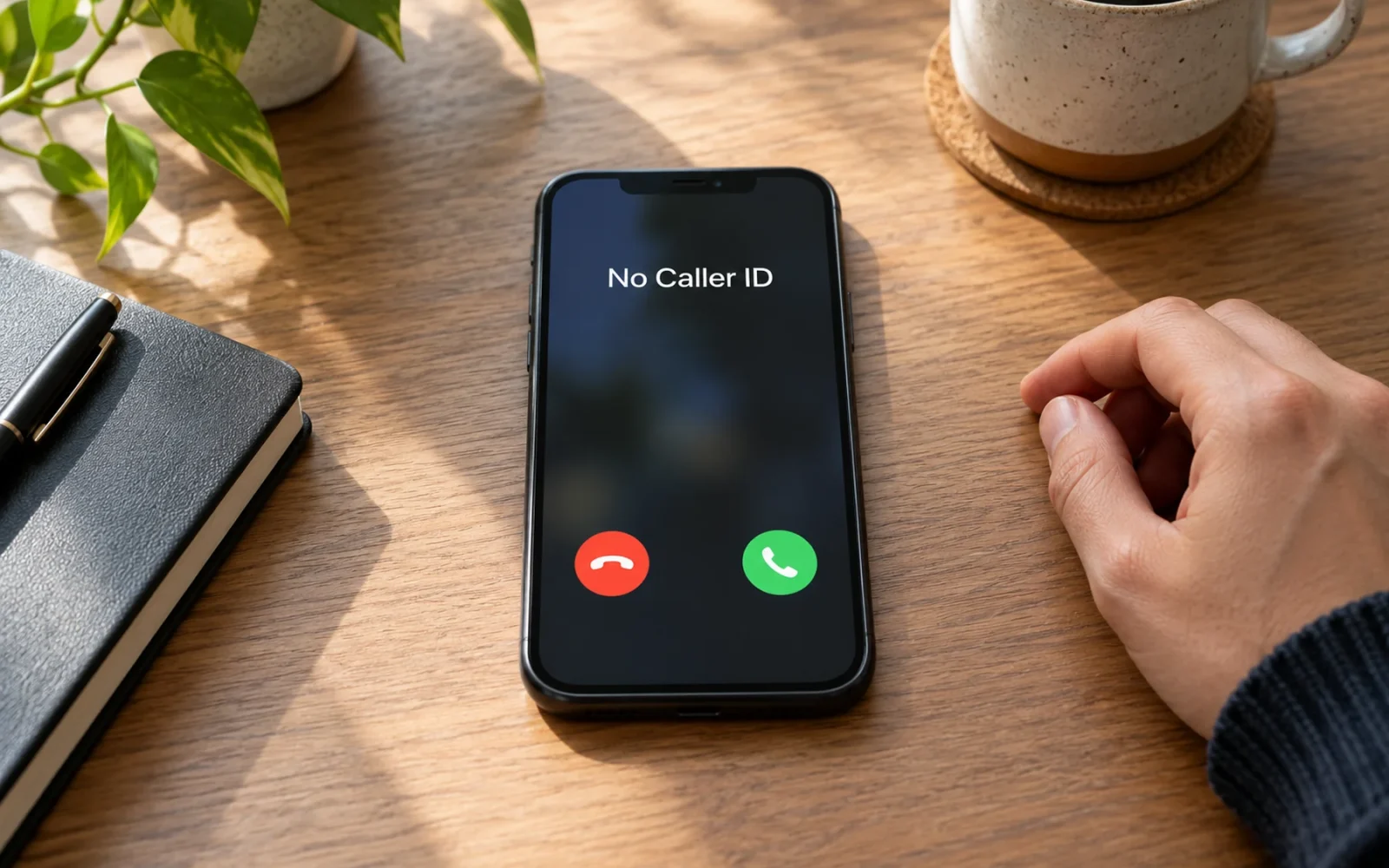
To stop No Caller ID calls from interrupting you, use your iPhone's unknown-caller controls. On current versions, open Settings > Apps > Phone > Screen Unknown Callers and choose Silence. If your phone instead shows Silence Unknown Callers, turn that option on. These controls affect a broader group of unfamiliar callers; they are not a switch that blocks only hidden numbers while letting every unsaved number ring.
That distinction is the main trade-off. Silencing can bring immediate relief, but a delivery driver, a new client, or a call you are expecting from an unsaved number may also go quiet. Choose the setting around the calls you still need to receive.
Silence anonymous and unsaved calls
Start by saving important known numbers in Contacts. Then open the Phone settings and select the available unknown-caller control.
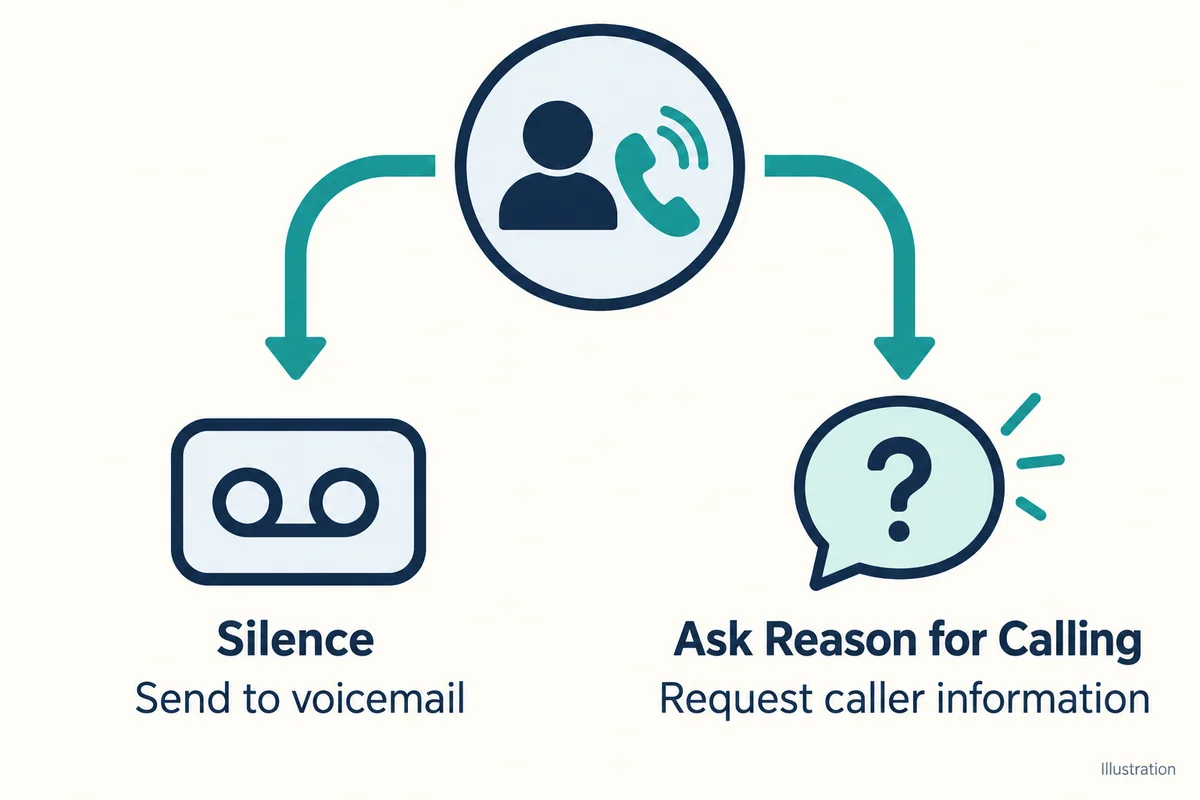
- Open Settings > Apps > Phone.
- Look for Screen Unknown Callers.
- Select Silence if you want unfamiliar incoming calls sent to voicemail without ringing normally.
- If your version has a separate Silence Unknown Callers switch instead, turn it on.
- Review call history and voicemail after the change so you can see what has been caught.
On older iOS layouts, Phone may appear directly in Settings rather than under Apps. Apple's current unknown-caller instructions explain the newer choices and how silenced calls are handled.
Do not confuse this with Call Filtering > Unknown Callers. Filtering organises unfamiliar missed calls and voicemails into a separate list. It is not the same decision as choosing Silence for incoming calls.
Use a second, unsaved phone number to test your chosen behaviour if you have one available. A successful test with a saved contact only proves that contact can reach you; it does not show what happens to unfamiliar calls.
Choose screening when you still need unfamiliar callers
If you cannot afford to silence all unfamiliar calls, check whether Screen Unknown Callers offers Ask Reason for Calling. This asks the caller for information before the call reaches you, giving you more context when deciding whether to answer.
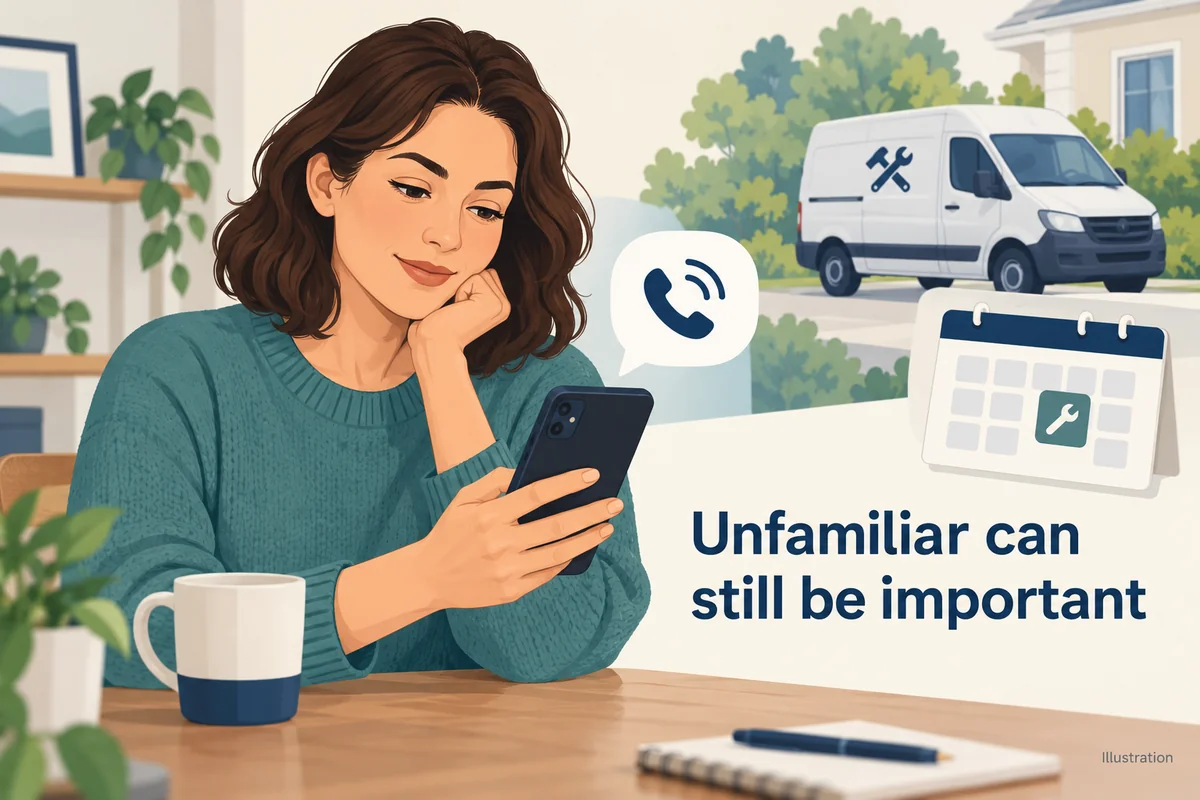
For example, someone arranging a repair may need calls from contractors whose numbers are not yet saved. Screening can fit that situation better than sending every unfamiliar call quietly to voicemail. It still cannot guarantee that every genuine caller will complete the process or every nuisance caller will be stopped.
Availability depends on the software and supported calling setup. Apple also notes that calls are not screened while roaming, and that screening turns off for 24 hours after you call emergency services. Check the behaviour again if you travel or notice it has changed.
If Ask Reason for Calling is unavailable, decide whether you can temporarily use Silence and monitor voicemail, or whether you need to leave unfamiliar calls enabled while expecting a callback. There is no benefit in selecting a control that solves spam at the cost of the call you are waiting for.
Blocking, silencing, and filtering do different jobs
The words are often used interchangeably in quick tips, but the result is different. Pick the action you actually need.
| Action | What it does | Important limitation |
|---|---|---|
| Block a visible number | Adds a particular number or contact to the blocked list | Requires an identifiable number or contact |
| Silence unknown callers | Stops normal ringing for the unfamiliar calls it handles | May also silence legitimate unsaved callers |
| Screen unknown callers | Requests a reason before presenting the call | Depends on availability and caller participation |
| Filter unknown calls | Separates unfamiliar missed calls and voicemails | Organising a list does not itself mean rejecting a call |
If a nuisance caller presents a visible number, open its details in the Phone app and choose Block Caller. Apple documents this in its number-blocking instructions. Blocking that specific number is different from dealing with a call whose number is withheld.
A blocked person can still leave voicemail, according to Apple, although you do not receive a notification for it. Seeing voicemail is therefore not, by itself, evidence that a blocking setting failed.
Keep legitimate callers reachable
Before leaving Silence enabled indefinitely, consider the next few days. Are you expecting a school callback, an appointment confirmation, a job interview, or a delivery? Save numbers you know, but remember that an organisation may call from a different line or withhold its number.
This is a practical concern rather than a hypothetical edge case. In a Reddit discussion about unanswered unfamiliar calls, some participants preferred voicemail while another specifically mentioned answering hidden-number calls because they might come from a hospital. Those are individual preferences, not evidence that every unknown call is safe or unsafe.
If an expected caller is consistently missed, ask how that organisation identifies its calls and arrange an alternative contact method where possible. Do not assume saving its public main number will identify every outbound line.
A useful setup is one you can live with: calls you recognise still arrive, unfamiliar callers have an acceptable way to reach you, and you know where to check the messages you no longer hear arriving.
If you want to reject only anonymous calls
Ask your mobile carrier whether it offers anonymous-call rejection for your particular mobile plan. Explain that you want to handle withheld caller ID while continuing to receive ordinary unsaved numbers. A general spam filter may solve a different problem.
Check whether the feature rejects a call, silences it, or sends it to voicemail; whether it covers mobile calls in your region; and whether it has a charge. Carrier features and app subscriptions should be assessed on those actual behaviours, not on a label promising to “block everything.”
If you consider a third-party app, read its documented limitations and permissions before relying on it. An app identifying known spam numbers is not automatically able to reveal a private caller's identity.
Avoid misleading No Caller ID workarounds
Creating a contact called “No Caller ID” does not turn that text label into the caller's hidden telephone number. Do not rely on a dummy contact or an invented number as an anonymous-call blocking rule.
Similarly, turning off Show My Caller ID affects your outgoing identity, not how your iPhone handles anonymous incoming calls. It is unrelated to the interruption you are trying to stop.
Finally, do not treat an unfamiliar or hidden call as proof of who placed it. The useful task here is controlling whether it interrupts you. Identifying a particular person requires evidence beyond the label on your screen.
Conclusion
Silence is the quickest built-in option when you can accept unfamiliar calls going to voicemail. Screening is the better starting point when you still need callers outside your contacts. If anonymous-only rejection is essential, ask the carrier about that precise feature rather than assuming an iPhone setting or a dummy contact provides it.

Ethan Miller
Ethan Miller writes about home improvement, interior design, cleaning, and everyday living at Home & Living Daily. He shares practical tips and simple ideas to help readers create more comfortable and functional homes.


