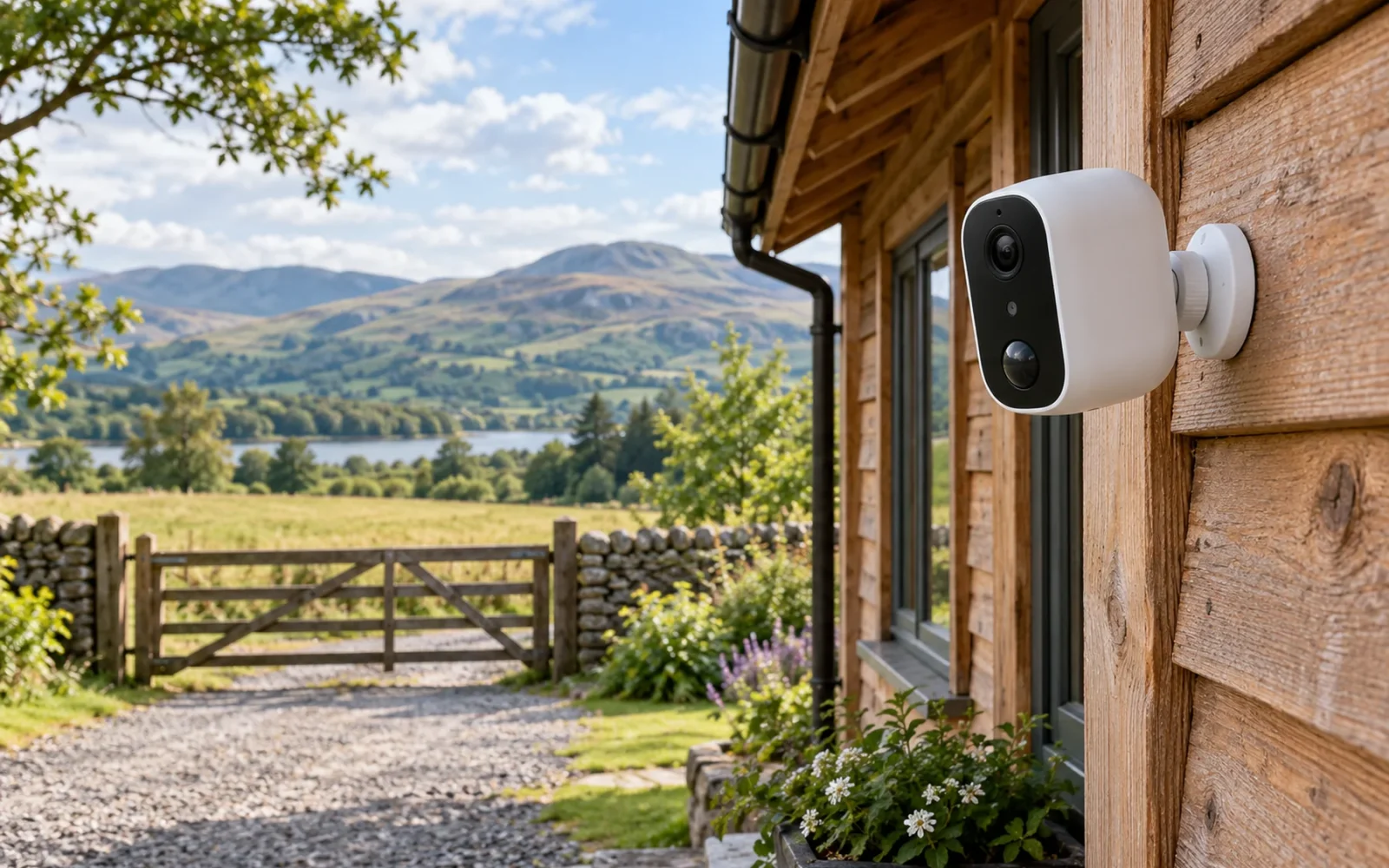
Some Arlo cameras work without connecting to your home's Wi-Fi, but the answer depends on the model and what you mean by “work.” An Arlo Go 2 can use an activated cellular connection. Compatible cameras can communicate through a SmartHub instead of joining the household Wi-Fi directly. Neither arrangement means every feature works without internet access.
If your internet service has failed, configured local storage may preserve recordings on supported equipment. Remote live view, cloud uploads, and phone notifications are separate functions and can become unavailable.
Match the connection to your Arlo model
Find the model number before troubleshooting or buying. Record the camera model, whether it is paired to a SmartHub or base station, and that unit's model number. The name of the app alone does not identify the connection path.
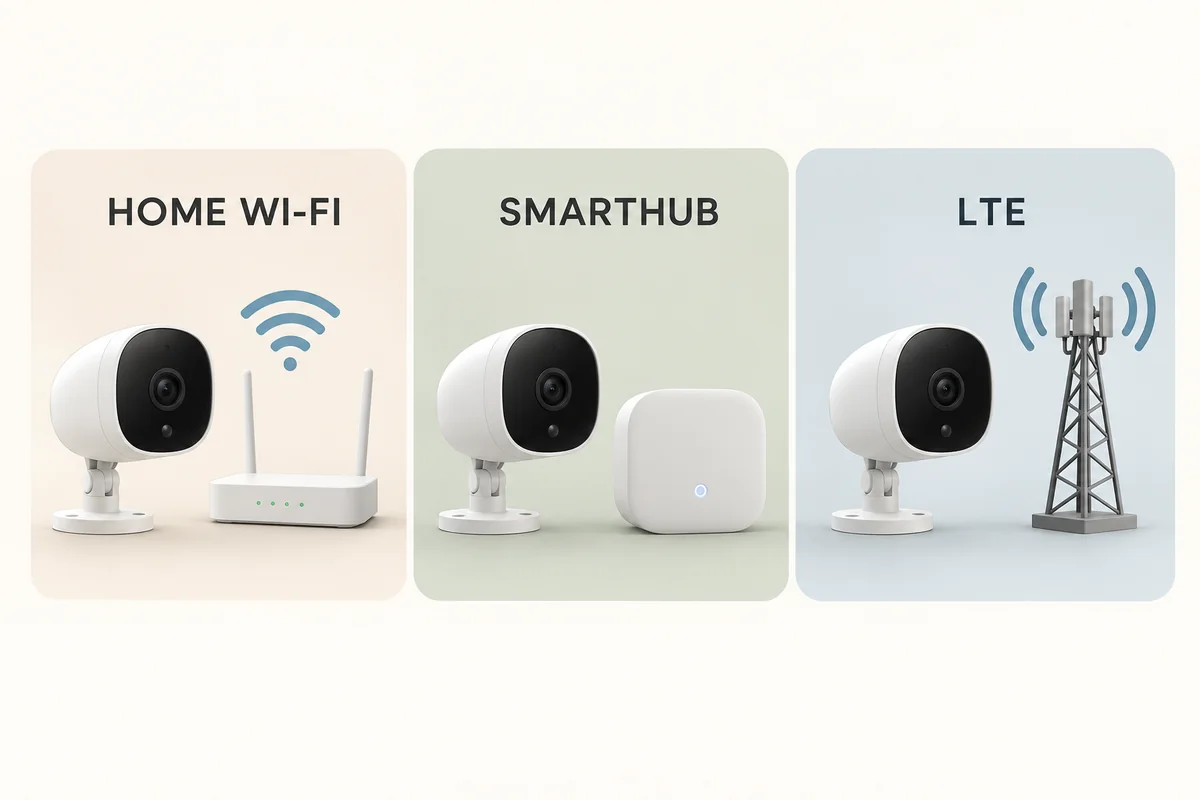
| Setup | Connection used | What “without Wi-Fi” means |
|---|---|---|
| Camera connected directly to a home router | Supported home Wi-Fi connection | Removing that connection removes its normal network path |
| Compatible camera paired to a SmartHub | Private camera-to-hub radio link; hub connected to router | It need not join the household Wi-Fi directly, but still uses a wireless link |
| Arlo Go 2 with active cellular service | LTE, with Wi-Fi also supported | It can use mobile service where home Wi-Fi is unavailable |
Arlo's minimum system requirements distinguish router-connected systems from cellular cameras. Check your camera's own requirements rather than assuming every Arlo product has the same band support or base-station compatibility.
A SmartHub's Ethernet connection is the path from the hub to your router. It does not make the camera itself a wired Ethernet camera. It also does not replace the internet service needed for normal cloud and remote functions.
Arlo Go 2 can use LTE instead of home Wi-Fi
The Arlo Go 2 FAQ describes LTE and Wi-Fi connectivity. Cellular use needs a compatible activated SIM, an appropriate mobile plan, and usable coverage at the installation point. The camera still needs its battery charged or its supported power arrangement.
This can fit a location without household broadband, such as a remote outbuilding within mobile coverage. Check carrier compatibility for the exact regional model, data allowances, and coverage where the camera will sit. A strong phone signal near the house is not a guarantee at a metal-sided shed or a distant gate.
Cellular connectivity and an Arlo recording subscription are different services. A mobile plan pays for the data connection; a cloud plan provides the features listed in that plan. Buying one does not automatically include the other.
Also account for how you use the camera. Frequent live viewing transfers data. If you plan to check the feed repeatedly throughout the day, compare the available mobile plan with that behavior rather than assuming that a small allowance will be sufficient.
What happens during an internet outage
An internet outage can leave your local router and camera connections working. Turning off the router removes more of the system than losing the broadband connection alone. A power cut can remove the hub, router, and recording equipment as well.
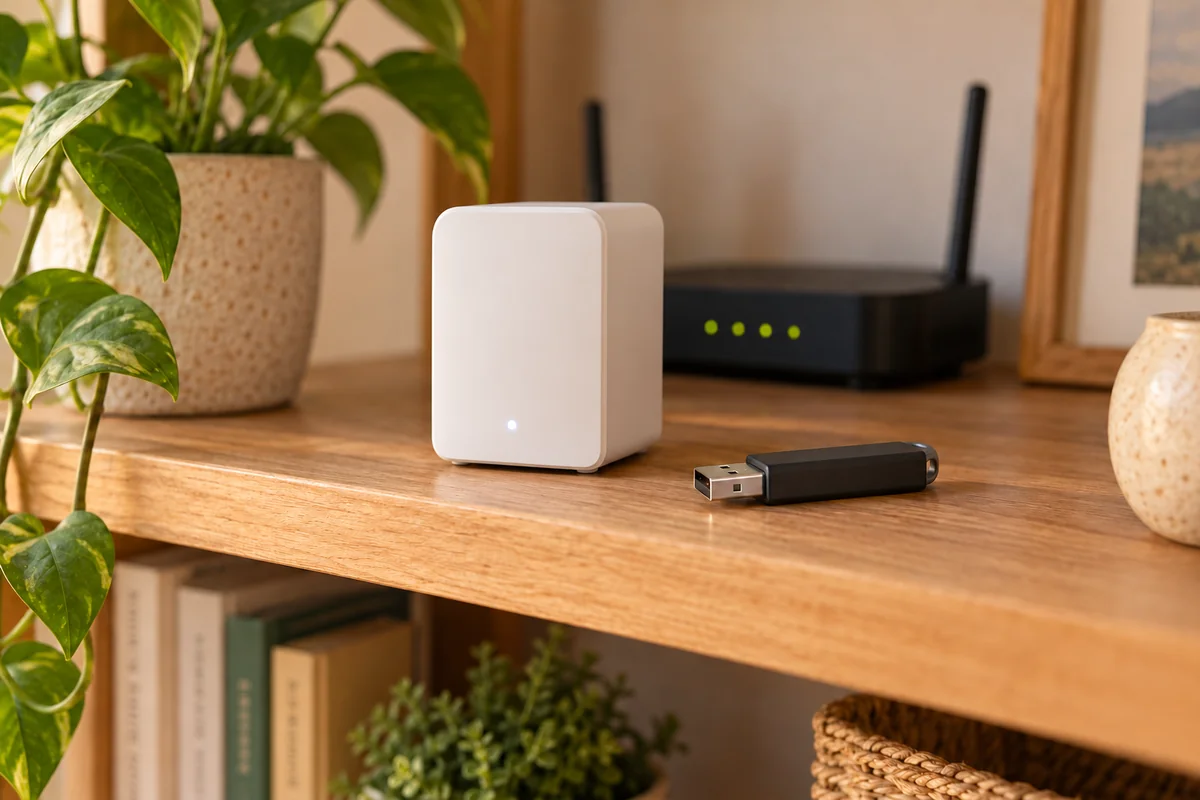
For supported SmartHub and base-station setups with local storage already enabled, Arlo's local backup instructions state that recordings can continue when the camera and base remain powered but the internet connection goes down. This is a configured backup capability, not a promise that an unconfigured camera will start recording offline.
Arlo Go 2 also supports microSD storage. Its user manual describes recording to the card when the camera is not connected to the internet. Check the recording settings, storage status, and the method for retrieving those files before relying on it.
Do not confuse saved local video with immediate awareness. A recording may be waiting on a card even though you received no push alert and could not open a remote live feed. If you need a live response during a broadband outage, decide whether an independently working cellular path is part of the requirement.
Local recording does not guarantee convenient app playback
The storage medium and playback route depend on the hardware. A USB socket or memory-card slot does not establish that every local recording appears in the same way as a cloud clip.
Direct Storage Access is documented for the VMB5000 and VMB4540 SmartHubs. Arlo distinguishes access while on the same home network from remote access, which requires an additional supported connection arrangement. Older recordings or other storage configurations may require removing the medium and using a computer.
Read the instructions for safely ejecting storage before removing it. Check what the system does when storage fills, and export important events before they are overwritten. Do not assume local files will later be uploaded as a complete cloud history after the internet returns.
Some Arlo support pages describe local storage as backup and caution that it is not a substitute for all cloud recording functions. That is a reason to verify the precise recording and retrieval task, rather than treating “local storage” as a complete offline version of the service.
Test the failure you actually need to survive
Before an outage, confirm that the installation is working normally and that local recording is enabled on supported hardware. Record a short motion event and retrieve it through the intended playback route.
Then perform a controlled test when it will not interrupt something important:
- Leave the camera, router, and hub powered, but make the internet connection unavailable.
- Trigger a normal event in the camera's view.
- Restore the connection and check the local storage, rather than only the cloud feed.
- Verify the event's start, duration, timestamp, and ability to export.
- Separately test any documented cellular fallback you intend to use.
Follow your router and camera instructions for the test; avoid factory resets, removing storage while it is writing, or changing security protections to force access. If the goal is a camera at a site with no broadband at all, verify initial setup requirements as well as everyday recording behavior.
If a camera is simply offline unexpectedly, start with power, the relevant radio connection, and hub status. A Wi-Fi password change, an exhausted battery, and a service outage need different fixes. Repeatedly resetting the whole system can erase a working configuration without identifying the failed part.
Conclusion
For a site without home Wi-Fi, consider a supported cellular model with the right mobile service. For broadband outages at home, verify configured local recording and prove that you can retrieve it. Choose around the function you need to retain—recording, alerts, or live access—because keeping one does not automatically preserve the others.

Ethan Miller
Ethan Miller writes about home improvement, interior design, cleaning, and everyday living at Home & Living Daily. He shares practical tips and simple ideas to help readers create more comfortable and functional homes.


