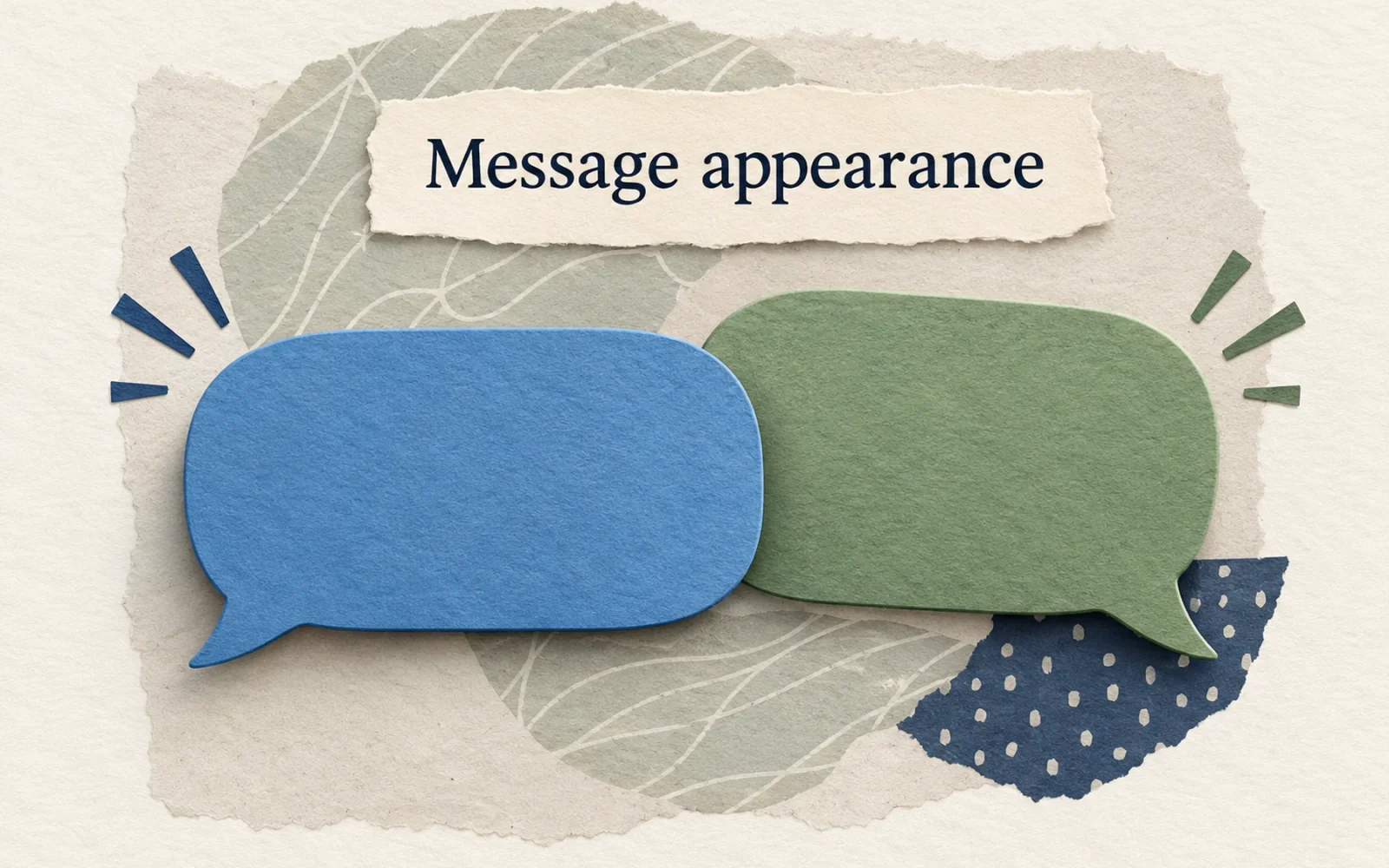
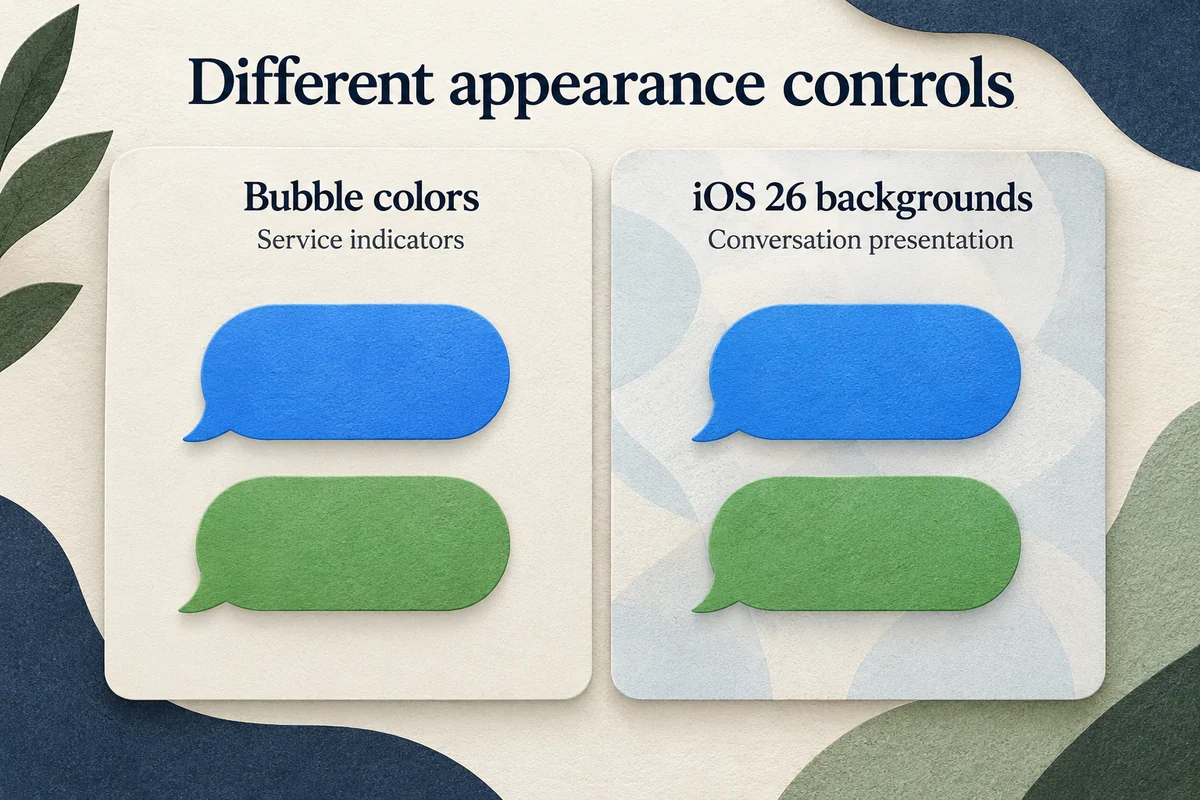
You cannot choose an arbitrary color for the native blue and green message bubbles in Apple’s Messages app. On iOS 18, there is no built-in bubble-color picker. iOS 26 added conversation backgrounds for supported iMessage chats, but changing the background is different from choosing a new bubble color.
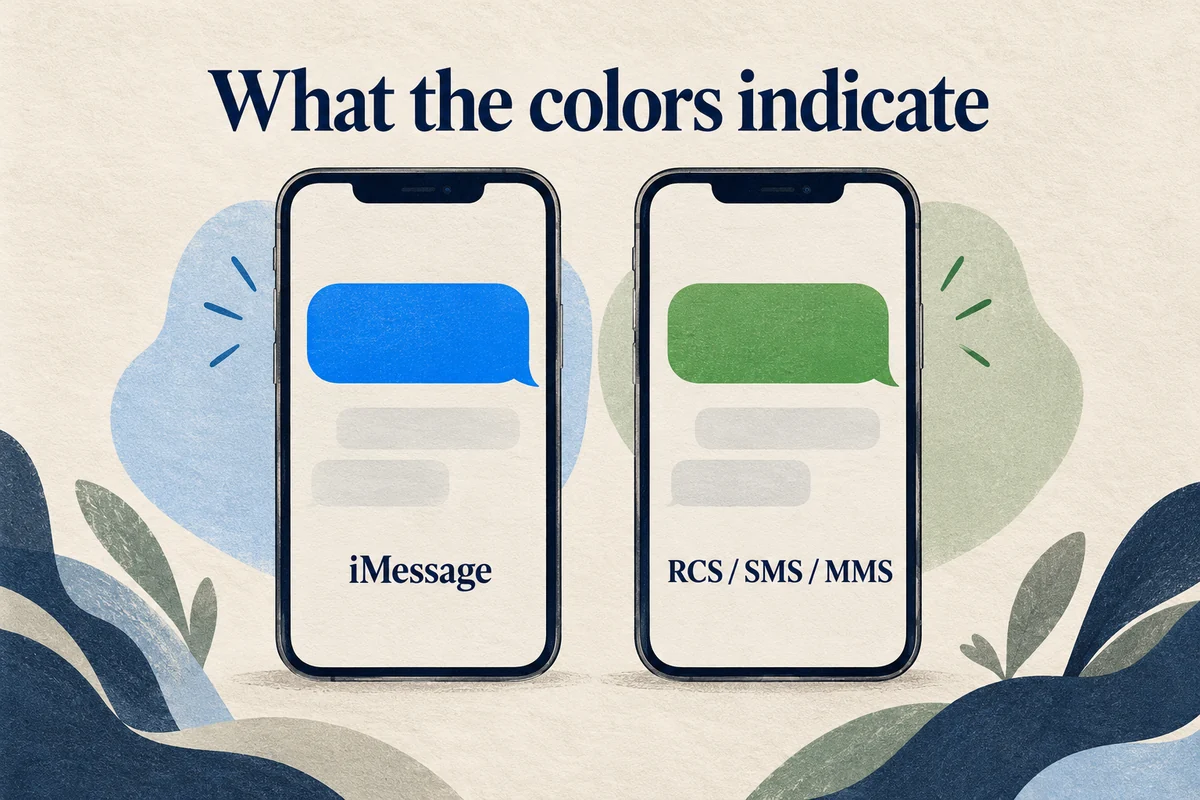
If you are trying to turn a green conversation blue, the color reflects the messaging service being used. It is not a theme setting.
What blue and green actually mean
Apple’s iMessage and carrier-message explanation identifies blue bubbles as iMessage and green bubbles as RCS, SMS, or MMS. Green alone does not tell you which of those carrier-message types is involved.
The color is therefore a useful service indicator rather than a decoration. Changing the wallpaper or switching the phone’s appearance does not convert one message type into another. A green message also does not, by itself, prove that the other person blocked you.
If a conversation unexpectedly changes type, check the relevant service and connection instead of searching for a color control. The other person’s device and settings matter too. Turning services off merely to force a preferred color can make communication less convenient without solving the underlying issue.
What you can change in iOS 18
iOS 18 supports message presentation features such as formatting and effects, but these do not create a permanent custom bubble palette. Use them when emphasis or an animation is the goal, rather than expecting them to recolor an entire conversation.
Light and Dark Mode change the surrounding interface. Accessibility display controls can change how colors look on your own screen, but that is a local display effect. They do not send a newly colored native bubble to the recipient.
For readability, start with system text size, weight, and contrast preferences. For a decorative message, an image or sticker may suit the purpose, provided you understand that it is a piece of media rather than an ordinary recolored text message.
Conversation backgrounds in iOS 26
If both the software and conversation support the feature, open the iMessage conversation, tap the contact or group information at the top, and look for Backgrounds. Choose an available background and finish with Done. Apple’s conversation-background guide describes the controls and sharing behavior.
This is an iOS 26-era feature, not an iOS 18 instruction. If Backgrounds is absent on an iOS 18 phone, you are not overlooking the right submenu.
The background can be visible to other participants and can be changed within a supported conversation. Consider readability for the whole chat, especially in a group. A busy photo behind messages may look attractive in a preview but make long exchanges harder to read.
Know what third-party “color text” apps send
An app may create a colored image, sticker, or stylized text graphic and send that through Messages. That can be useful for an invitation or greeting, but it does not give the app control over Apple’s native bubble colors.
Check the actual output before paying. Can the recipient select and copy the words as normal text, or are they receiving an image? Does the result require another app? Is there a subscription after a trial? Those questions reveal more than a screenshot advertising a rainbow of bubbles.
For information someone needs to copy, search, or read with accessibility tools, keep the essential words in ordinary text. Decorative media can accompany the message without replacing the usable information.
Conclusion
Treat bubble color as a service indicator and backgrounds or media as presentation choices. On iOS 18, there is no native custom bubble-color setting to find. On supported newer software, customize the conversation background with a clear understanding of what changes and what the other person may see.

Ethan Miller
Ethan Miller writes about home improvement, interior design, cleaning, and everyday living at Home & Living Daily. He shares practical tips and simple ideas to help readers create more comfortable and functional homes.


