
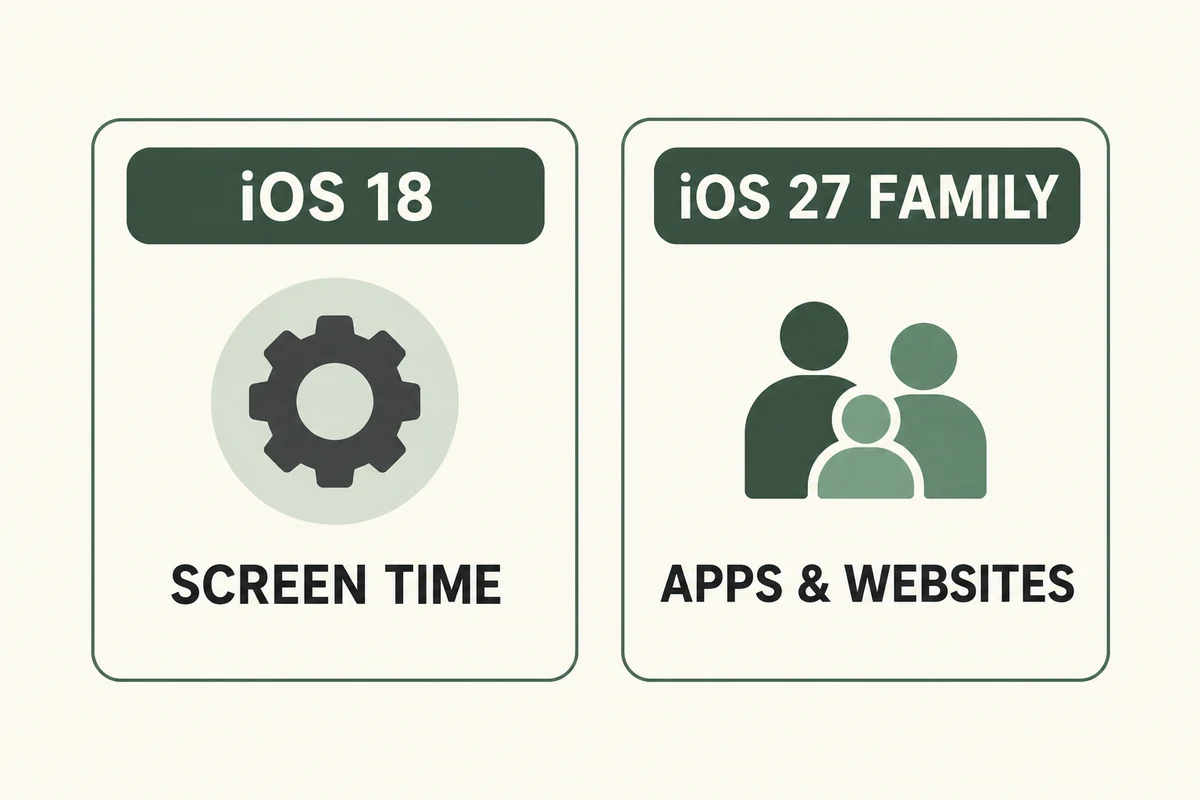
Use Apple’s web-content restrictions to limit adult websites, then protect the controls with a Screen Time passcode. The path depends on the software: iOS 18 uses Screen Time’s Content & Privacy Restrictions, while the upgraded iOS 27 family controls place website filtering under the child’s Apps & Websites settings.
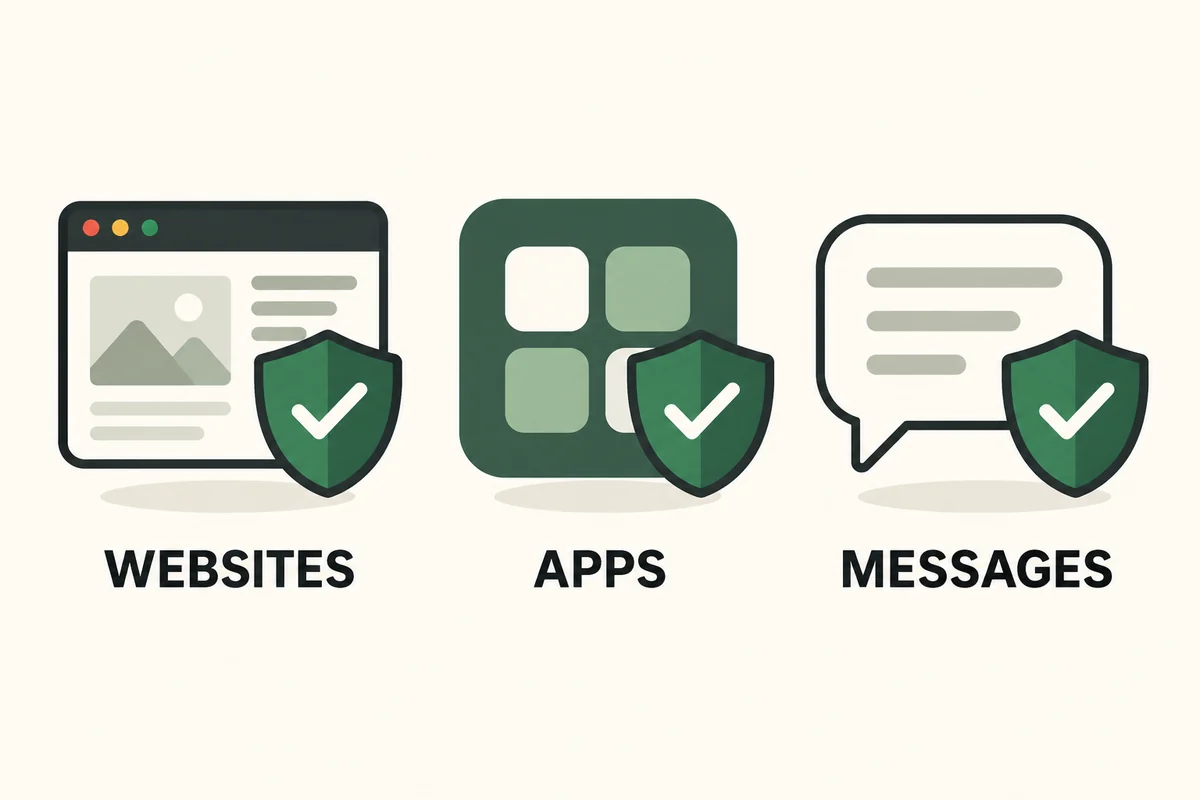
A website filter addresses web browsing. Content inside social apps, downloaded media, and messages needs additional controls; no single switch should be treated as proof that every possible source is blocked.
Choose the path for your version
First check Settings > General > About for the installed iOS version. When managing a child through Family Sharing, also check whether the family has upgraded to the newer parental-controls experience.
iOS 18 and the earlier Screen Time layout
Open Settings > Screen Time, then:
- Select the relevant child’s controls if managing them through your family.
- Open Content & Privacy Restrictions and turn the restrictions on.
- Choose App Store, Media, Web, & Games > Web Content.
- Select Limit Adult Websites.
Apple’s iOS 18 restriction guide documents that version’s path and the Never Allow list for specific website addresses. Intermediate releases may use slightly different category wording.
Upgraded iOS 27 family controls
For a child’s account, Apple’s current parental-controls instructions use Settings > Family > child’s name > Apps & Websites > Restrictions > Filtering under Websites. Choose Limit Adult Websites, or Approved Websites Only when the child should request access to new sites.
The new experience depends on the family’s software and controls upgrade. A device still using the earlier layout should not be expected to show every newer label.
Decide between filtering and an approved-site approach
Adult-site filtering allows broader browsing while attempting to restrict unsuitable sites. An approved-site approach is narrower: decide which school, reading, or activity sites the child needs and review requests for additions.
| Situation | Starting approach |
|---|---|
| Older child needs a broad range of school research | Filter adult sites and review specific exceptions |
| Younger child needs a small, known set of sites | Consider approved sites only |
| One unwanted site remains available | Add that specific address to the relevant blocked list |
| A legitimate assignment is blocked | Review the exact site before allowing it |
These are household decision examples rather than guarantees about the filter’s accuracy. A useful setup must allow the intended tasks as well as restrict unwanted ones.
Protect the settings and test ordinary browsing
Use a Screen Time passcode the child does not know, keep its recovery arrangements accessible to the responsible adult, and confirm that you are editing the intended account. Sharing a device passcode and sharing parental-control authority are separate decisions.
After setup, test a normal school or reference site and review the blocked and allowed lists. There is no need to expose a child to explicit material as a test. Check the controls from the adult’s device, then confirm that ordinary approved browsing works on the child’s phone.
Review exceptions rather than approving them automatically. A blocked embedded link may point somewhere different from the school page that contains it. Read the actual destination before changing a restriction.
Cover apps and messages separately
Apple’s current controls distinguish website access, app restrictions, age-based media restrictions, and Communication Safety. Website filtering alone does not establish what an app’s internal feed will show.
For each app the child uses, inspect its own content and contact settings as well as the family controls. Communication Safety addresses certain sensitive images and videos; it is not a substitute for a website allow list or a conversation about unwanted content.
Plan a simple response for mistakes: the child can close unexpected material and tell an adult without needing to investigate it. That practical route matters when an automated restriction misses something or blocks a page incorrectly.
Conclusion
Start with the correct version’s website controls, then check app access and protect who can change the rules. The strongest household setup is one you can maintain and explain, with a clear process for reviewing legitimate exceptions.

Ethan Miller
Ethan Miller writes about home improvement, interior design, cleaning, and everyday living at Home & Living Daily. He shares practical tips and simple ideas to help readers create more comfortable and functional homes.


