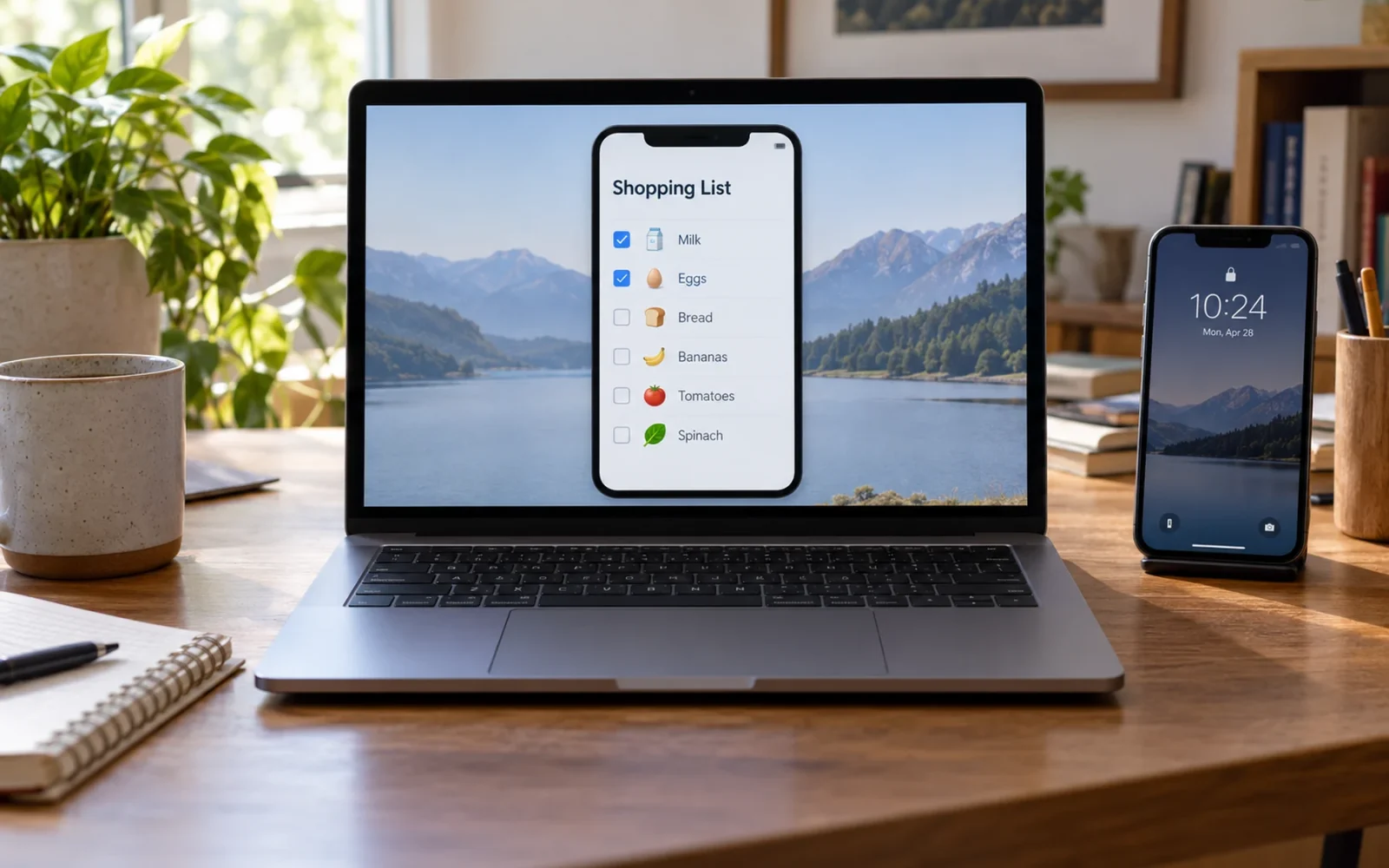
Open iPhone Mirroring on a compatible Mac, follow its setup prompts, and keep your nearby iPhone locked. Once connected, you can operate supported iPhone apps using the Mac’s mouse, trackpad, and keyboard while the handset stays locked.
Check compatibility before trying to fix the connection. iPhone Mirroring is a specific Continuity feature, distinct from showing a phone’s screen through AirPlay or connecting a Windows PC.
Check the requirements first
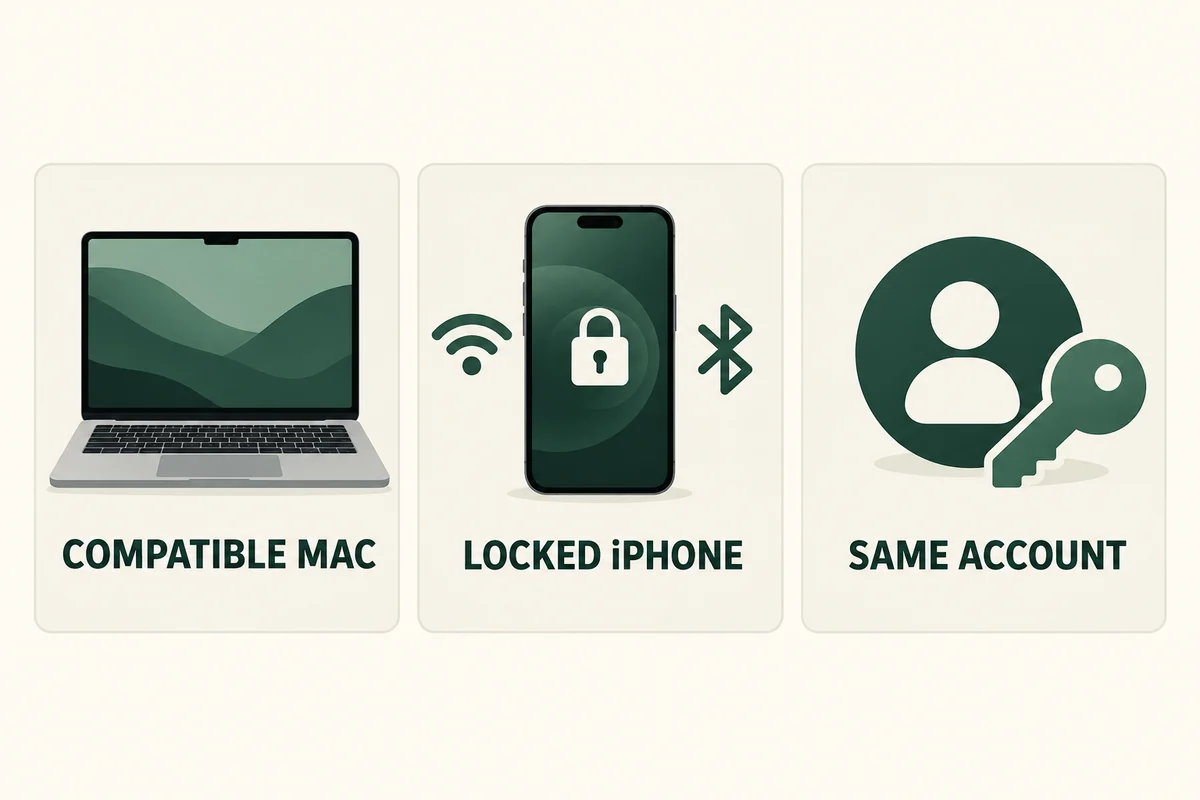
Apple’s iPhone Mirroring requirements include:
- An Apple silicon or T2-equipped Mac running macOS Sequoia 15 or later.
- An iPhone running iOS 18 or later with a passcode.
- The same Apple Account on both devices, with two-factor authentication.
- Bluetooth and Wi-Fi enabled, with the locked iPhone near the Mac.
The Mac must not be using conflicting features such as AirPlay, Sidecar, or Internet Sharing. Apple also lists iPhone Mirroring as unavailable in the European Union in the documentation checked for this article on October 25, 2026. Check current regional availability before assuming your hardware is the problem.
This checklist is worth doing in order. A recent Mac does not settle the account requirement, and a matching Apple Account does not establish that an older Intel Mac contains the required T2 chip.
Set up a connection you control
Open iPhone Mirroring from the Mac’s Applications folder, Dock, or Spotlight. Follow the prompts to unlock the iPhone if requested, decide whether to receive its notifications, and choose how the Mac should authenticate future access. Lock the iPhone again when setup asks you to leave it available for mirroring.
For a shared household Mac account, consider Ask Every Time instead of automatic authentication. A phone that stays locked physically can still expose useful information through an authorized Mac session, so decide who can access that computer before treating automatic access as a convenience.
After setup, open a non-sensitive app and test clicking, scrolling, and typing. For example, try entering an ordinary shopping-list item before using the feature for private correspondence. This checks the connection without putting personal information on display during a first attempt.
Know which jobs need the phone itself
Mirroring is useful for interacting with phone apps at a desk. It does not provide access to the iPhone camera or microphone, and some protected video content may restrict playback. If a task depends on live camera input, pick up the phone rather than assuming a connection failure.
Unlocking the iPhone ends its active mirrored use. That behavior is easy to mistake for a disconnect: if the session stops while you are handling the handset, first check whether you unlocked it.
For showing a video or a screen to other people, an AirPlay workflow may be more appropriate. For private interaction with your own phone from your own Mac, Mirroring is the relevant feature. Choose the tool by the job instead of following any tutorial containing the word “mirror.”
Troubleshoot without immediately resetting everything
Recheck the nearby locked phone, account, radios, and conflicting Mac features. Restart the devices and install appropriate available updates. If a VPN or security product is involved, review the relevant administrator or vendor guidance rather than deleting a managed configuration without permission.
Record the exact error and when it occurs: before the phone is found, during authentication, or after a working session begins. Those are different failures. Repeating the same setup without identifying the stage makes it harder to narrow the cause.
Review and revoke access afterward
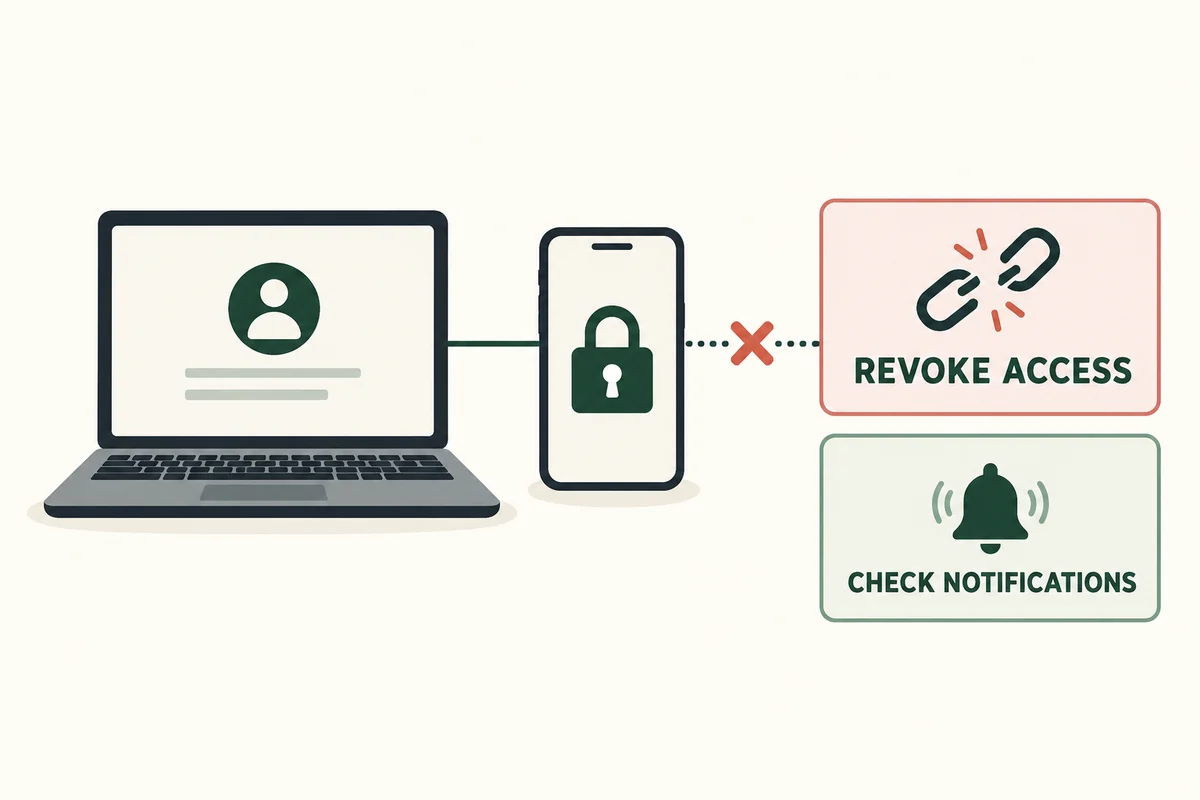
Apple’s Mirroring privacy controls let you inspect authorized Macs and remove access. On iPhone, look under Settings > General > AirPlay & Continuity > iPhone Mirroring. The Mac app also offers an access-revocation option in its settings.
Review notification permissions separately. Quitting the Mirroring window is not the same as revoking the Mac’s authorization or turning off forwarded notifications. On a borrowed or shared computer, finishing the immediate task should include deciding whether that continued connection is appropriate.
Conclusion
iPhone Mirroring works best as a controlled extension of your own desk setup. Confirm eligibility first, test a simple task, and review ongoing Mac access and notifications when you are done. Convenience should come with a clear understanding of which computer remains authorized.

Ethan Miller
Ethan Miller writes about home improvement, interior design, cleaning, and everyday living at Home & Living Daily. He shares practical tips and simple ideas to help readers create more comfortable and functional homes.


