There is no universal Clear All App Cache button on iPhone. Clear Safari’s website data through Safari settings, use an individual app’s own cleanup controls when available, and distinguish those actions from offloading or deleting the app.
Start with the problem you want to solve. A broken website, a large offline video library, and a nearly full phone can all prompt a search for “cache,” but they call for different actions.
Identify what is taking space
Open Settings > General > iPhone Storage and let the breakdown load. Inspect the largest relevant categories and apps before removing anything.
| What you want to fix | Start here |
|---|---|
| A website loads incorrectly in Safari | That site’s stored data or Safari website data |
| An app holds large downloaded episodes or maps | Its download-management controls |
| An infrequently used app occupies space | Consider offloading after checking its data |
| Photos or videos fill most of the phone | Review those files rather than expecting a cache purge to solve it |
Apple’s storage explanation distinguishes app storage, documents and data, media, and system categories. A large number beside an app is not evidence that everything inside it is disposable cache.
For example, downloaded lessons or travel maps may be intentionally stored for offline access. Removing them can free space, but you may then need to download them again before leaving Wi-Fi.
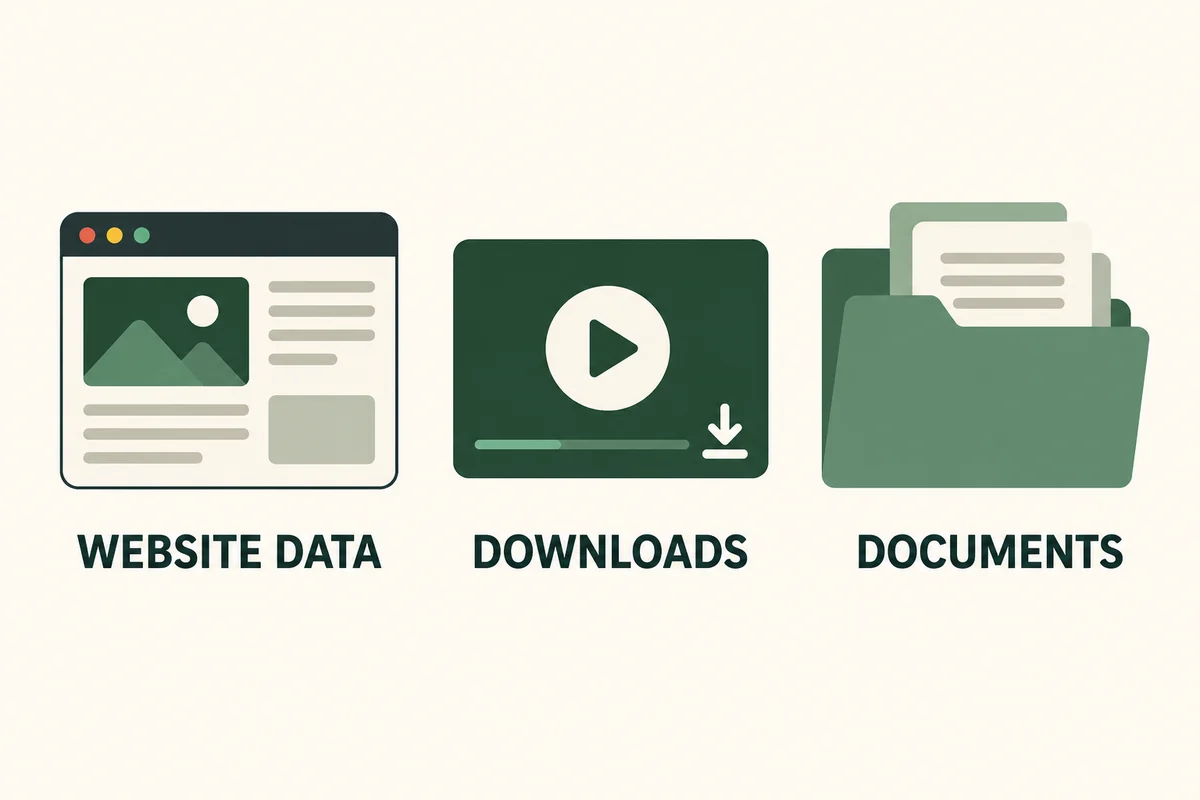
Clear Safari data with the right scope
For iOS 18 and later, open Settings > Apps > Safari. Apple’s Safari cleanup instructions describe two different choices:
- Clear History and Website Data removes the selected browsing history and associated website data. Review the offered timeframe before confirming.
- Advanced > Website Data > Remove All Website Data clears website data while retaining browsing history.
Website data can include information that keeps you signed in. Make sure you know how to sign back in and have access to any required authentication method before clearing it.
If only one site is affected, inspect its entry under Website Data and remove that site’s data when the interface offers the option. This gives you a smaller test than clearing every site’s state at once.
Test the original page afterward. A successful reload is useful evidence; repeatedly clearing everything when the page still fails can obscure an outage or an account problem.
Treat app cleanup, offloading, and deletion differently
An app may offer Clear Cache, Manage Storage, or download controls inside its own settings. Read the confirmation: a button that removes downloads may be doing exactly what it says rather than clearing harmless temporary files.
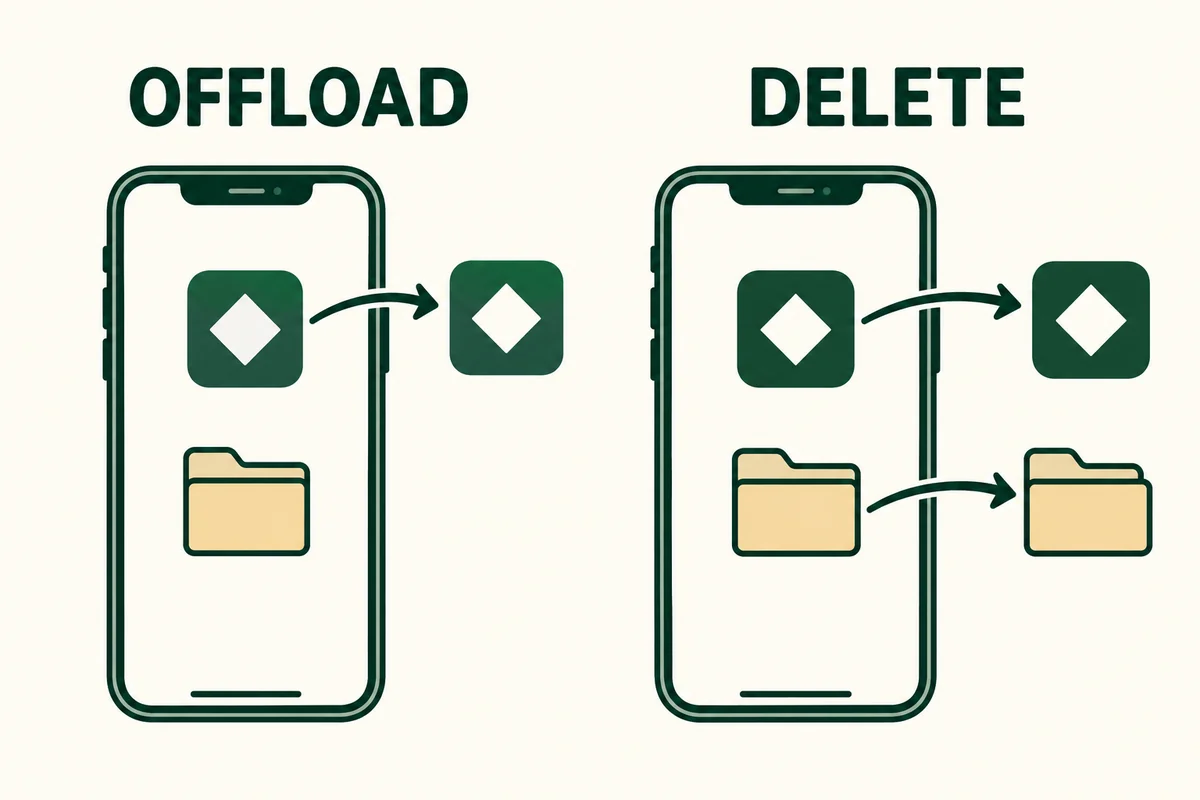
In iPhone Storage, Offload App removes the app software while keeping its documents and data. It is therefore not a guaranteed way to remove the data you are trying to clear. Delete App removes the app and its related local data, which may include information that is not safely stored elsewhere.
Before deleting and reinstalling, verify the app’s account, sync, export, and recovery arrangements. Being able to log in to a service does not prove that every local draft or offline file is already on its server. If necessary, ask the app developer how it stores the specific information you need.
What to do when storage fills again
A cache can grow again during ordinary use. That alone does not show that cleanup failed. Check whether a recurring download or a growing library is the main contributor instead.
Apple describes automatic removal of certain cached and temporary files when space is needed. Do not expect an ordinary cleaner app to erase every system-managed category, and do not use a factory reset as the first response to an unexplained storage figure.
If photographs are the main issue, our guide to finding and merging duplicate photos addresses one specific source of avoidable copies. Review the actual files before deciding that they are unnecessary.
Conclusion
The best cleanup is the smallest action that addresses a known source of trouble. Separate website data, app downloads, and retained documents, then confirm the result. Free space is useful only if you have not lost the information you needed to keep.

Ethan Miller
Ethan Miller writes about home improvement, interior design, cleaning, and everyday living at Home & Living Daily. He shares practical tips and simple ideas to help readers create more comfortable and functional homes.


