If your iPhone battery drains faster immediately after an iOS update, check Settings > Battery before changing dozens of settings. Update-related work can continue in the background; Apple advises waiting a few days and checking again. Persistent drain needs a different investigation, especially when one app, weak reception, or an aging battery explains the pattern.
The useful question is what changed during comparable use. An afternoon of navigation and photo uploads cannot fairly be compared with a quiet day on home Wi-Fi.
Separate temporary update work from a lasting problem
Apple’s battery troubleshooting page explains that iOS 18 and later can show an Ongoing iOS Update insight in Battery settings. Background update tasks may temporarily affect battery life and temperature.
Give ordinary post-update work time to settle if the phone remains usable. That does not mean ignoring a temperature warning, physical damage, or a phone that repeatedly shuts down. Those symptoms merit support rather than an extended experiment with settings.
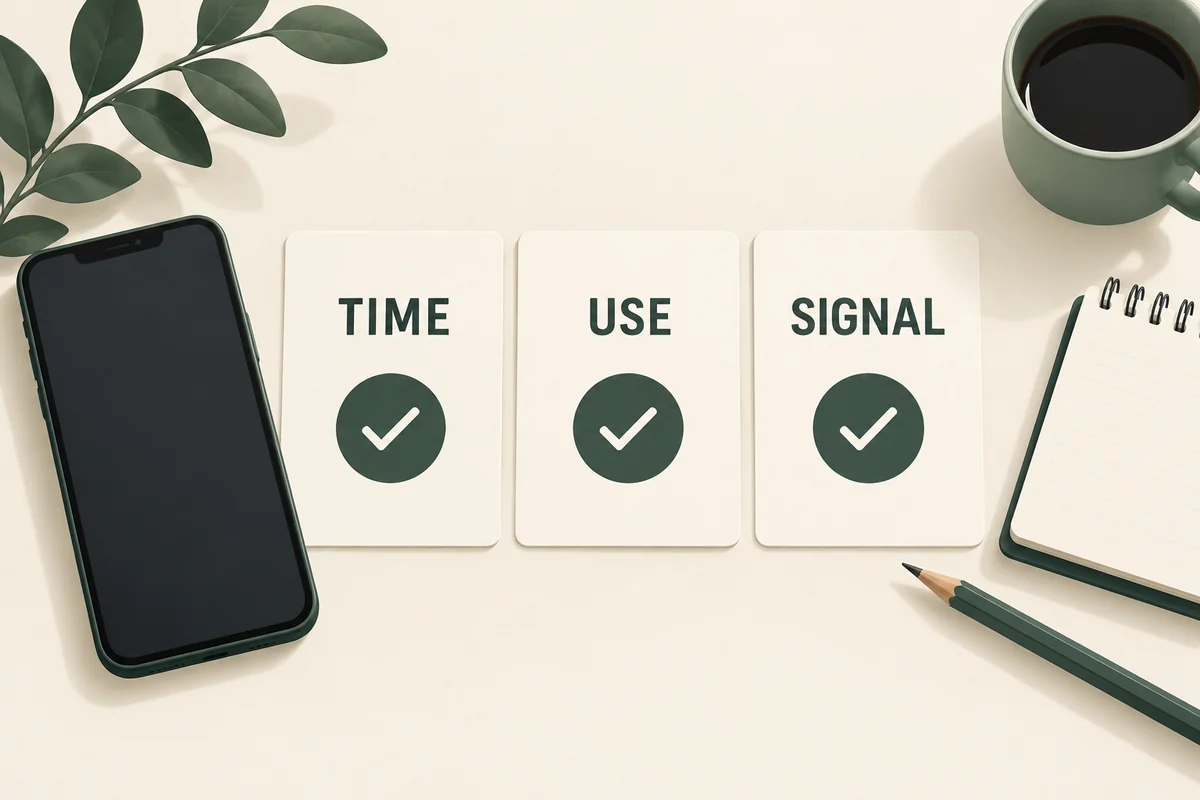
Write down the update date, approximate battery level at the start and end of a normal period, and what you did. Use roughly similar conditions for the next comparison. A simple note can prevent a single unusually busy day from becoming a mistaken diagnosis of permanent damage.
Read the activity behind the percentage
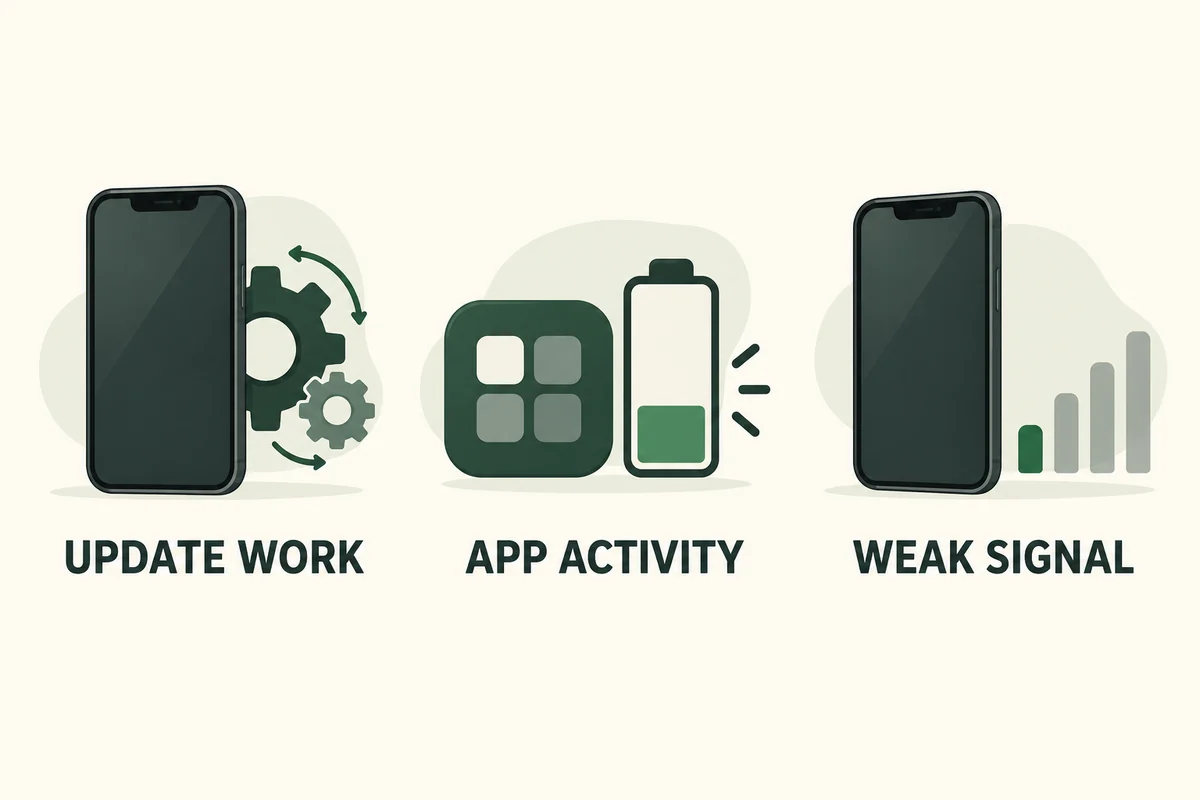
Open Battery settings and inspect the available activity breakdown. The layout varies by iOS version: newer releases include a Daily Usage comparison, while older releases organize the information differently. Focus on the period you are investigating and the activity attached to it.
| Pattern | What to investigate |
|---|---|
| A heavily used app leads the list | Whether its usage matches your actual activity |
| Substantial background activity | A task, upload, playback, or app behavior you did not expect |
| Weak-signal or coverage information | Where and how the phone was connecting |
| Heavy screen use | Brightness and the amount of time the display stayed active |
An app’s share of consumption is not the same as percentage points lost from a full battery. Nor does being first in the list automatically make an app defective. The breakdown is a lead to investigate, not a verdict.
For example, a map app leading the list after a long journey makes sense. The same app showing unexpected activity during a quiet evening deserves a closer look at its permissions and recent behavior.
Change one cause you can actually identify
If an app is behaving unusually, check for its update and review its relevant settings. If the problem follows poor reception, compare a period in a location with a strong signal. If the display dominates, use a comfortable brightness and a reasonable Auto-Lock interval.
Avoid turning off every useful feature at once. You might make the phone less convenient while losing the ability to tell which change mattered. Record one adjustment and repeat the original observation under comparable conditions.
Low Power Mode can help you get through a demanding day, but it is a temporary power-management choice rather than proof that the underlying issue is fixed. Its location and available power controls depend on your software and hardware.
Check battery condition when the problem persists
Battery runtime and battery condition are related but different. Apple’s explanation of battery aging and performance describes how chemical aging reduces capacity and can affect the ability to deliver peak power.
Review the battery-health information available for your model and any service message. Do not diagnose the battery from one percentage change after updating. A phone with longstanding poor runtime, unexpected shutdowns, and a service recommendation needs a more concrete assessment than another round of interface adjustments.
If drain remains abnormal after the initial settling period, collect your iOS version, battery observations, affected apps, and any warnings before contacting Apple or the relevant app developer. That evidence is more useful than saying only that the update “ruined the battery.”
Conclusion
Allow temporary update activity to finish, then follow the evidence from a comparable period of use. A targeted app, signal, or battery-condition check is more productive than a long list of indiscriminate tweaks—and helps you preserve the features you actually bought the phone to use.

Ethan Miller
Ethan Miller writes about home improvement, interior design, cleaning, and everyday living at Home & Living Daily. He shares practical tips and simple ideas to help readers create more comfortable and functional homes.


