To reset network settings on an iPhone, open Settings > General > Transfer or Reset iPhone > Reset > Reset Network Settings. Confirm the network-specific choice when prompted. This removes saved connection settings; it does not erase your photos, messages, or apps.
Have your Wi-Fi password ready before starting. A reset is useful when the problem follows your phone across connections, but it cannot repair an internet outage or a router that has lost service.
Check whether a reset fits the problem
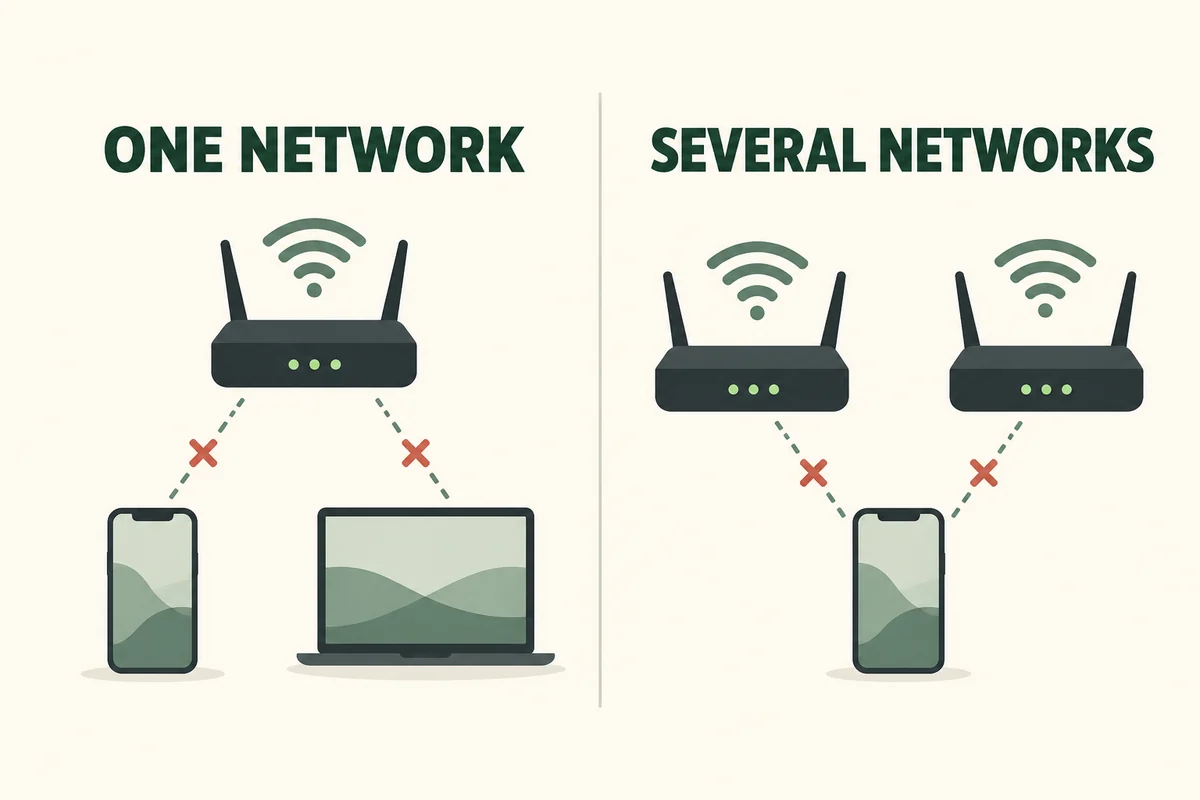
Try another device on the same Wi-Fi, then try your iPhone on a different working network. This small comparison is more informative than repeating a reset.
| What you observe | Better next step |
|---|---|
| Several devices fail on the same Wi-Fi | Investigate the router or internet service |
| Your iPhone fails on several working networks | Investigate the phone’s settings or software |
| Only one app cannot connect | Check that app, its permissions, and its service |
| Wi-Fi works but cellular does not | Check your active line and carrier service |
Restart the phone and check that Airplane Mode is off. If you manage the router, restart it when other people will not be interrupted. Apple’s Wi-Fi troubleshooting guidance places the network reset after simpler connection checks.
For example, if your laptop and phone both lose internet at home but work elsewhere, deleting the phone’s remembered networks creates setup work without addressing the common failure.
What changes when you reset the network
Expect to rejoin Wi-Fi networks and enter their passwords again. Cellular, VPN, and APN settings can also be affected. A saved configuration is different from the service supplied by your carrier or internet provider.
Apple’s reset settings reference adds several easily missed details: manually trusted certificates become untrusted, the device name returns to “iPhone,” and data roaming may turn off. Settings installed through a configuration profile or mobile device management are handled differently from ordinary saved VPN settings.
If this is a work or school phone, contact its administrator first. Do not remove management or a configuration profile merely because a general internet tip suggests it; that is a separate action with wider effects.
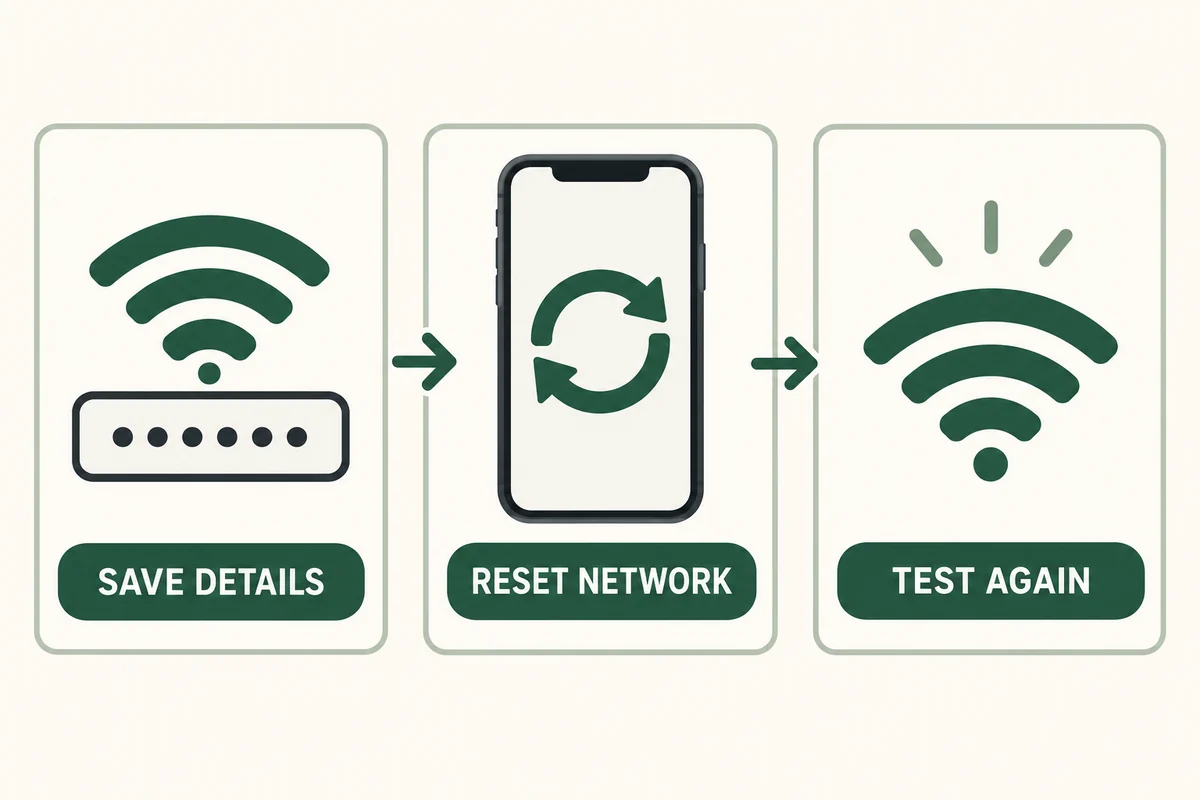
Before proceeding, make sure you can access the Wi-Fi credentials and any approved setup instructions you will need afterward. Keep that information somewhere you can reach without the connection you are troubleshooting.
Perform the network reset
- Open Settings, then General.
- Select Transfer or Reset iPhone.
- Tap Reset to open the list of reset options.
- Choose Reset Network Settings and complete the confirmation.
- Reconnect to Wi-Fi and test the original problem.
Read the option name before confirming. Erase All Content and Settings is a different operation, and Delete All eSIMs is also a separate choice. Neither is required for a network-settings reset.
If the phone’s controls are restricted, stop at that point and ask the owner or administrator rather than selecting a broader erase option as a workaround.
Test Wi-Fi and cellular separately afterward
Start with one familiar website in Safari on Wi-Fi. Then turn Wi-Fi off temporarily and test over cellular, if your plan permits it. This separates two connection paths that can otherwise hide one another’s failures.
Next, test the app or service that originally failed. Record the exact error and whether the problem occurs on one network or several. A successful website load does not prove that a work VPN or a carrier-specific service has also recovered.
If mobile service still shows SOS, our explanation of what SOS means on an iPhone addresses a different set of checks. If only your home network remains affected, give your ISP the comparison results instead of repeatedly resetting the handset.
Conclusion
A network reset is worth doing when there is evidence that saved phone settings are involved. Its success should be judged by a repeatable connection test, not by the fact that the reset completed. When the same failure remains, the comparison between devices and networks is your next useful piece of evidence.

Ethan Miller
Ethan Miller writes about home improvement, interior design, cleaning, and everyday living at Home & Living Daily. He shares practical tips and simple ideas to help readers create more comfortable and functional homes.


