
To find hidden photos, open Photos, go to Utilities, choose Hidden, and authenticate. On iOS 18, scroll down the main Photos view; on versions with Collections, open that tab first. To hide a photo, open its More menu and choose Hide. Hidden and Recently Deleted are normally protected by Face ID, Touch ID, or the device passcode.
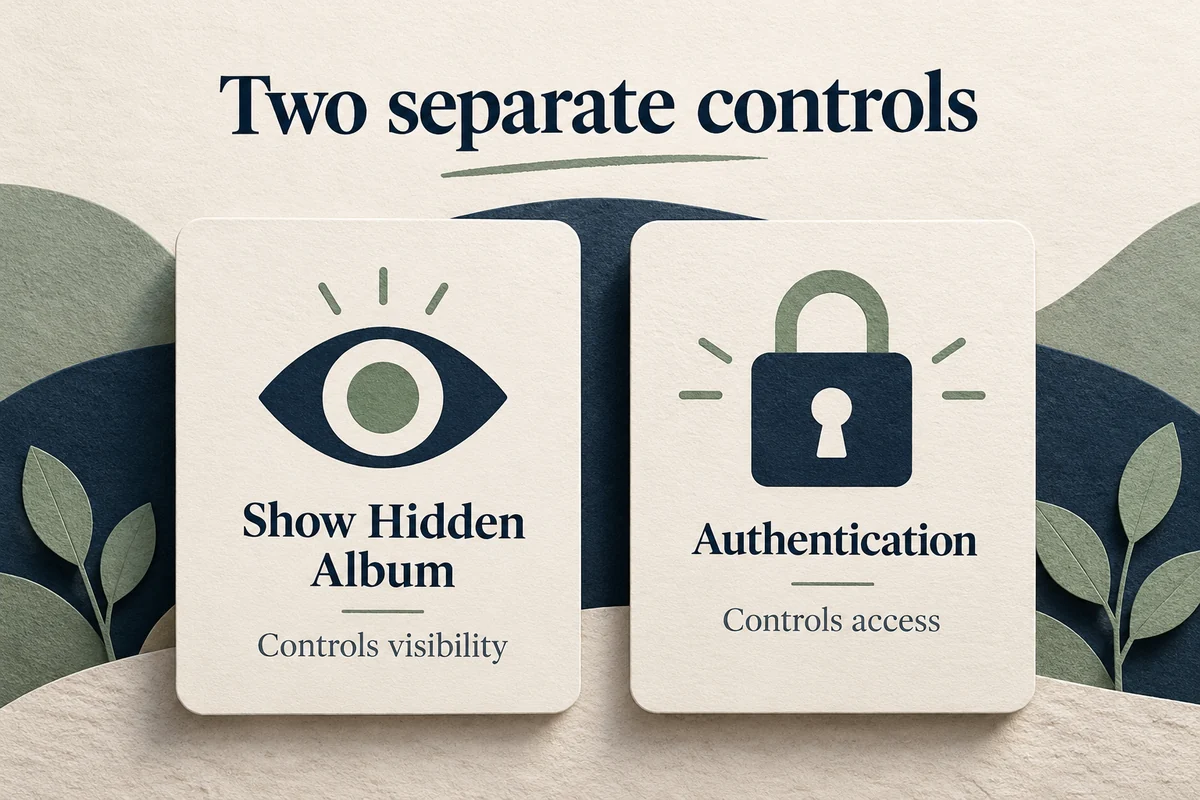
If Hidden is missing, check Settings, Apps, Photos, Show Hidden Album. Hiding that album from the interface is different from deleting its contents or giving it a separate secret password.
Open Hidden and restore a photo to the library
Go to Hidden under Utilities, tap View Album if shown, and authenticate. Select the image, open More, and choose Unhide to return it to normal library views. Apple’s hidden-photo instructions cover both hiding and unhiding.
An unhidden older picture may appear near its original capture date rather than at the newest end of the timeline. Use a date or subject search if it is not immediately visible.
If you cannot see Hidden at all, enable Show Hidden Album in Photos settings and reopen the app. That switch changes whether the collection is displayed. It does not remove the authentication requirement or expose a photo that was actually deleted.
Hide selected images without deleting them
Open a photo, tap More, choose Hide, and confirm. For several items, use Select and the available More action. Review the selected images before confirming, particularly if you are organizing a large event or a shared device’s library.
Hidden photos leave the usual library and browsing views, but they remain in the Photos library. If iCloud Photos is enabled, hiding is part of the synced library behavior rather than a separate local vault on one phone.
This is useful for a picture you want to retain without seeing it during ordinary browsing, such as a gift idea or a personal document. It is not a method for retracting copies already sent through Messages, email, or another sharing service.
Understand what the lock protects
Apple’s iOS 18 photo privacy guide describes authentication for Hidden and Recently Deleted. Review the Photos settings if you have previously changed the Face ID or Touch ID preference.
The device passcode can also authorize access. Hidden is therefore not an independent vault protected by a different password that you set just for one album. If another person knows the phone’s passcode, hiding pictures is not a guarantee that person can never open them.
Likewise, putting images in a regular named album does not give that album its own lock. Albums organize the library; they are not automatically separate encrypted containers with individual passwords.

Locking Photos is a different choice
On supported software, app locking can add an authentication requirement when opening an app. Apple’s iOS 18 app-locking guide explains the Require Face ID or equivalent control where available.
Locking Photos affects entry to the app, while hiding an image affects how that image appears within the library. Neither should be confused with hiding an app itself; built-in apps do not all support the same hiding options.
Before handing someone your phone, consider what they actually need to do. Showing one picture does not require giving them an unlocked browsing session through the rest of the library. Choose the control that fits that situation rather than assuming a single hidden collection covers every form of access.
Conclusion
Use Hidden for selective visibility, authentication for access control, and Unhide to return pictures to ordinary browsing. Check the album-visibility switch when the collection is missing. Remember that the device passcode and previously shared copies determine the limits of this protection.

Ethan Miller
Ethan Miller writes about home improvement, interior design, cleaning, and everyday living at Home & Living Daily. He shares practical tips and simple ideas to help readers create more comfortable and functional homes.


