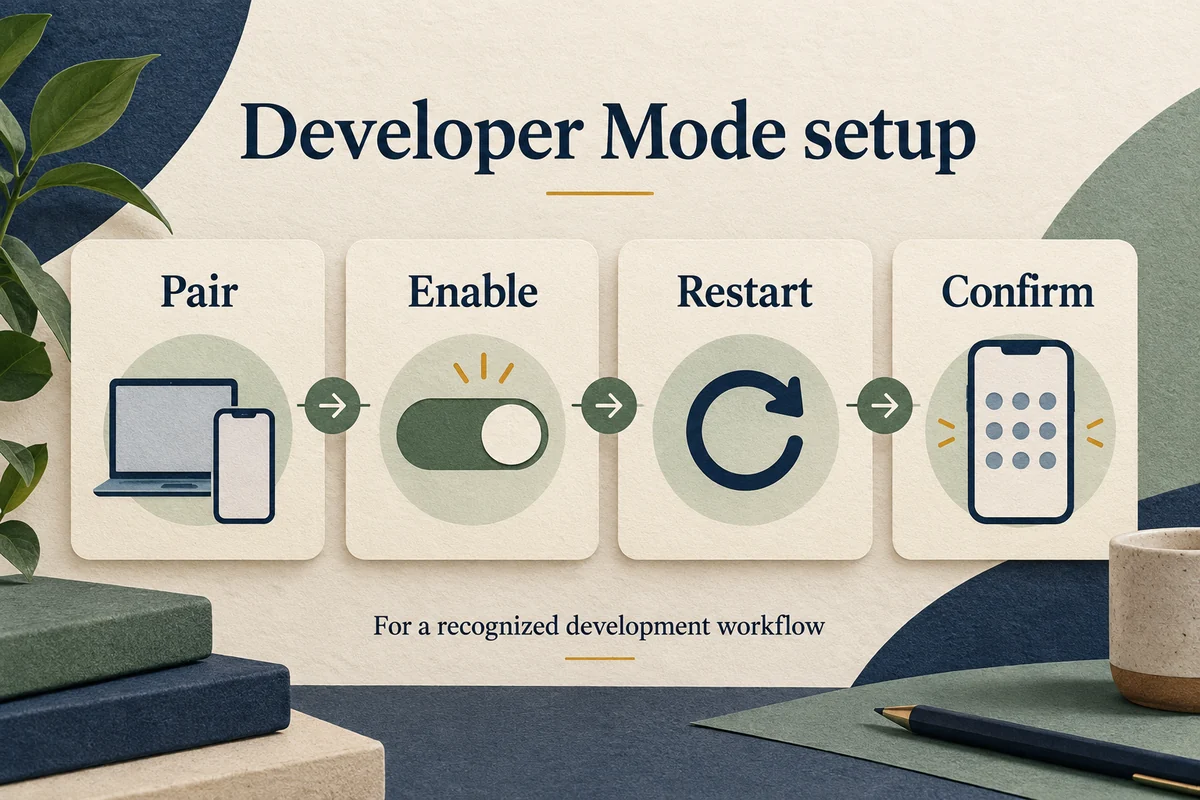
To enable Developer Mode, first initiate pairing with Xcode on a Mac, then open Settings, Privacy & Security, Developer Mode on the iPhone. Turn it on, restart when prompted, and confirm Enable with the device passcode after restarting. If the setting is missing, pairing is the first prerequisite to check.
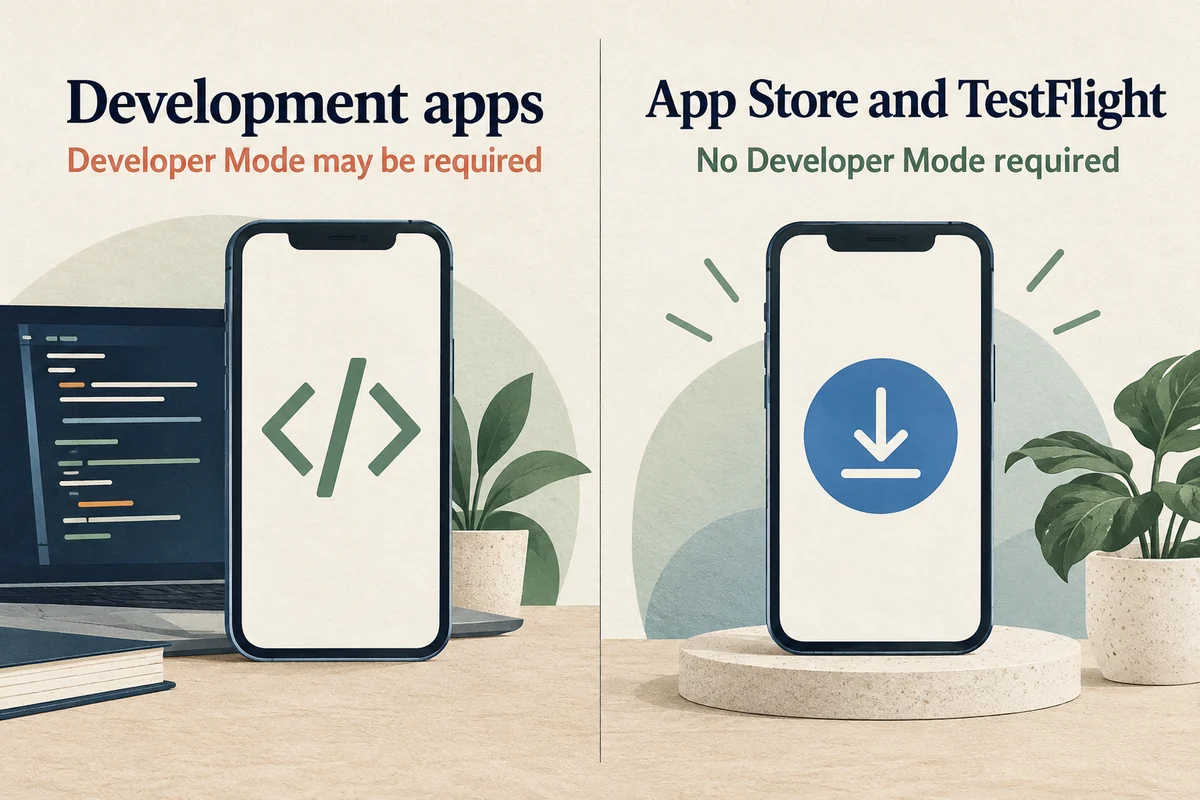
Developer Mode is for development workflows such as running your own app from Xcode. You do not need it to install ordinary App Store apps or participate in TestFlight testing.
Check whether the task actually requires it
Apple’s Developer Mode documentation describes it as permission for development-signed software and related debugging workflows. It is not a general performance mode, a way to install an older iOS version, or a requirement for every app downloaded to an iPhone.
If a website says you must enable it to view a page, claim a prize, or fix a normal App Store installation, stop and verify the actual task. A request to change a development setting should come from a development workflow you recognize.
For a legitimate project, start with the Mac, Xcode version, and iPhone software involved. A current phone may require a compatible Xcode release; changing an iPhone switch cannot fix an unsupported development environment on the computer.
Pair the iPhone and complete both confirmations
Connect the iPhone to the Mac with a suitable cable, unlock it, and respond to the trusted-computer prompt if it appears. In Xcode, open its device-management interface and initiate pairing. Newer Xcode versions use Device Hub; older tutorials may refer to Devices and Simulators.
After pairing has been initiated, open Settings on the phone and go to Privacy & Security. Look under Security for Developer Mode. Turn it on and approve the requested restart. Once the phone restarts, unlock it and complete the separate Enable confirmation with its passcode.
The restart alone is not the final confirmation. Return to the development workflow and verify that Xcode recognizes the device and can run the intended app. Keep the phone unlocked when the setup requires a response on its screen.
If Developer Mode does not appear
Apple explicitly states that the option appears after pairing is initiated or the device has previously been paired to a Mac. Merely searching Settings before that step may therefore produce no result.
Check the setup in this order:
- Confirm that Xcode actually detects the connected iPhone.
- Check the cable and connection if the device is absent.
- Finish any trust or pairing prompt on either screen.
- Reopen Privacy & Security after pairing begins.
- Check Xcode and device software compatibility if the workflow still cannot proceed.
For an employer- or school-managed phone, ask the administrator whether development use is permitted. Do not remove management profiles to force an option to appear.
Keep development permission separate from app trust
Developer Mode, trusting a computer, app signing, and account provisioning serve different purposes. Turning on the mode does not make every downloaded app trustworthy or resolve every signing error in Xcode.
If your own app fails to run, read the actual Xcode error. It may identify a signing team, provisioning, compatibility, or connection issue that needs a separate fix. Repeatedly toggling Developer Mode is unlikely to repair an unrelated project configuration.
When you no longer need development use, you can turn the mode off in Privacy & Security and restart. Development apps that depend on it will not run until you enable it again. Ordinary App Store installation does not depend on keeping this permission active.
Conclusion
Initiate pairing, enable the setting, and finish the post-restart confirmation. If something fails, follow the device or Xcode error rather than treating the switch as a universal fix. Developer Mode belongs to a specific development task, and keeping that purpose clear makes both setup and troubleshooting simpler.

Ethan Miller
Ethan Miller writes about home improvement, interior design, cleaning, and everyday living at Home & Living Daily. He shares practical tips and simple ideas to help readers create more comfortable and functional homes.


