There is normally no supported way to return an iPhone from iOS 26 to an arbitrary iOS 18 release. The target software must support the exact model and still be accepted by Apple’s installation process. An old IPSW file, an iOS 18 backup, or the fact that iOS 18 once supported the phone does not establish that you can install it now.
If you want to downgrade because of a problem, identify that problem before erasing anything. Restoring a phone can lose current data without producing the older system you expected.
Compatibility and installation availability are different
A hardware compatibility list answers whether a software branch supported a model. It does not promise that every historical build remains installable indefinitely. Phones introduced after a branch also cannot be assumed to support it just because they are newer.
Apple’s security release information notes that installed iOS updates cannot be downgraded to a previous version through the normal update process. Maintained older releases for specific older models do not create a downgrade option for every newer handset.
Do not rely on a dated article announcing that Apple stopped signing one build as a live check of every build today. Equally, a download site still hosting a file does not prove that Apple will authorize its installation. The presence of a download button answers a different question.
What the common “downgrade” suggestions actually do
| Suggestion | Why it does not establish an iOS 18 downgrade |
|---|---|
| Turn Beta Updates off | Changes future beta enrollment, not the installed system |
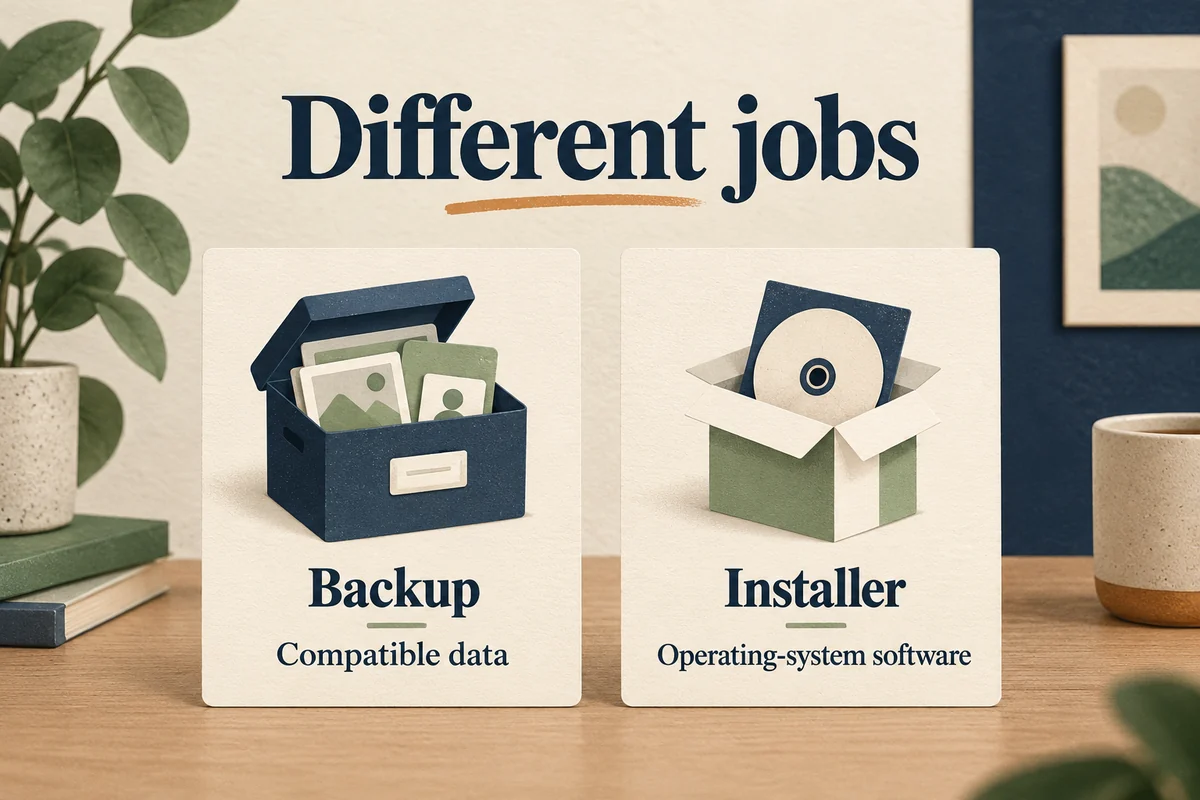
| Restore an old backup | Restores compatible data; it is not an operating-system installer |
| Download an iOS 18 IPSW | File availability does not prove model eligibility or installation authorization |
| Reset all settings | Changes preferences without replacing iOS |
| Use a tool promising any version | Marketing cannot remove Apple’s model and installation requirements |
Be especially cautious with instructions that edit a backup’s version information to make it appear compatible. A label change does not make newer data structures safe for older software. It may turn an unsupported operation into a failed or incomplete restore.
Beta removal is a separate decision
If the phone is on a beta, Apple’s beta-removal procedure distinguishes stopping beta updates from an immediate erase-and-restore. The latter targets the available public software, not any old release you prefer.
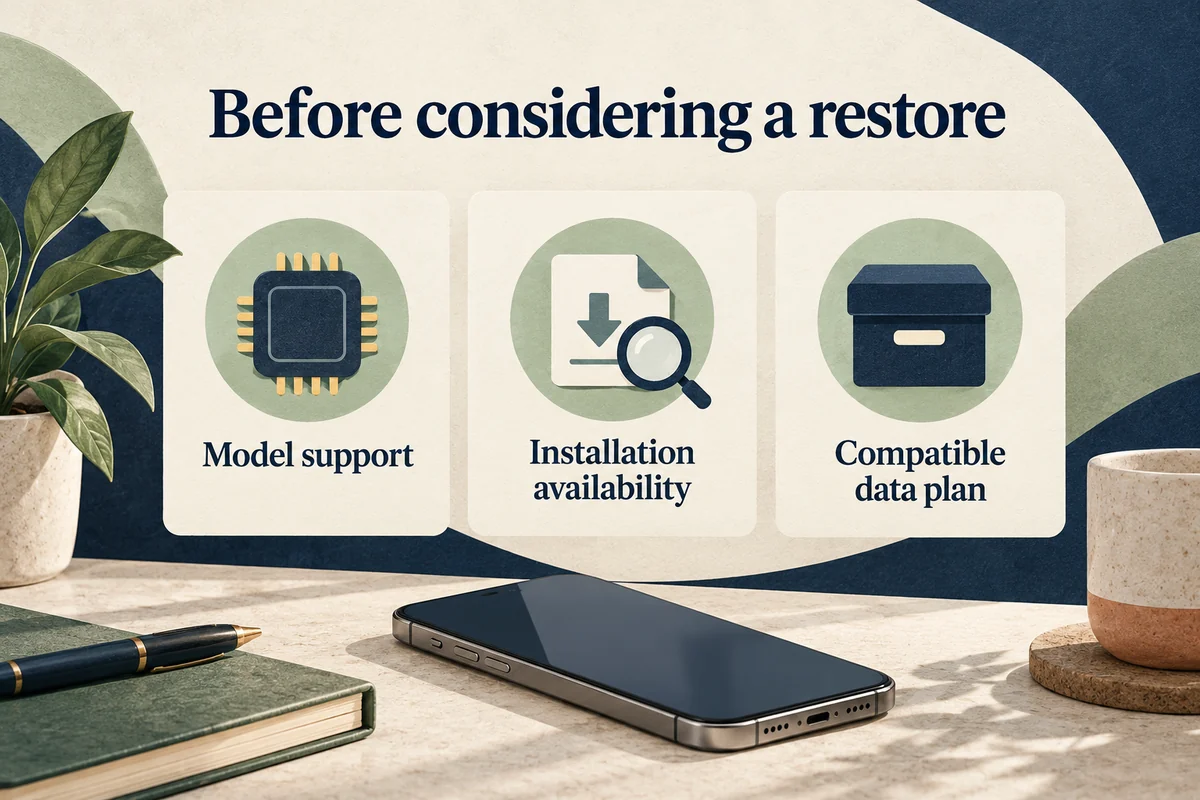
Newer backups may also be incompatible with an earlier public version. Before considering a restore, establish which backup could actually be used and which information is stored independently in synced services. Do not assume that “I have a backup” means every proposed target system can accept it.
Someone trying to stop future beta downloads usually has a less disruptive option than someone whose test device needs an immediate public restore. Neither situation guarantees a return to iOS 18.
Address the reason you wanted to go back
For a broken app, check its supported version, available update, and developer guidance. For an unfamiliar interface, inspect the relevant appearance or accessibility settings. For a specific battery or connection problem, note when it occurs and follow troubleshooting for that symptom rather than treating a whole-system rollback as the first repair.
For example, larger icons, a changed Photos layout, and a failed work login are three different problems. One may be a preference, another a navigation change, and the third an account or app issue. None, by itself, proves that erasing the phone will solve it.
Before any reset or restore, keep access to essential accounts and verify where current photos, messages, and app data exist. If the device is needed for work or authentication, plan how you would continue those tasks while it is unavailable.
Conclusion
Do not erase an iPhone on the assumption that an old download or backup guarantees iOS 18. A downgrade needs a supported, authorized target and a compatible data plan. In most everyday cases, troubleshooting the specific reason you want to return is more productive than pursuing an unavailable software branch.

Ethan Miller
Ethan Miller writes about home improvement, interior design, cleaning, and everyday living at Home & Living Daily. He shares practical tips and simple ideas to help readers create more comfortable and functional homes.


