To change a contact’s picture, open Contacts, choose the person, tap Edit, and edit the photo area. To remove it, use Delete Photo if that editor offers it, or replace the picture with a monogram when the available controls only support replacement. For your own shared image and calling screen, start with My Card and its Contact Photo & Poster settings.
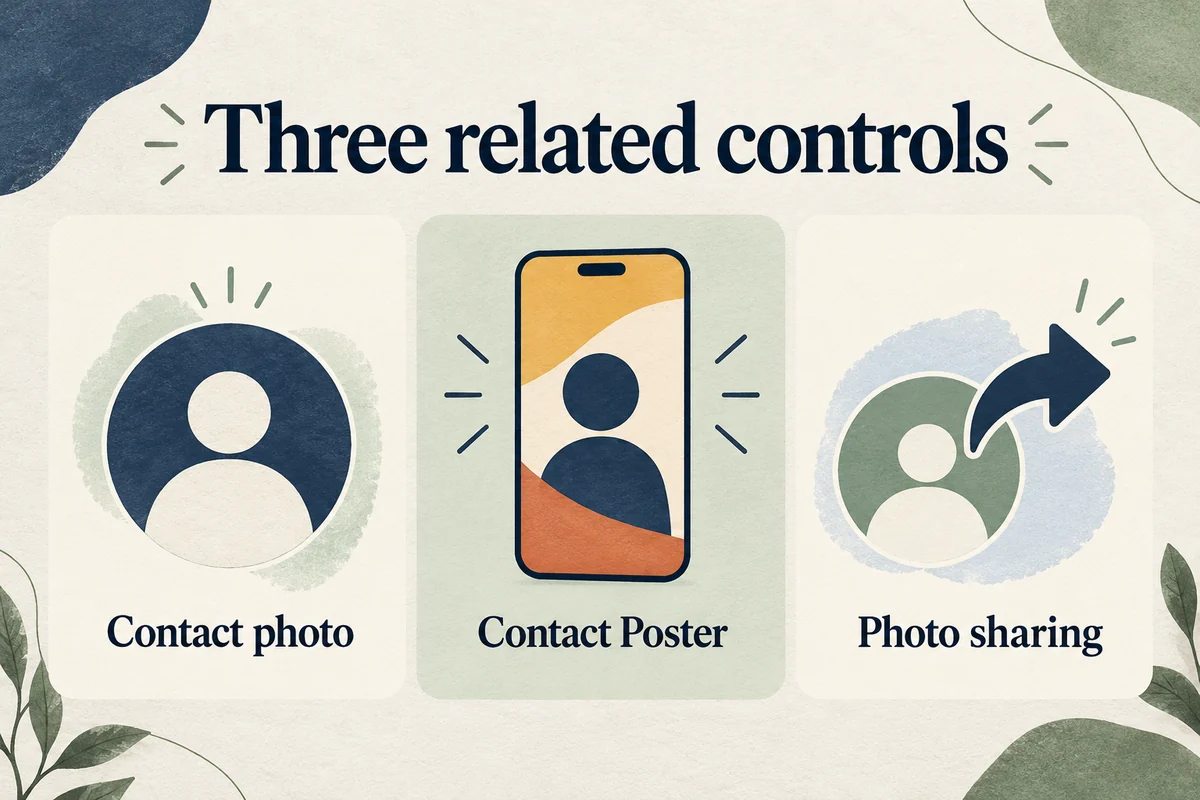
A contact photo, a full-screen Contact Poster, and Name & Photo Sharing are related but different controls. Decide which one you want to change before deleting anything.
Change another person’s contact photo
Open Contacts, select the correct card, and tap Edit. Tap the photo or its Edit control, choose the replacement, adjust the crop, and finish with Done. Apple’s contact-editing guide covers updating the card.
For a replacement portrait, use a crop that keeps the face comfortably inside the circular frame. A photo that looks good full screen may cut off the face when used as a small avatar. A monogram is a useful alternative when you do not want a person’s photograph displayed.
Make sure you are editing the intended card if you have duplicate contacts or linked entries. Changing a work-directory record may also be restricted by the organization that supplies it.
Remove the image without deleting the person
In the contact’s photo editor, look for a deletion option for the existing image. The controls differ by iOS version and by whether you are editing an avatar or a poster. If the editor offers only new photo styles, selecting a monogram replaces the portrait rather than literally leaving an empty image field.
Do not choose Delete Contact to remove a picture. That command removes the card and its information, which is a much broader action.
After saving, reopen the contact and check both the small image and any full-screen poster. If the picture returns, inspect linked cards and the account supplying the contact. A cloud or work directory may be updating the card; repeatedly changing the same local display does not explain which source is responsible.
Edit your own photo and Contact Poster
In Contacts, open My Card. Use its Edit or Contact Photo & Poster controls to manage your own image and the poster used for supported calls and sharing. Apple’s My Card instructions distinguish these personal-card settings from ordinary contact editing.
In a poster gallery that offers deletion, open the gallery and inspect the selected poster’s controls. Some versions expose a trash button after swiping up on a poster. If that control is absent, use the offered replacement or customization choices instead of assuming every version has the same gesture.
Check the preview for both the poster and the smaller contact photo. Changing the full-screen design does not always mean the small circular image has been changed to what you intended.
Stop sharing your photo when that is the actual goal
If you want to stop suggesting your name and image to other people, turn off Name & Photo Sharing in your personal-card settings. Where available, Contacts Only and Always Ask control how sharing is offered.
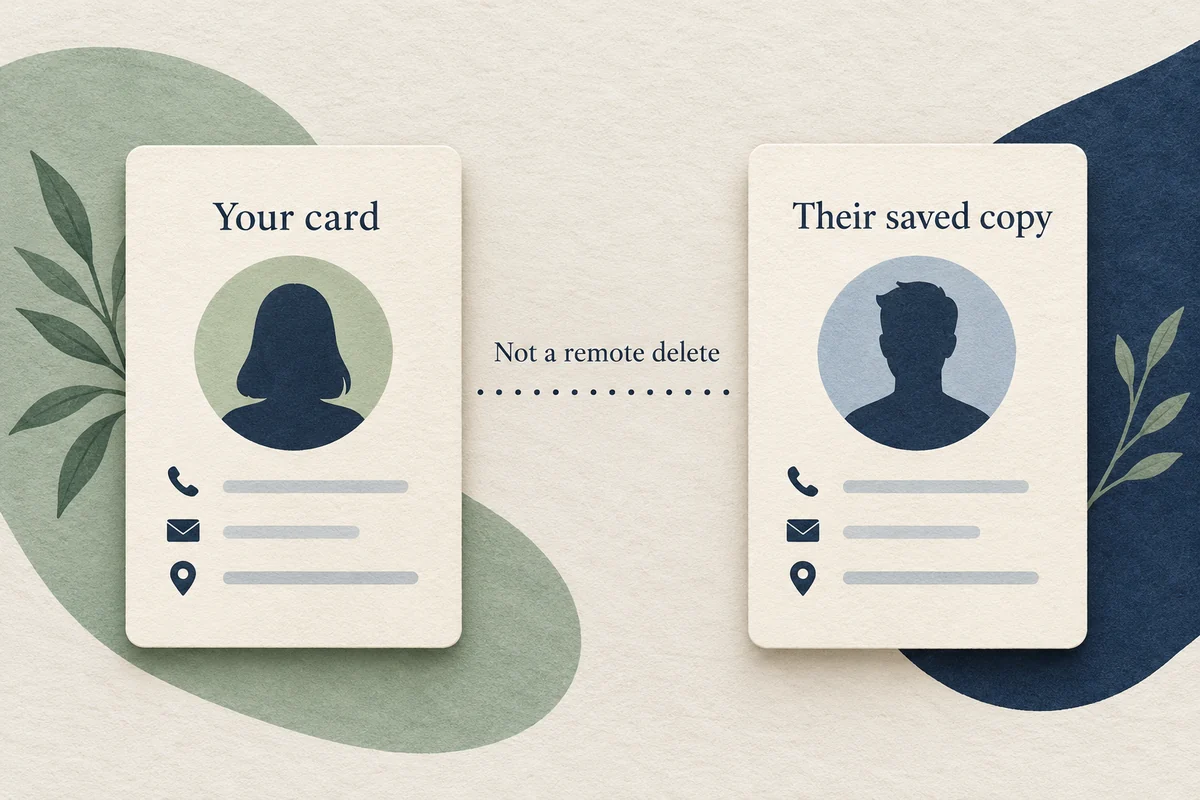
That is different from removing your local photo. It also does not remotely erase an image another person has already saved to their address book. If a friend still sees an older picture, they may need to update their own contact card for you.
For example, someone leaving a job might want a neutral personal photo rather than a company portrait. Updating My Card and its sharing preference handles future use, while a colleague’s old saved card is a separate copy. There is no single “remove everywhere” button that guarantees every recipient’s address book changes.
Conclusion
Edit the contact card for a local picture, My Card for your own poster, and Name & Photo Sharing for future sharing. Keeping those purposes separate lets you remove or replace the image you mean without deleting contact details or expecting changes to other people’s saved copies.

Ethan Miller
Ethan Miller writes about home improvement, interior design, cleaning, and everyday living at Home & Living Daily. He shares practical tips and simple ideas to help readers create more comfortable and functional homes.


