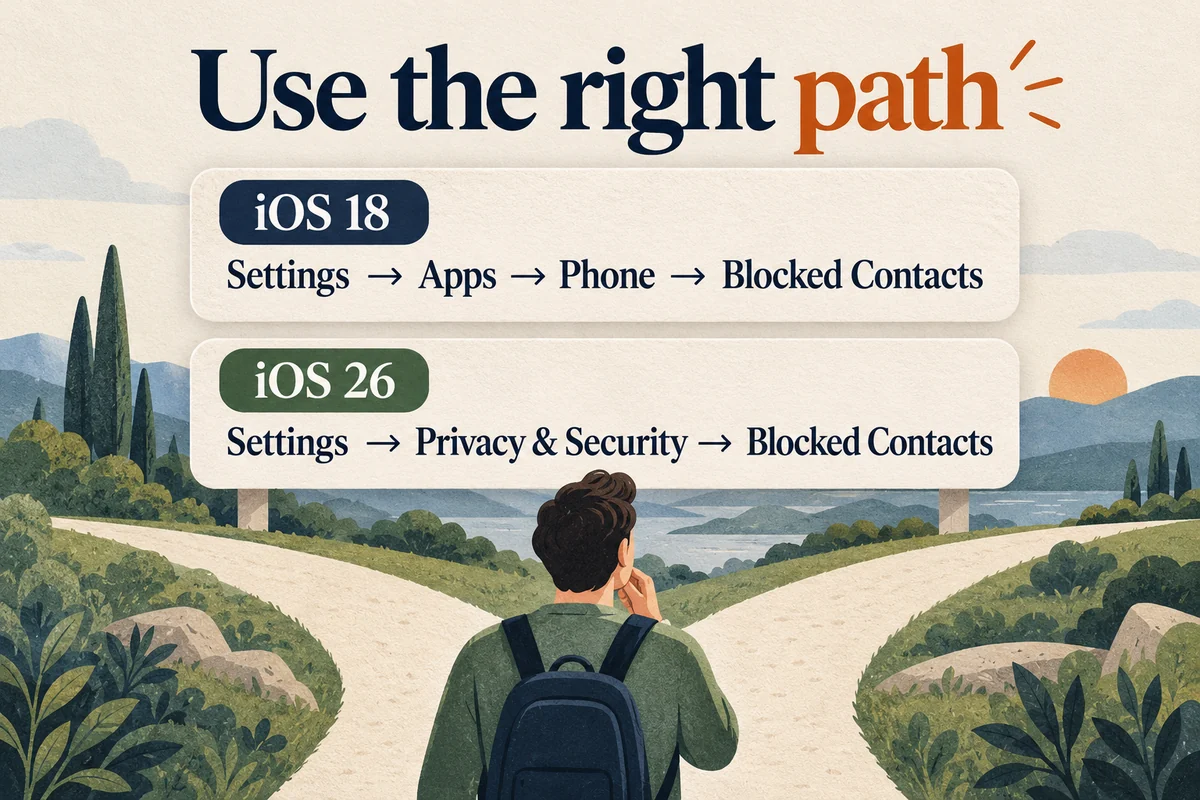
On iOS 18, open Settings, Apps, Phone, then Blocked Contacts to review blocked numbers and contacts. To unblock an entry, swipe left on it and tap Unblock, or use Edit and the remove control. On iOS 26, Apple moved the shared list to Settings, Privacy & Security, Blocked Contacts.
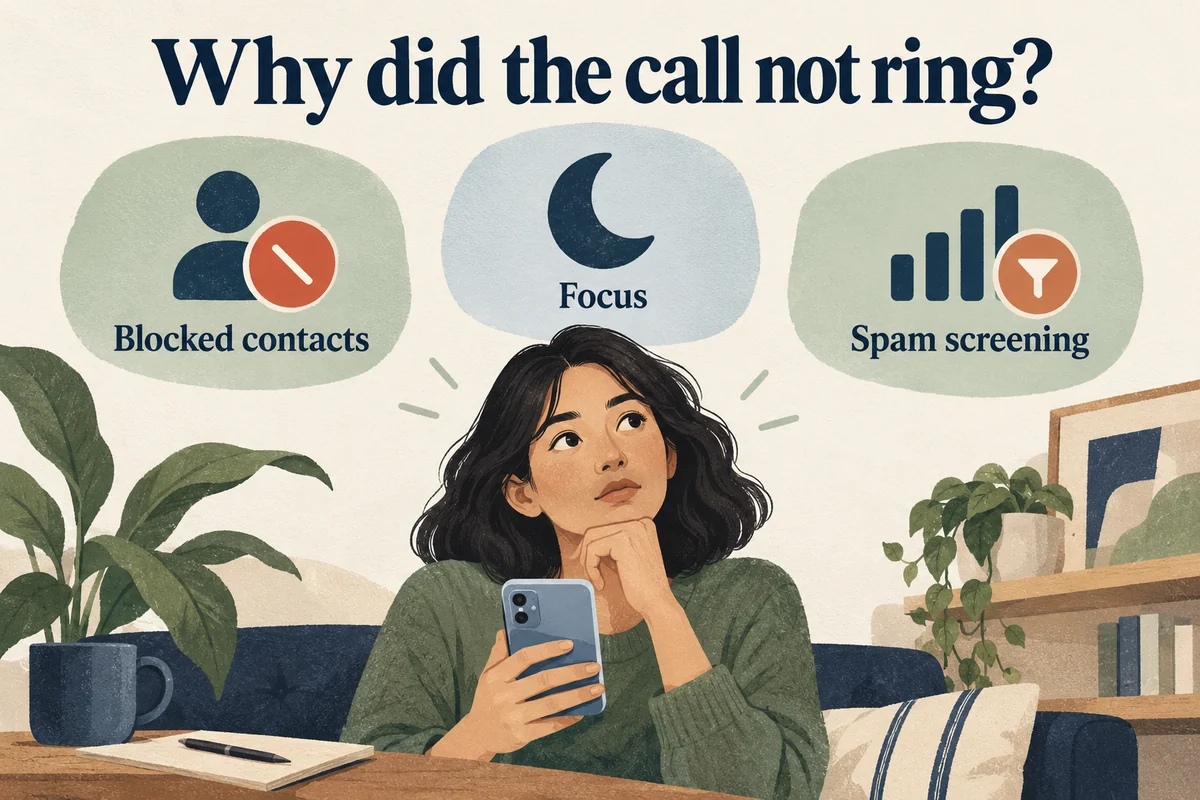
If a call is being silenced but the number is absent from this list, a different setting or service may be responsible. Focus, unknown-caller filtering, and carrier spam tools are separate from manually blocked contacts.
Find the list for your installed software
Check Settings, General, About if you are unsure which iOS version the phone uses. Then choose the relevant path:
| Software | Where to start |
|---|---|
| iOS 18 | Settings → Apps → Phone → Blocked Contacts |
| iOS 26 | Settings → Privacy & Security → Blocked Contacts |
| Older versions before the Apps settings grouping | Settings → Phone → Blocked Contacts |
Apple’s blocking guide documents the newer shared controls. A missing Phone entry on the first Settings screen in iOS 18 is expected; open Apps rather than searching for a nonexistent separate block-list app.
Entries can appear as contact names or bare numbers. Inspect the details before unblocking a similarly named person, especially if your address book contains multiple phone numbers or old entries for the same contact.
Unblock one entry and test a new call
Open the blocked list, swipe left on the intended entry, and choose Unblock. If that layout uses editing controls, tap Edit, remove the entry from the blocked list, then finish editing. This removes the block rather than deleting the person from Contacts.
Ask the person to place a new call or send a new message. Removing a block is not a way to retrieve messages that were never delivered while blocking was active. A fresh test is more informative than waiting for an old message to reappear.
If the person uses several numbers or email addresses, check whether you have blocked a different identifier. Unblocking one listed number does not establish that every possible way they contact you is now allowed.
Why the blocked list may not explain a missed call
Work through the symptom instead of repeatedly changing the same list:
- The phone does not ring, but the call appears in history: check Focus and unknown-caller or spam screening settings.
- Calls from one person fail: compare their actual outgoing number with the blocked entry and contact details.
- Many callers cannot reach you: check service, the active line, and carrier support rather than assuming every caller is blocked.
- Only a third-party calling app is affected: inspect that app’s own blocked users and permissions.
A No Caller ID call does not provide an ordinary visible number to find in this list. Blocking a known contact and silencing unidentified callers address different situations.
What blocking does and does not hide
Blocking is not a complete historical cleanup. Previous conversations and call records can remain until you manage them separately. Apple also notes that a blocked caller may still leave voicemail, although you do not receive a notification for it.
Do not remove useful evidence just to tidy the list if you are documenting unwanted contact. Conversely, if you accidentally blocked a legitimate caller, you do not need to erase your phone, reset all settings, or delete the contact to correct that one entry.
If the call still fails after a fresh test, note the exact behavior: immediate voicemail, a recorded carrier message, a silent notification, or no record at all. Those observations help distinguish a phone preference from a network or account issue.
Conclusion
Use the path for your iOS version, unblock the exact entry, and test a new call. If the number was never listed, follow the symptom to Focus, screening, the calling app, or the carrier. The blocked list is one control, rather than an explanation for every missed call.

Ethan Miller
Ethan Miller writes about home improvement, interior design, cleaning, and everyday living at Home & Living Daily. He shares practical tips and simple ideas to help readers create more comfortable and functional homes.


