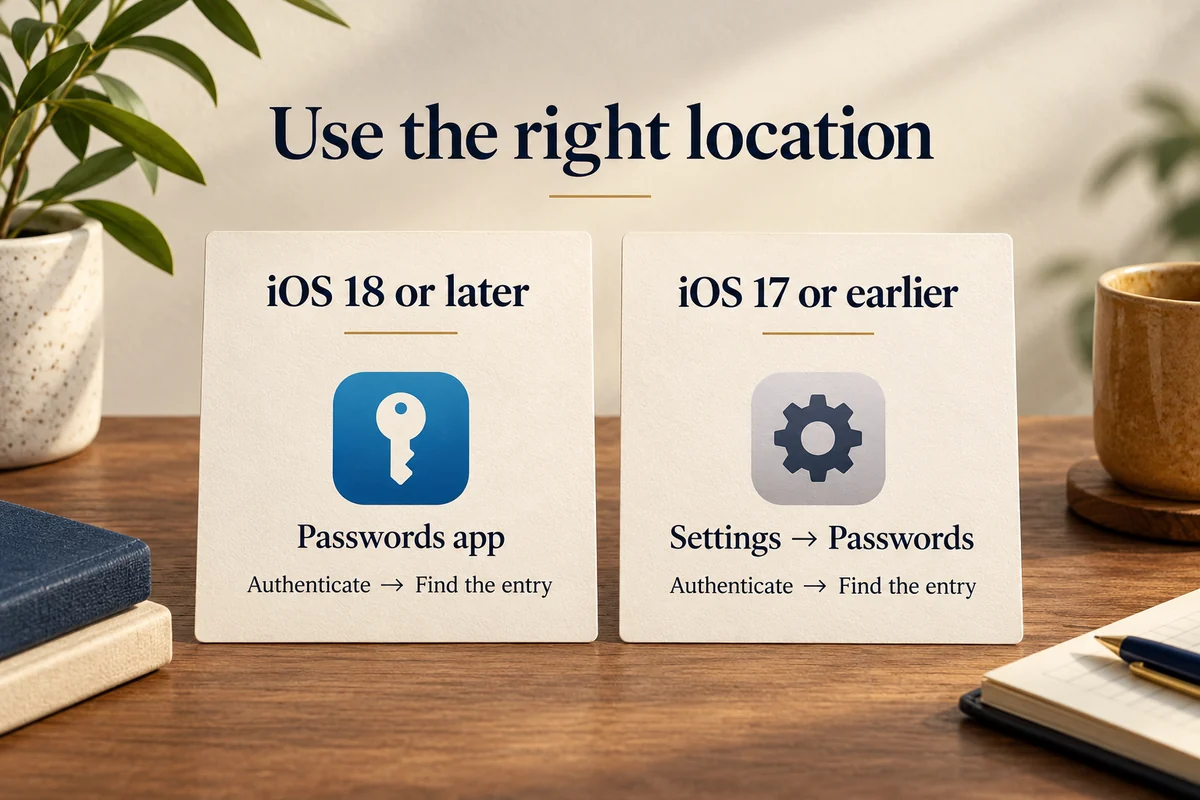
On an iPhone running iOS 18 or later, open the Passwords app, authenticate with Face ID, Touch ID, or the device passcode, and find the website or app you need. On iOS 17 or earlier, use Settings > Passwords instead.
This shows credentials you actually saved in Apple’s password manager. Being logged in to an app does not guarantee that its password was saved there, and a passkey may replace a password rather than reveal one.
Open the right password location for your software
Apple’s instructions for viewing saved credentials distinguish the dedicated Passwords app from the older Settings route.
- Open Passwords on iOS 18 or later. If you cannot see its icon, search for Passwords from the Home Screen or App Library.
- Authenticate when prompted.
- Choose All, or the appropriate shared group, and search for the website or app.
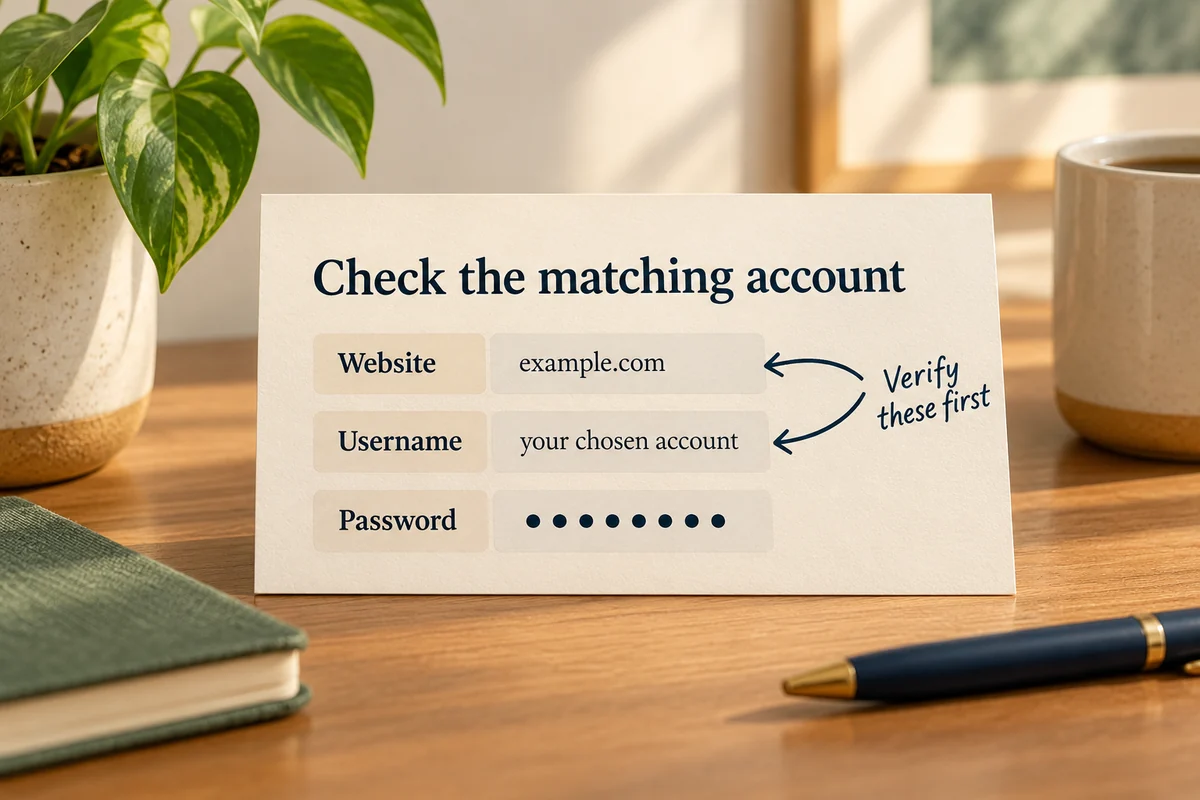
- Open the matching entry and check the username and website before using the password.
For iOS 17 or earlier, open Settings > Passwords, authenticate, and select the entry. The absence of that old Settings list after an upgrade does not by itself mean the saved logins were deleted.
In a Reddit discussion about the moved password list, a user interpreted the change as missing passwords. Replies pointed to the standalone app and search. That individual exchange illustrates a navigation problem, not proof of widespread data loss.
Make sure you found the correct account
A website may have several entries for different email addresses, subdomains, or accounts. Check those details rather than copying the first result with a familiar name.
For example, a shopping service could have a personal login and a work login. Trying the work password against the personal email address can look like a bad saved password even when both entries are correct. This is an illustrative scenario; the account’s own sign-in page determines which credentials it accepts.
The saved value can also be out of date if you changed the password elsewhere. Editing the vault entry is not, on its own, the same as changing the password at the service. Complete any password change through the website or app’s account process, then make sure the saved entry reflects the result.
If the password is not in the list
Check the location before resetting anything. All entries, a shared group, and Deleted are different views. Apple’s guidance specifically recommends checking deleted entries and iCloud Keychain when a credential appears to be missing.
If you use several Apple devices, check whether they are signed in to the same intended Apple Account and whether password syncing is enabled. Apple’s iCloud Keychain setup instructions describe the synchronization requirements. Do not switch accounts or sign out casually as a troubleshooting experiment.
Also consider whether you saved the credential in a different manager, such as a browser’s own password store or another password app. A login can remain active through a session token even when you never saved its original password. There may simply be no readable password entry to retrieve.
| What you find | Sensible next check |
|---|---|
| Familiar service, wrong username | Look for another account entry |
| Entry in a shared group | Check the relevant group and compatible devices |
| No Apple entry, but another manager is installed | Check the manager you actually used |
| Passkey, without a password field | Use the service’s passkey sign-in route |
| Nothing saved anywhere you control | Use the service’s account-recovery process |
Email, passkeys, and the phone passcode
An email app can use an authorization granted by the provider rather than keep a password you can reveal. Search for a saved entry for the email provider, but do not assume the Mail app must expose a recoverable password just because messages arrive.
A passkey is another kind of credential. If the account is set up to use one, follow that service’s passkey sign-in process. You do not need to invent a text password to copy from it.
The device passcode that unlocks the phone is different again. These steps require authorized access to the password manager; they are not a method for discovering an unknown screen-lock code. Similarly, your Apple Account password is not automatically a readable vault entry simply because the phone is signed in.
Using the result without exposing it
Use the saved login only on the service’s real sign-in page. Avoid sending a screenshot of the credential to someone offering to help. If a password has been exposed or no longer works, use that service’s change or recovery process and update the saved record afterward.
For future access, confirm both the account identity and the saved entry after changing a password. An accurate record is more valuable than several nearly identical entries whose purpose you cannot tell apart.
Conclusion
Start with the app or Settings location appropriate to your iOS version, then verify the account behind the entry. If nothing is saved, account recovery is the next route; repeatedly searching the same empty vault will not recreate a password that was never stored.

Ethan Miller
Ethan Miller writes about home improvement, interior design, cleaning, and everyday living at Home & Living Daily. He shares practical tips and simple ideas to help readers create more comfortable and functional homes.


