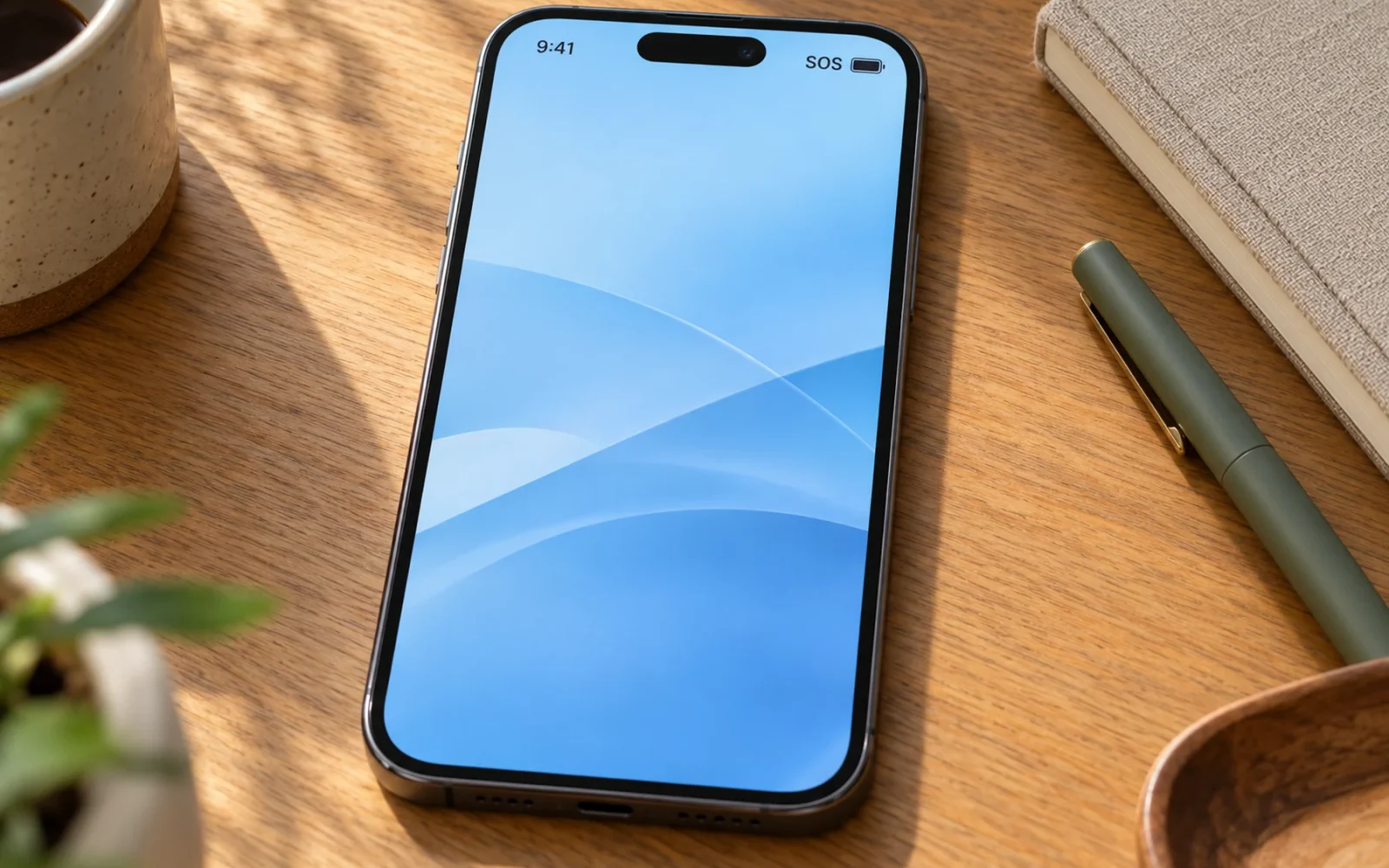
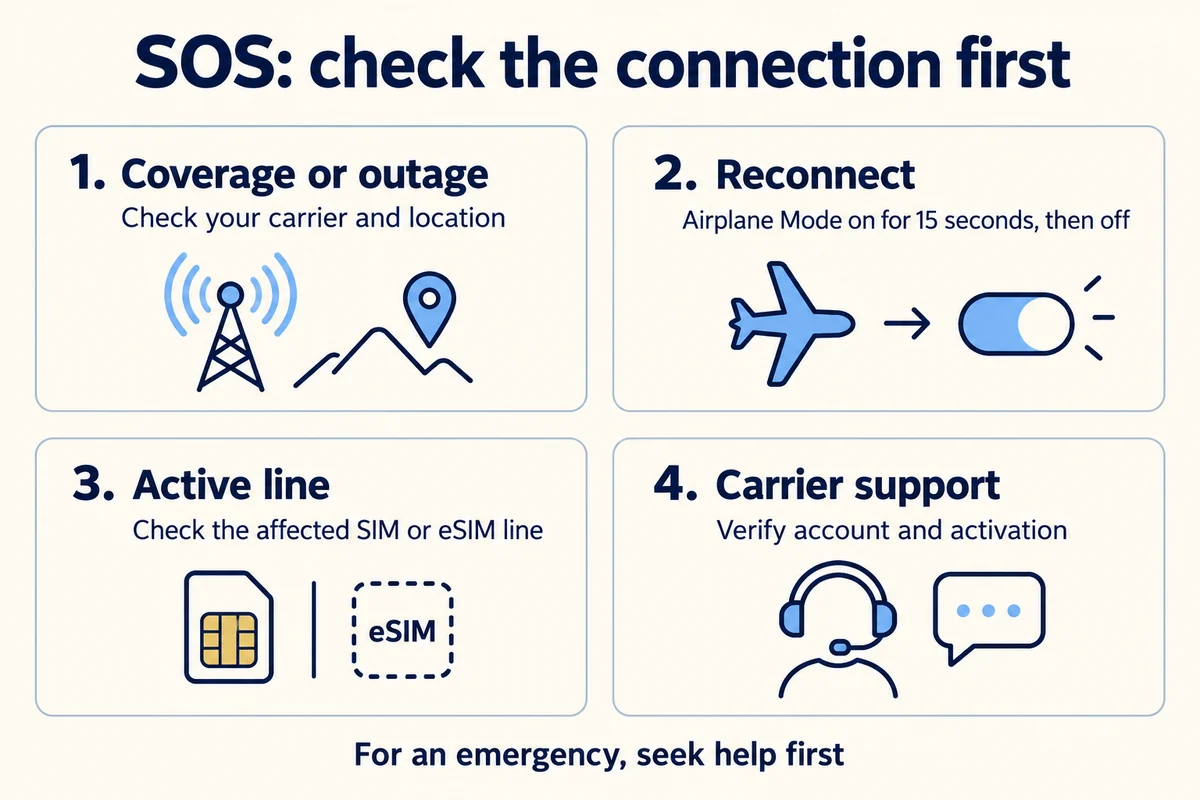
Your iPhone says SOS or SOS only because it is not connected to your carrier’s cellular network. In supported locations, it can still attempt emergency calls through another available carrier. Start by checking coverage or an outage, then reconnect the phone and verify that its cellular line is active. SOS is a status indicator, not a switch you need to disable.
If you need emergency help now, try the local emergency number or the emergency options offered on your phone. Do not work through routine troubleshooting first, and do not make a test emergency call simply to check service.
What SOS means, and what it does not mean
Apple’s SOS and No Service explanation distinguishes a missing connection to your own carrier from emergency access through other networks. Apple lists the SOS-only feature in Australia, Canada, and the United States; wording and available emergency options can vary elsewhere.
Seeing those letters does not mean your phone has already called emergency services. It also does not, by itself, prove that someone has hacked the phone or that the antenna is broken. The label describes the current connection state; the cause still needs checking.
Emergency SOS is the feature used to contact help. Satellite emergency service is a separate capability on supported devices and in supported locations. Apple’s emergency calling instructions explain those routes. A plain SOS label is not confirmation that a satellite connection is active.
Check whether the problem follows a place, a network, or your phone
Before changing settings, notice when the problem began. Did you enter a basement, leave a covered area, switch carriers, transfer a number, or set up a new phone? Those clues narrow the next useful action.
| What you observe | What to investigate first |
|---|---|
| Service returns outside or in another location | Local coverage or an obstruction |
| Nearby people on the same carrier also lose service | A network outage or local carrier problem |
| SOS began during a number transfer or new activation | Account, line, and SIM/eSIM activation |
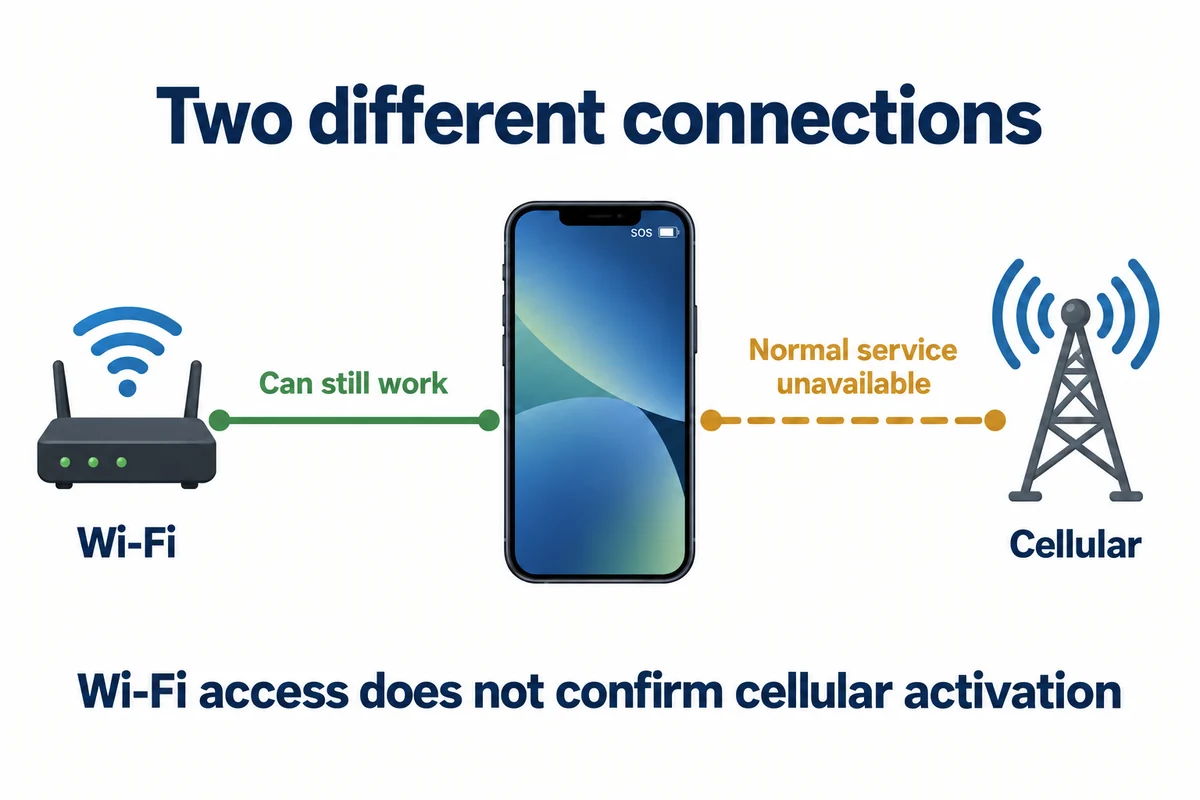
| Wi-Fi works but ordinary cellular service does not | The cellular connection rather than the Wi-Fi router |
| Only this phone fails in several normally covered locations | Line setup, software, SIM, or device troubleshooting |
These are starting points, not diagnoses. Comparing with someone on a different carrier is less informative than comparing with the same carrier in the same place. A working Wi-Fi connection also does not prove that your cellular account is active.
Verizon’s calling troubleshooting guidance identifies coverage conditions and routes users to carrier-specific SOS checks. Check your own carrier’s outage and account information instead of assuming that every SOS incident has the same cause.
Reconnect without erasing anything
If you are safe and not relying on the phone for an emergency call, try the low-disruption steps first:
- Move to a location where your carrier normally works, if you can do so safely.
- Open Settings and turn on Airplane Mode for at least 15 seconds, then turn it off.
- Allow the phone to reconnect. If it remains on SOS, restart it normally.
The 15-second reconnect step comes from Apple’s cellular troubleshooting instructions linked above. Repeating it indefinitely will not repair a carrier outage or complete a failed account transfer.
Keep track of what changes. A phone that reconnects elsewhere points to a different investigation from one that immediately loses service again everywhere. Tell support that pattern rather than saying only that the phone “doesn’t work.”
Check the active line and carrier settings
Open Settings > Cellular. Depending on your region, the menu may be called Mobile Service or Mobile Data. If you have more than one line, select the affected number and check that the line is turned on. A working second line does not establish that the first one is active.
If the expected line is missing, contact the carrier about activation. If the phone has a physical SIM and it is damaged or does not fit properly, ask about a replacement rather than forcing it into the tray.
On Wi-Fi, open Settings > General > About and follow any carrier-settings update prompt. Apple’s carrier-settings update instructions explain that these settings can improve connectivity and may need updating after a new SIM or eSIM setup.
Also check for an available iOS update, especially if carrier support requests one. An iOS update and a carrier-settings update are different things. Do not assume that updating one proves the other is current.
If SOS started after switching carriers or phones
Make activation the priority. Ask the carrier to verify that the number transfer is complete, the account is active, and the correct line is assigned to this device. Keep any activation error message available so the agent can investigate that specific failure.
In one Reddit discussion about an unsuccessful carrier transfer, an iPhone owner described SOS appearing during a FirstNet-to-AT&T switch, followed by repeated eSIM activation errors. A reply recommended escalating the line setup before assuming a hardware fault. That is an individual unresolved report, not proof that every SOS problem is a provisioning issue; its useful lesson is to follow the timing and the exact error.
Do not delete an eSIM just to try something different. Apple specifically advises against erasing an eSIM as a troubleshooting step unless the carrier directs you to do so. Replacing it can require the carrier’s help and leave you with another activation task.
Why Wi-Fi can work while the phone still says SOS
Wi-Fi and cellular are separate connections. You may be able to browse websites over your home network while the phone remains unable to use its ordinary cellular service.
Where your carrier supports it, Wi-Fi Calling can help with calls over a working Wi-Fi connection. In Settings > Cellular, select the relevant line, open Wi-Fi Calling, and follow the setup prompts. You may need to confirm an emergency-services address. Apple’s Wi-Fi Calling instructions explain the setup and the indicator shown when it is available.
Do not assume that joining Wi-Fi automatically enables carrier calling. If the feature cannot activate or the account is not set up correctly, contact the carrier. It is a possible communication route while you investigate, not confirmation that the cellular fault has been fixed.
When a network reset or repair becomes reasonable
Consider resetting network settings only after the basic checks and carrier investigation, particularly if the problem appears linked to a changed setting. The path is Settings > General > Transfer or Reset iPhone > Reset > Reset Network Settings.
Apple’s network-reset guidance explains that this removes saved Wi-Fi networks and passwords, cellular settings, and VPN/APN settings. Have the information needed to reconnect, and consult your organization’s administrator if the phone has managed network settings. Do not confuse this option with Erase All Content and Settings.
If the carrier confirms that the account, coverage, and network are functioning, and the problem remains with this phone, contact Apple for diagnostics or service. Bring the full model name, installed iOS version, error messages, when SOS began, and the checks already completed. A clear sequence of events is more useful than repeating resets without recording their results.
Conclusion
Treat SOS as evidence of a missing normal cellular connection, then investigate what changed. A location problem calls for coverage checks; a recent transfer calls for activation support; a persistent device-only problem calls for diagnostics after the carrier has cleared the line. Fixing the cause restores service. Turning off emergency features does not.

Ethan Miller
Ethan Miller writes about home improvement, interior design, cleaning, and everyday living at Home & Living Daily. He shares practical tips and simple ideas to help readers create more comfortable and functional homes.


