
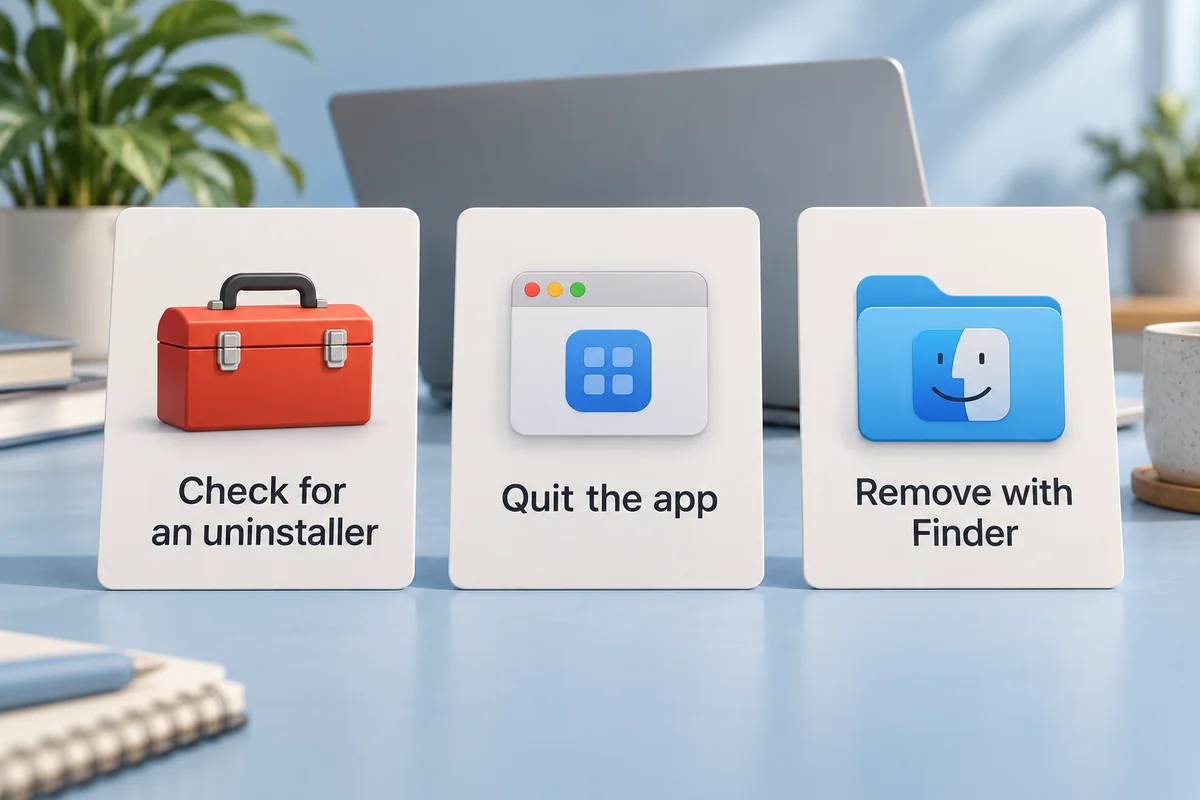
To uninstall a Mac app completely, use the developer’s uninstaller when one is provided. Otherwise, quit the app, move its application bundle from Applications to Trash, and review any remaining files that belong only to that app. Keep documents you need, handle subscriptions separately, and empty Trash only after checking what you removed.
“Completely” needs a sensible boundary. Removing an app and its unwanted local components is achievable; guaranteeing that every historical log, backup, cloud record, and account entry has disappeared is a different task. Do not delete unrelated data in pursuit of an empty search result.
Choose the correct removal method before deleting anything
Check the app’s Help menu, settings, Applications folder, and official support instructions for an uninstall option. This matters most for software that installs background services, network components, drivers, or extensions.
| Type of installation | Start here | Reason |
|---|---|---|
| Ordinary app with no removal tool | Quit it, then use Finder > Applications > Move to Trash | Removes the actual application bundle |
| App with an official uninstaller | Follow the developer’s removal instructions first | Can unregister helpers and other installed components |
| Package-manager or managed work installation | Use the original manager or contact the administrator | Avoids leaving installation records or management rules inconsistent |
Apple’s Mac app removal instructions recommend an included uninstaller for removing an app and its login items, extensions, or data stored elsewhere. Do not throw away the app first if its own removal command is inside it.
A VPN is a good example: removing its visible window is not necessarily the same as removing its network extension. A simple calculator may need only the Finder method plus an optional settings cleanup. The amount of work should follow what the app installed.
Save the data you want to keep
Before removal, open the app and export anything that exists only inside it: a local notebook, an unsynced project, a game save, a database, or a custom preset. Check that an exported file opens where you expect. A “synced” label is not a substitute for knowing where your usable copy lives.
If a paid license has a device limit, check the developer’s instructions for deauthorizing this Mac. Cancel an unwanted subscription with the service that bills you. Deleting the program does not cancel a recurring payment or necessarily close its online account.
Keep a backup before removing application data. If you are uninstalling to troubleshoot and plan to reinstall, decide whether you want your old settings retained. Removing preferences can reset useful customization as well as the problem you are trying to solve.
Remove the application in Finder
For an app without an uninstaller, use Finder rather than deleting a Dock shortcut. The Dock icon is a launcher, so removing it alone does not uninstall the program.
- Save your work and quit the app with its Quit command or Command-Q.
- Open Finder and select Applications. Some apps are instead in the Applications folder inside your home folder.
- Select the correct app and choose File > Move to Trash, or Control-click it and choose Move to Trash.
- Enter a Mac administrator’s credentials if macOS requests them.
- Leave Trash available while you review any remaining data and confirm that you removed the intended application.
The .app item is a bundle containing the program, not merely an icon. Moving it to Trash removes the installed application from its normal location. It may leave settings and support data outside that bundle, which is why a separate review can be useful.
If you only need the program removed, you can often stop after this step and the final checks. A small saved preference is not automatically a performance problem.
Review leftover files without deleting shared data
Look for leftovers only when you have a reason: reclaiming a large app-specific download, removing unwanted local account data, or starting a clean reinstall. In Finder, choose Go > Go to Folder and enter the relevant path. The ~ in these paths means your own home folder.

| Location to inspect | What may be stored there | Check before removal |
|---|---|---|
~/Library/Application Support/ | Databases, downloaded content, presets and other support files | Whether the data needs exporting or is shared with another app |
~/Library/Caches/ | App-created temporary content | Exact app ownership, rather than a whole vendor folder |
~/Library/Preferences/ | Saved settings, often in a named preference file | A matching app or bundle identifier |
~/Library/Containers/ | Sandboxed app data | Whether it contains work you want to keep |
~/Library/Group Containers/ | Data shared by related apps | Whether another installed app still uses it |
These are places to inspect, not a list of folders to delete wholesale. Use the developer’s documentation to identify the app’s exact files or bundle identifier. A familiar company name is insufficient if several apps from that company remain installed.
For a hypothetical photo editor, its cache might be expendable while its preset library is something you spent months building. Treat those as separate decisions. Move only confirmed unwanted files to Trash, preserving a record of their original locations until you are satisfied with the result.
Do not delete /System/Library, entire Library folders, or everything returned by an app-name search. Avoid manually removing privileged launch agents, daemons, or system extensions from guessed paths. Return to the developer’s uninstaller when background components are involved.
Resolve apps that are in use or keep returning
If Finder says an app is open, quit it and check for its menu-bar companion. Save any remaining work before using Force Quit. Restarting the Mac can clear an ordinary stuck process; if the problem continues, follow Apple’s guidance on Safe Mode or the developer’s removal procedure.
Look in System Settings > General > Login Items & Extensions for relevant items on current macOS versions. Disabling an item prevents a behavior; it does not necessarily remove the underlying files. Use the developer’s process to finish removing a helper rather than assuming a disabled switch means uninstall is complete.
If an app returns after a restart, check whether a package manager, company management tool, or another installer is restoring it. On a work or school Mac, ask the administrator. Repeatedly deleting it will not resolve a deployment rule.
Some apps required by macOS cannot be removed with Finder. Do not disable system protections to force-delete them. If you only want a cleaner workspace, remove the launcher from the Dock instead.
Finish with a targeted check
Restart when the developer requests it, confirm the app is absent from Applications, and check that its unwanted startup behavior has stopped. Open any related programs you kept, especially when reviewing shared vendor data. Then review Trash and empty it when you are ready; that is the step that permanently removes its contents and makes their storage available.
Third-party uninstallers can help identify associated files, but review their selections. A file being associated with an app does not mean you want to lose it. A Mac user discussion about AppCleaner illustrates the disagreement: some users value automatic file lists, while others deliberately keep preferences for a future reinstall. Neither approach replaces checking your own data.
Conclusion
A thorough uninstall removes the app and the components you no longer need while leaving useful work intact. Use the developer’s removal tool for complex installations, and make leftover cleanup a deliberate review. Once the program and unwanted background behavior are gone, deleting unrelated files adds risk without improving the result.

Ethan Miller
Ethan Miller writes about home improvement, interior design, cleaning, and everyday living at Home & Living Daily. He shares practical tips and simple ideas to help readers create more comfortable and functional homes.


