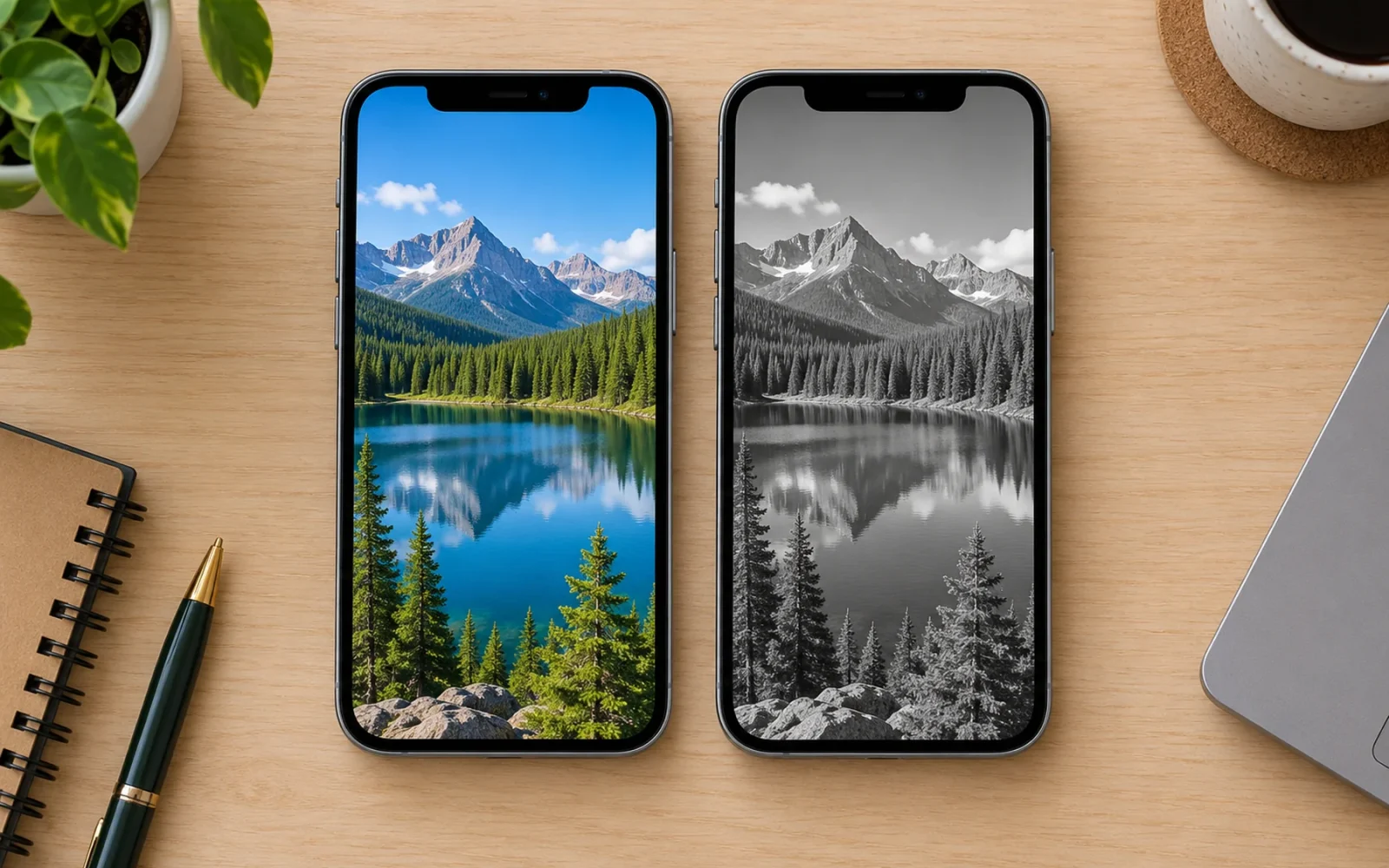
To turn your iPhone screen grayscale, open Settings > Accessibility > Display & Text Size > Color Filters. Turn Color Filters on and select Grayscale. Your display will show shades of gray instead of color. To reverse the change, return to the same screen and turn Color Filters off.
This is a display setting, so you do not need to edit your wallpaper, convert photos, or install a monochrome theme. You can also add a shortcut if you want to switch between gray and color frequently.
Enable Grayscale in Color Filters
Open Settings and follow the path to Color Filters. If you cannot find it, search Settings for “Color Filters” rather than looking under the wallpaper controls.
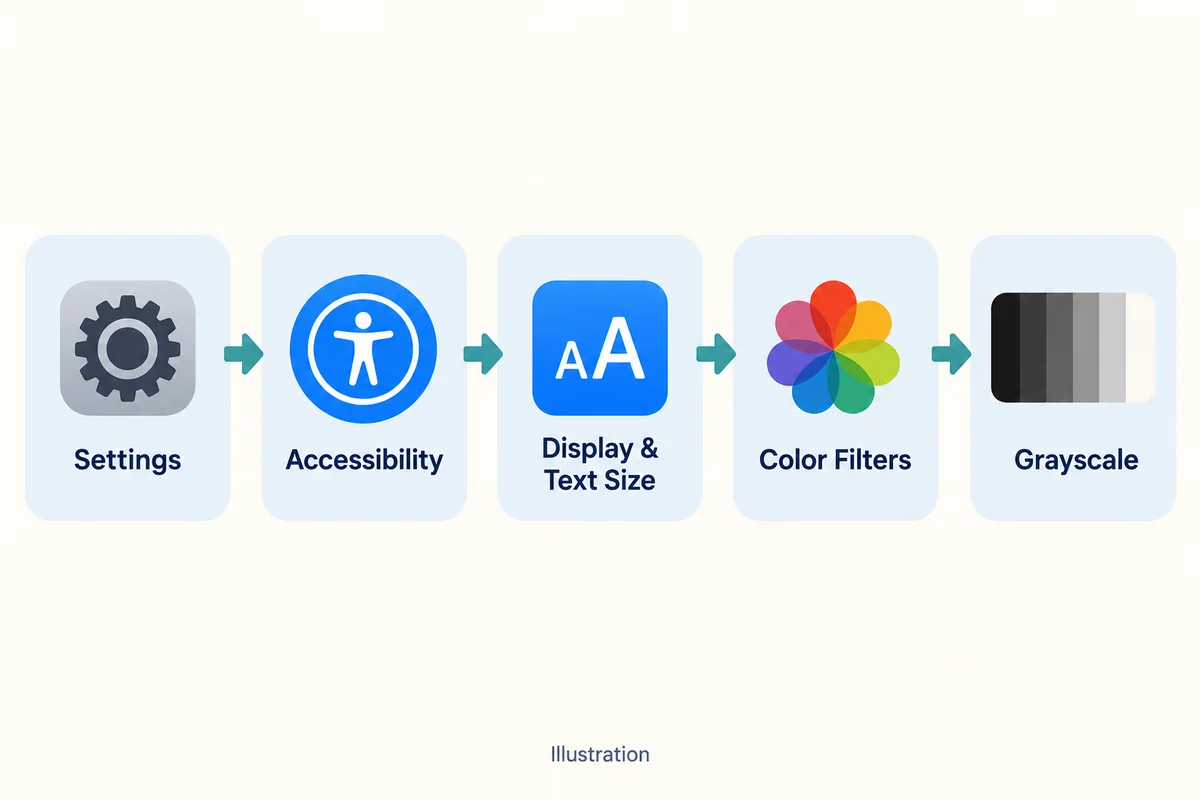
- Tap Accessibility.
- Choose Display & Text Size.
- Tap Color Filters.
- Turn Color Filters on.
- Select Grayscale from the filter options.
If your version shows an Intensity slider for Grayscale, adjust it to the strength you prefer. For a fully monochrome appearance, move it to the strongest setting. Check a familiar, colorful app to confirm the effect; a mostly white Settings page is a poor visual test.
Apple's display-color guide explains that color filters change the entire screen's appearance, including how images and videos look while you view them.
If the screen has an unusual tint instead of appearing gray, check that Grayscale is selected. Color Tint and the filters intended for particular color-vision needs are different options in the same menu.
Add a quick way to switch color back on
A shortcut is useful when you generally want grayscale but occasionally need color for a map, a photograph, or a chart. Set up the filter first, then assign Color Filters to Accessibility Shortcut.
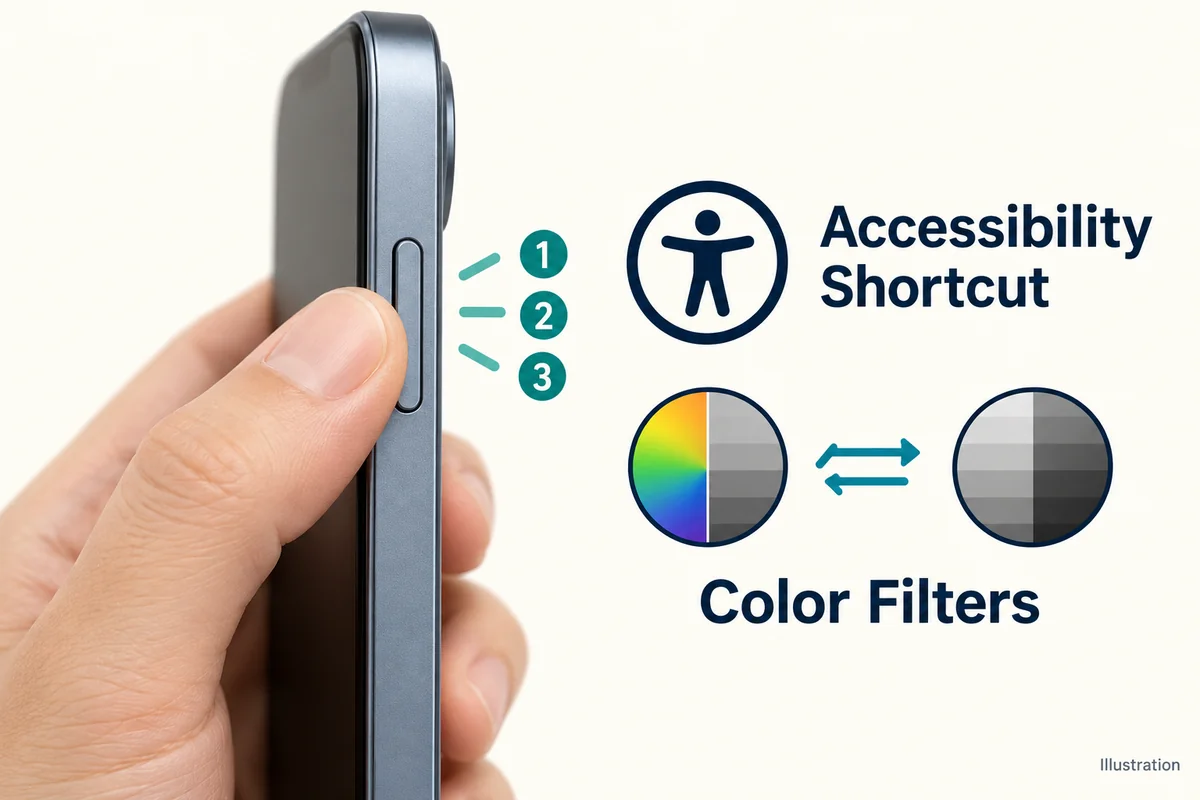
Open Settings > Accessibility > Accessibility Shortcut and select Color Filters. You can then triple-click the side button on an iPhone without a Home button, or triple-click the Home button on a model that has one. Apple's Accessibility Shortcut instructions explain the button controls.
If you have selected several accessibility features, a menu may appear so you can choose which one to use. Select only Color Filters if you want this particular shortcut to be as direct as possible and do not need the others on the same button action.
Try the shortcut twice: once to restore color and once to bring grayscale back. Doing this while you still remember where the setting lives is easier than discovering later that the button controls another accessibility feature.
If triple-clicking is difficult, the Side Button or Home Button accessibility settings let you adjust the click speed. You do not need to abandon an accessibility feature because its shortcut is awkward to trigger.
Restore color if the screen turned gray unexpectedly
First, open Color Filters and turn the switch off. If color returns, the filter was the cause. If grayscale comes back later, check whether Color Filters is assigned to an accessibility shortcut you might have triggered accidentally.
If Color Filters is off and the screen remains gray, check Settings > Accessibility > Zoom. Zoom has its own filter choices, including Grayscale. Choose None for the Zoom Filter if you want to keep magnification without that color effect. Apple lists these options in its Zoom setup instructions.
If you previously created a Shortcuts automation that changes Color Filters when an app opens or closes, inspect that automation too. Otherwise, you may keep switching color back on manually while the automation changes it again.
These checks help distinguish an intentional software effect from a possible screen problem. If the colors remain abnormal after the relevant display filters are disabled, restart the phone and investigate the display separately rather than repeatedly toggling Grayscale.
Does grayscale change your photos or screenshots?
Color Filters changes what you see on the display rather than applying a black-and-white edit to every original photograph. A color image can therefore look gray on your phone while remaining a color image when viewed elsewhere.
For a practical check, take a screenshot while grayscale is enabled, then turn the filter off and view that screenshot again. You can also compare a photo on a second display with its filters disabled. This avoids judging a saved file through the same filter you are trying to check.
If you want an image itself to remain black and white when shared or printed, use a photo-editing tool to apply a monochrome edit. The accessibility setting and a saved image edit serve different purposes.
Grayscale, Dark Mode, and everyday use
Grayscale removes the on-screen distinction between colors. Dark Mode changes the light or dark appearance of supported interfaces. Night Shift adjusts the display's color temperature. None is a substitute for the others, so select the effect that answers your actual need.
Some people try grayscale to make colorful apps less appealing. Treat that as an experiment in your own habits rather than a guaranteed fix for excessive scrolling. You can still read, watch, and spend time in apps while their colors are muted.
Also notice where color carries useful information. Two lines on a chart, colored route markers, or a photo you are editing can become harder to distinguish. A quick toggle lets you restore color for that task without undoing the whole setup.
There is no reason to promise a particular battery saving or a health benefit from this setting. Its predictable result is the visible change on your screen.
Conclusion
Color Filters is the direct route to a grayscale iPhone. Pair it with a shortcut if you want flexibility, and keep color available for tasks that depend on it. If the phone becomes gray unexpectedly, check both Color Filters and Zoom before assuming the display is damaged.

Ethan Miller
Ethan Miller writes about home improvement, interior design, cleaning, and everyday living at Home & Living Daily. He shares practical tips and simple ideas to help readers create more comfortable and functional homes.


