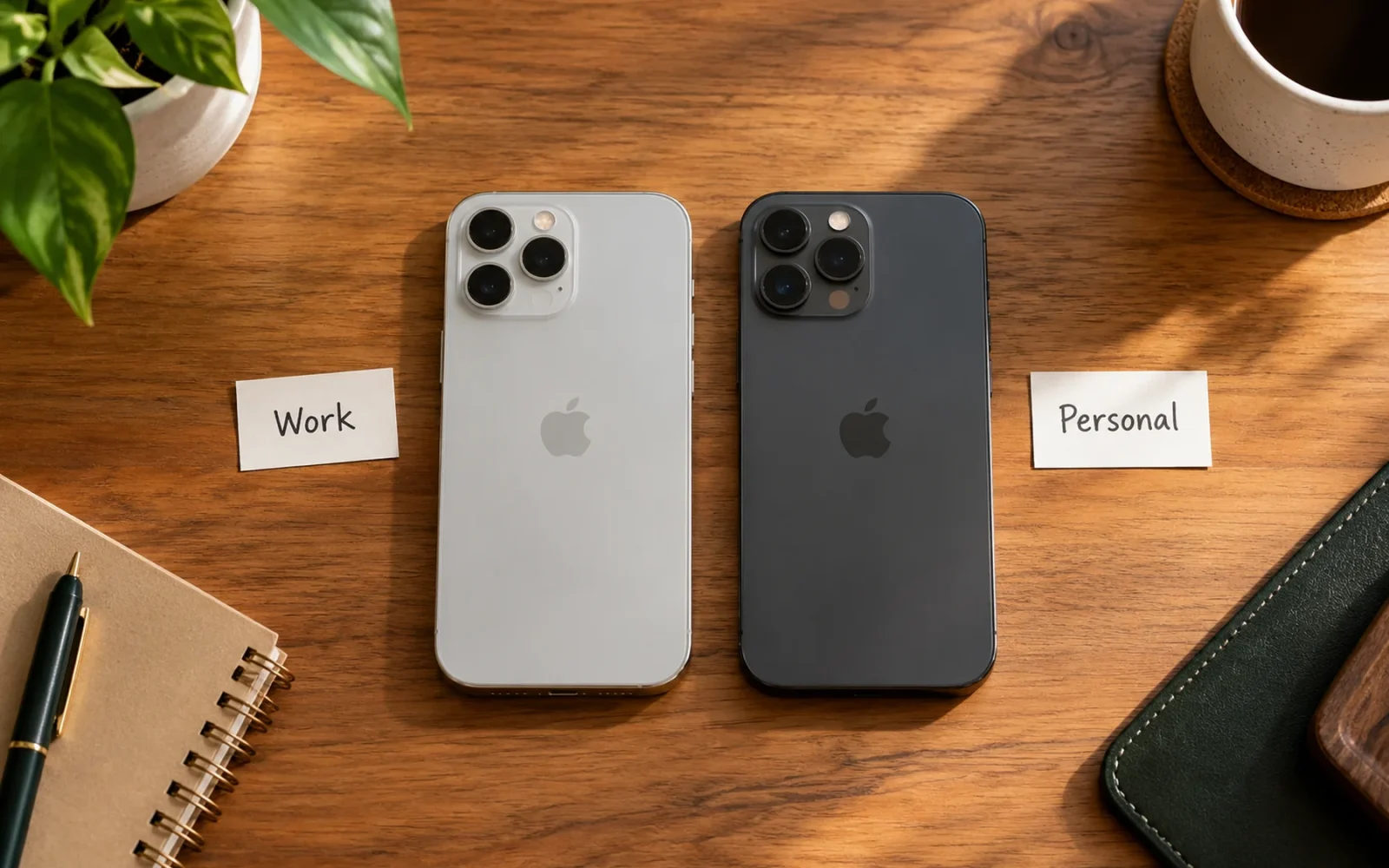
To change your iPhone’s name, open Settings > General > About > Name, replace the existing text, and tap Done. This changes the phone’s custom device label. It does not change its hardware model, your Apple Account name, or the caller ID other people see when you phone them.
A distinctive label is useful when several devices have similar names. “Travel iPhone” or “Work iPhone” can be easier to recognise than another entry called simply “iPhone.”
Change the device name in Settings
You can make the change directly on the iPhone; a computer and a separate app are unnecessary.
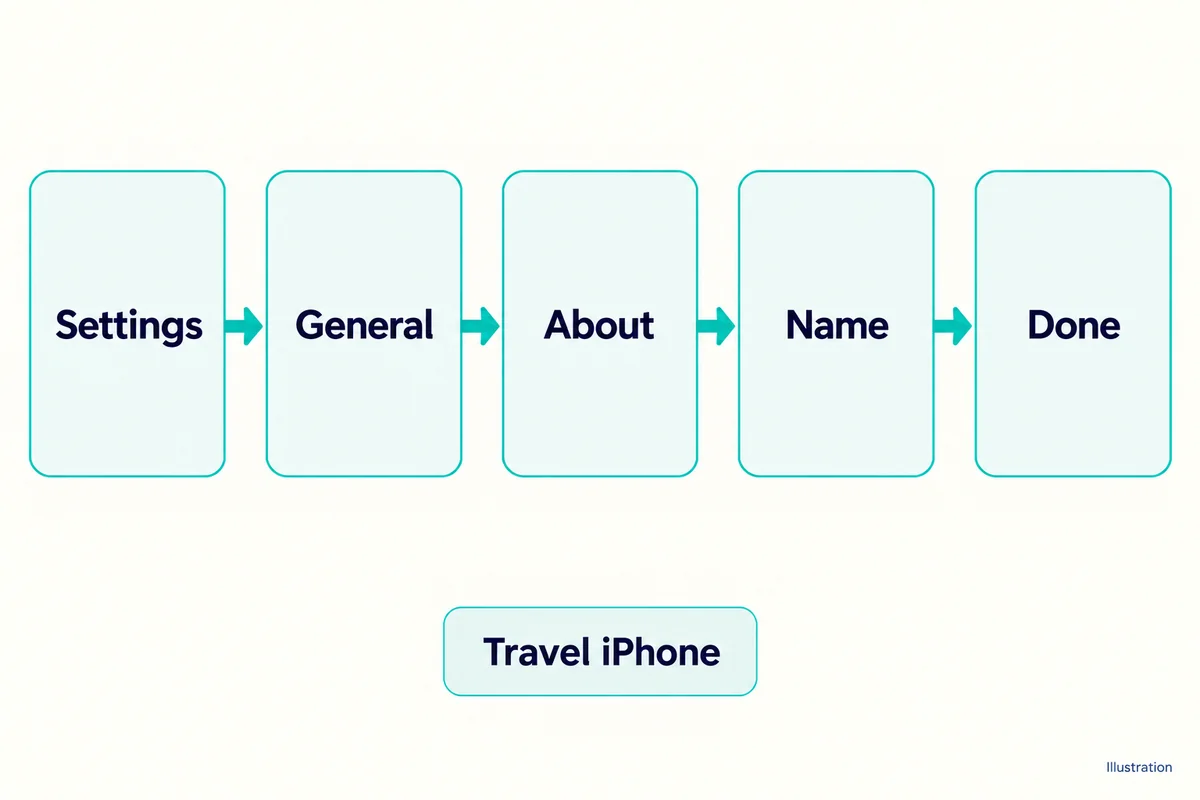
- Open Settings.
- Tap General, then About.
- Tap Name at the top of the information list.
- Clear the existing name and enter the label you want.
- Tap Done on the keyboard, then go back to About to check the saved value.
This is the path in Apple’s device-renaming instructions. If you were looking at Model Name instead, move to the Name row. Model Name describes which iPhone you own and is not an editable nickname field.
Before leaving Settings, read the new name once more. A typo is easy to miss when you are concentrating on the keyboard, and it can become confusing later when choosing among several devices.
Where the new name appears
Apple uses the device name with iCloud, AirDrop, Bluetooth, Personal Hotspot, and your computer. Renaming is therefore helpful when you need to distinguish your own hardware in a list, rather than merely change a label on one screen.
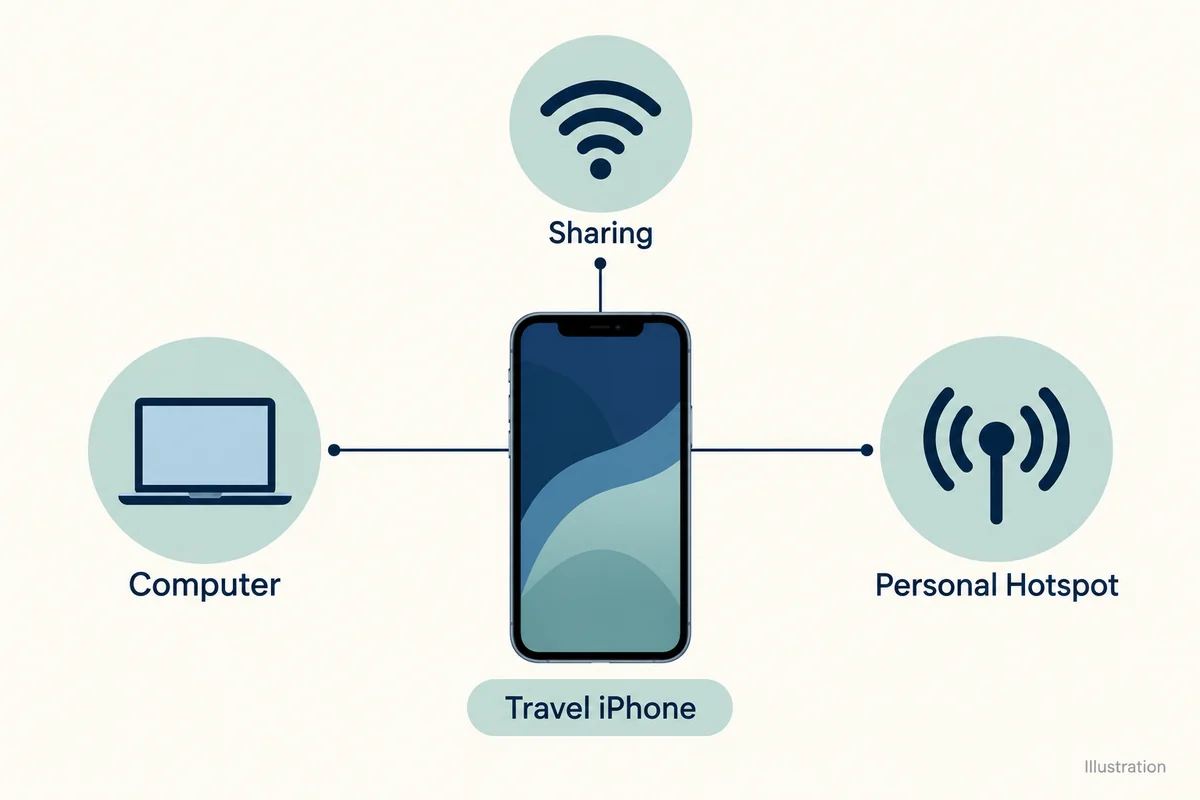
For example, imagine a household with two phones both named “iPhone.” Giving one the label “Travel iPhone” makes its hotspot easier to identify when a laptop needs a connection. The name is a clue for choosing the device; it is not proof that an unfamiliar network or phone belongs to someone you trust.
You can also review the phone in your Apple Account device list. Select its details rather than relying only on a nickname, particularly if several older phones remain associated with the same account.
Other devices may briefly display a previously saved label. Check the new value on the iPhone itself first, then refresh the list in the place where you are trying to use it. A stale name elsewhere does not necessarily mean your edit failed.
Choose a name you can recognise
Use a short description that helps you choose the right phone at a glance. “Work iPhone,” “Personal iPhone,” and “Travel Phone” describe different roles without needing a full name or contact information.
If you manage several similar devices, add a simple distinguishing detail, such as “Work iPhone 2.” Avoid giving two active phones exactly the same label and then relying on their order in a list; that order may change.
Because the name can appear to nearby devices in some sharing and connection contexts, leave out details you would not want displayed there. A home address, private telephone number, or sensitive job description provides little benefit as a device label.
There is no need to fit every hardware detail into the name. You can record the full model and storage capacity elsewhere. A useful nickname remains easy to read in a narrow connection menu.
Device name, account name, and caller ID are different
Several iPhone settings contain the word “name,” but they serve different purposes. Changing the wrong one can leave the label you actually wanted to fix untouched.
| Name or label | What it describes | Does this procedure change it? |
|---|---|---|
| Device Name | Your custom label for this iPhone | Yes |
| Model Name | The hardware model, such as iPhone 15 Pro | No |
| Apple Account name | The person associated with the account | No |
| Contact card or shared contact name | How a person is identified in contact features | No |
| Outgoing caller ID | The identity presented through calling services | No |
Typing “iPhone Pro” into Name does not add Pro hardware or change the model recorded in About. Similarly, renaming an old phone after handing it to another person does not transfer accounts or remove the previous owner’s data. A transfer is a separate task.
If another device still shows the old name
Return to Settings > General > About > Name. If the new label is saved there, concentrate on the service displaying the old one rather than entering the name repeatedly.
Close and reopen the device or connection list on the other device. For a hotspot, disconnect and reconnect when it is convenient. For a car or Bluetooth accessory, check whether that system has its own saved nickname for the phone; changing an accessory’s local label is different from renaming the iPhone.
If a saved connection must be removed and paired again, make sure you can complete that pairing before deleting it. Do not reset all network settings simply because one menu has not refreshed.
When Name cannot be edited on a managed work or school phone, check with its administrator. That is a different situation from a successful edit that another device has not yet displayed.
Conclusion
A good iPhone name makes the correct device easy to identify without exposing unnecessary personal details. Save it in the Name field, confirm it on the About screen, and refresh any old labels where you connect or share. Model information and account identity should remain separate from that everyday nickname.

Ethan Miller
Ethan Miller writes about home improvement, interior design, cleaning, and everyday living at Home & Living Daily. He shares practical tips and simple ideas to help readers create more comfortable and functional homes.


