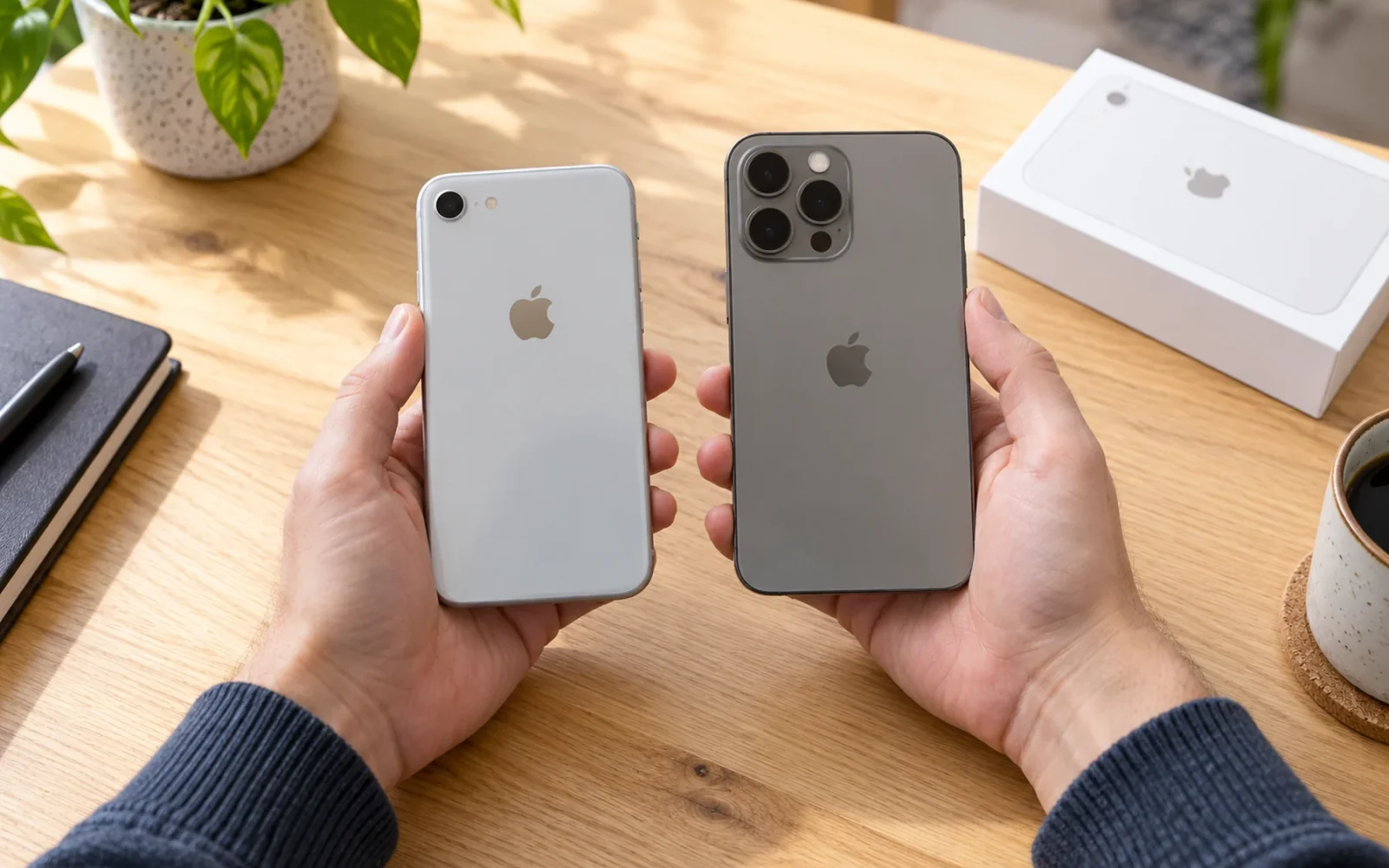
To tell what iPhone you have, open Settings > General > About and read Model Name. If you cannot unlock or turn on the phone, you can identify it through its physical model number, your Apple Account, a connected computer, or the original packaging. Start with the method that matches what you can access.
The exact name matters. An iPhone 15, iPhone 15 Plus, and iPhone 15 Pro can require different cases and replacement parts, even though they belong to the same generation. Record the full name, including Pro, Plus, Max, mini, or the generation of an SE.
Choose the quickest method available
You do not need an identification app or a paid lookup service. These five routes use information already on the phone or in records associated with it.
| What you can access | Method to use | What to look for |
|---|---|---|
| An unlocked, working iPhone | Settings > General > About | Model Name, then Model Number if needed |
| The physical phone but no working screen | Physical markings | A-number matched to Apple's model list |
| Your Apple Account on another device | Account device list | Model details for the correct device |
| The phone and a computer it can connect to | Finder or Apple Devices | Model information below the device name |
| The original box or purchase record | Packaging or order details | Full model description and matching identifiers |
1. Read the Model Name in Settings
Open Settings, tap General, and choose About. Read the Model Name row rather than the Name row. Name is a label the owner can change, so a phone called “Work iPhone” does not tell you its hardware model.
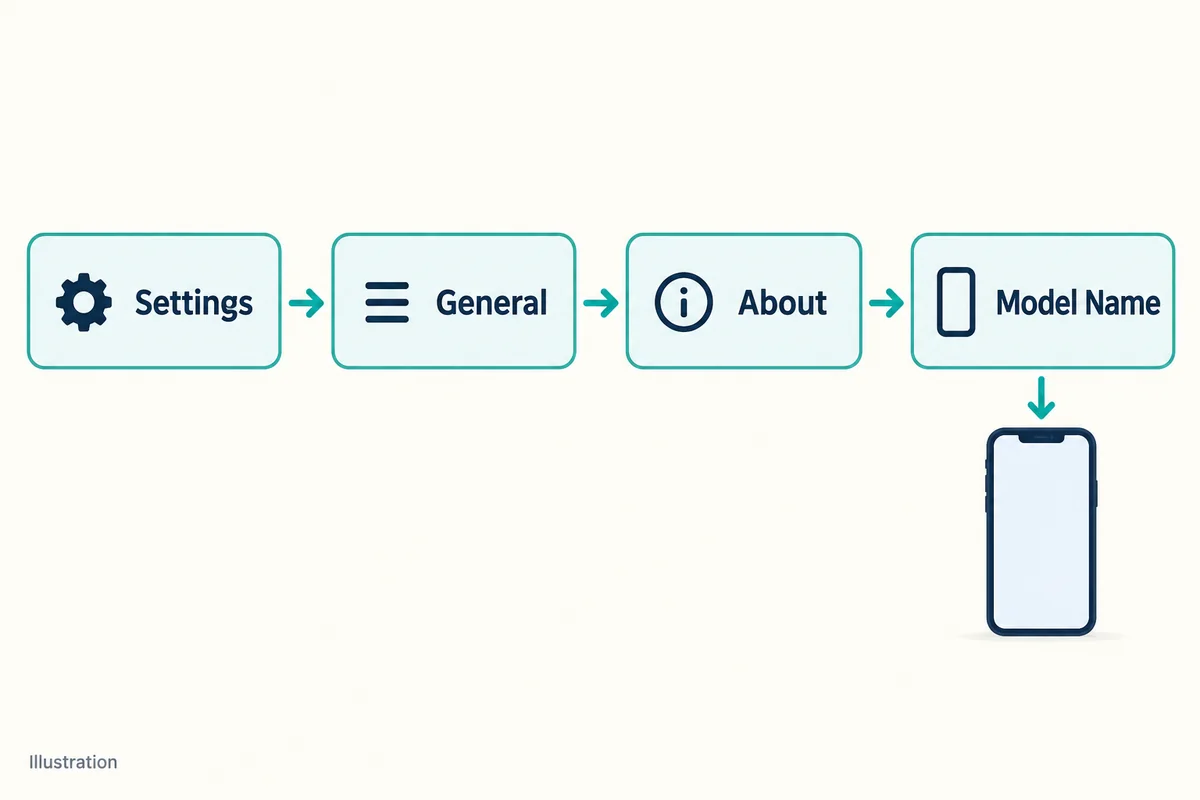
If you need a more specific hardware identifier, tap the value beside Model Number. That field initially shows a part number; tapping it reveals the model number beginning with A. Apple explains this distinction in its instructions for finding a model number.
For an accessory purchase, the full Model Name is usually the most useful starting point. For a regional hardware question, record the A-number too. Keep Capacity separate from Available: one describes the device's storage capacity, while the other changes as you save and delete content.
An example of a useful note is “iPhone 15 Pro, 256GB, A-number checked.” Writing only “iPhone 15” would leave out the distinction that matters to a case seller.
2. Find the A-number on the phone
If Settings is unavailable, inspect the phone for its hardware model number, then compare that identifier with Apple's iPhone identification list. A clear match is more reliable than guessing from a camera arrangement.
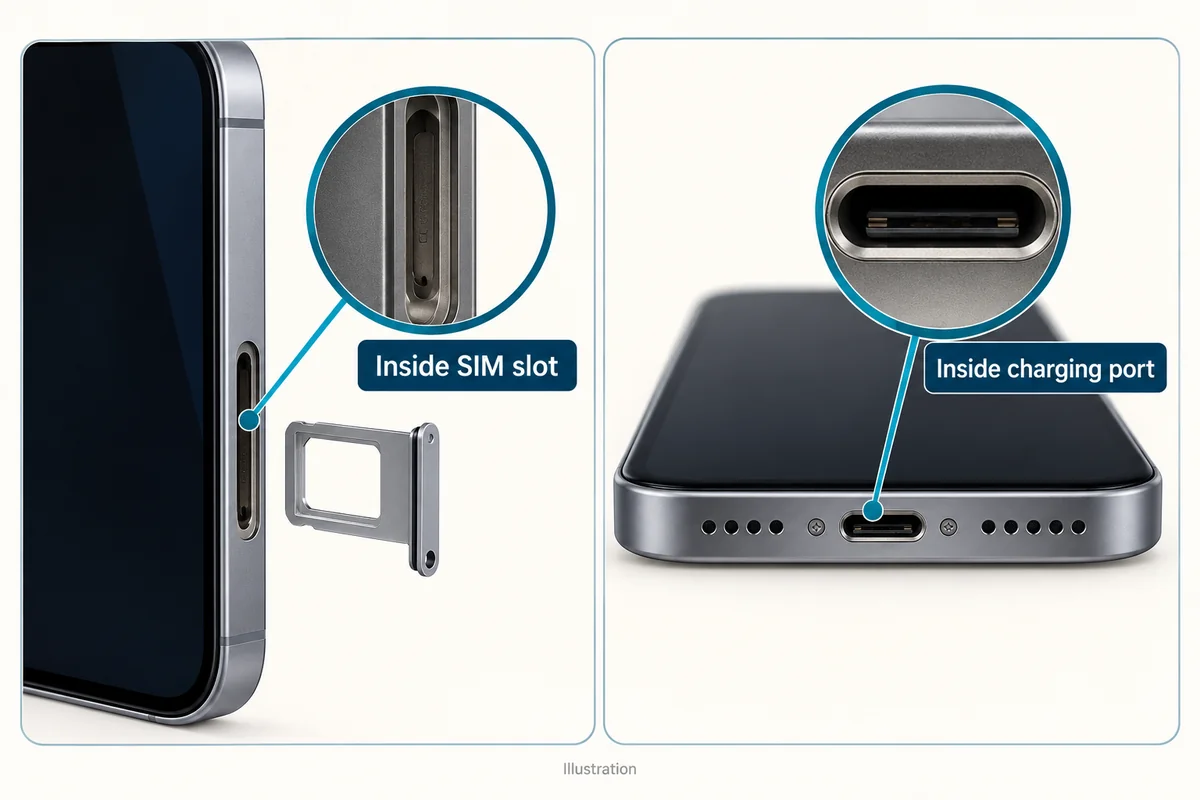
Where to look depends on the phone. On iPhone 7 and earlier, check the back. On iPhone 8 and later models with a SIM tray, remove the tray and look inside the slot, on the upper side facing the display. On models without a SIM tray, look inside the USB-C or Lightning connector, again on the side facing the display.
Use a bright light and magnification if needed. The number inside the SIM opening is not the same thing as a number printed on the removable tray. Do not scrape the charging connector or insert a metal object to expose the lettering.
If the marking is unreadable, move to another method. A blurry A-number with one guessed digit can point to the wrong device, and that uncertainty is not worth carrying into a repair order.
3. Check your Apple Account device list
This route is useful when your iPhone has a broken display, is elsewhere, or cannot power on. It requires that the phone already be associated with an Apple Account you can access.
On another iPhone or iPad signed in to that account, open Settings and tap your name. Scroll through the device list and select the relevant phone. On a Mac, open System Settings, select your name, and look through your devices. You can also sign in through the web and open Devices. Apple's device-list instructions show these routes.
Open the device's details; do not stop at its custom label. If you have several old iPhones, compare the information with a known purchase record or identifier so you do not accidentally identify a phone you no longer use.
Viewing details is enough. There is no reason to remove a phone from the account just to find its model.
4. Connect the iPhone to a Mac or Windows PC
A computer can display the model even when navigating the phone's small screen is inconvenient. Connect the iPhone with a suitable data cable and open Finder on a modern Mac, Apple Devices on Windows, or iTunes on an older setup that uses it.
Select the iPhone in the app and inspect its information page. Apple places the model name underneath the device name in the computer-based identification instructions.
The connection may require you to unlock the iPhone and approve a trust prompt. A computer is therefore not a dependable way around an inaccessible passcode screen. If the device does not appear, do not erase or restore it merely to identify the model; use the account or physical-number route instead.
5. Check the original box or purchase record
Read the model description on the original packaging, receipt, or retailer order history. This is especially convenient if you are identifying a phone before collecting it from a relative or arranging a repair remotely.
The important qualification is that the record must belong to that phone. A box can be swapped, particularly with used devices. Where possible, compare its serial number or IMEI with a trusted account or device record. Apple shows where these identifiers appear on the packaging in its identification guidance linked above.
A box marked only with a familiar product picture is weaker evidence than a matching label. If an order includes several phones, check the individual line item rather than assuming the first one is yours.
Which name or number should you record?
Use Model Name to communicate the product version. Use the A-number when you need to distinguish hardware variants. Serial numbers and IMEIs identify an individual device, so you generally do not need to post them publicly to ask whether a case fits.
The iOS version is different again: it identifies the software installed on the phone. Updating iOS does not turn one iPhone model into another. Likewise, changing the device's Name does not alter its Model Name.
Appearance is a useful cross-check, especially for a clearly older device, but similar designs can span generations. If the label, account details, and physical phone disagree, resolve that mismatch before ordering parts or accepting a seller's description.
Conclusion
The most useful result is a full model name you can verify, not a guess about the generation. Use Settings when possible, fall back to an A-number or a trusted device record when it is not, and confirm any packaging belongs to the same phone before relying on it.

Ethan Miller
Ethan Miller writes about home improvement, interior design, cleaning, and everyday living at Home & Living Daily. He shares practical tips and simple ideas to help readers create more comfortable and functional homes.


