Improve home Wi-Fi by testing where the connection becomes unreliable, moving the router into a better position, and expanding coverage only where the existing wireless path falls short. A faster internet plan will not fix a weak signal in the back bedroom, and another mesh point will not repair a service outage.
Compare one device in three places
Use the same laptop or phone near the router, in the problem room, and, if practical, on a wired Ethernet connection to the router. Run comparable checks while other household activity is similar. Record the location, time, device, and whether the issue is low download speed, poor upload, disconnections, or an unreliable video call.
A speed test is a snapshot of the whole path it uses, not a pure measurement of radio strength. A slow wired result can involve the service, router, cable, device port, or test conditions. Still, these comparisons help avoid solving the wrong problem.
| Pattern | Useful next step |
|---|---|
| Wired and nearby wireless connections both struggle | Check service status, router operation, and wired test limitations before adding coverage |
| Nearby Wi-Fi works, distant rooms do not | Work on placement, obstacles, and the route between connection points |
| One device struggles everywhere | Check that device’s updates, adapter, background activity, and connection compatibility |
| Problems appear during simultaneous heavy use | Compare uploads and downloads under load; review device use and available service capacity |
Test the actual task too. A room that downloads a large file adequately may still have dropouts during a call. Check at the desk or chair where the connection matters, rather than only standing in the doorway.
Give the existing router a better location
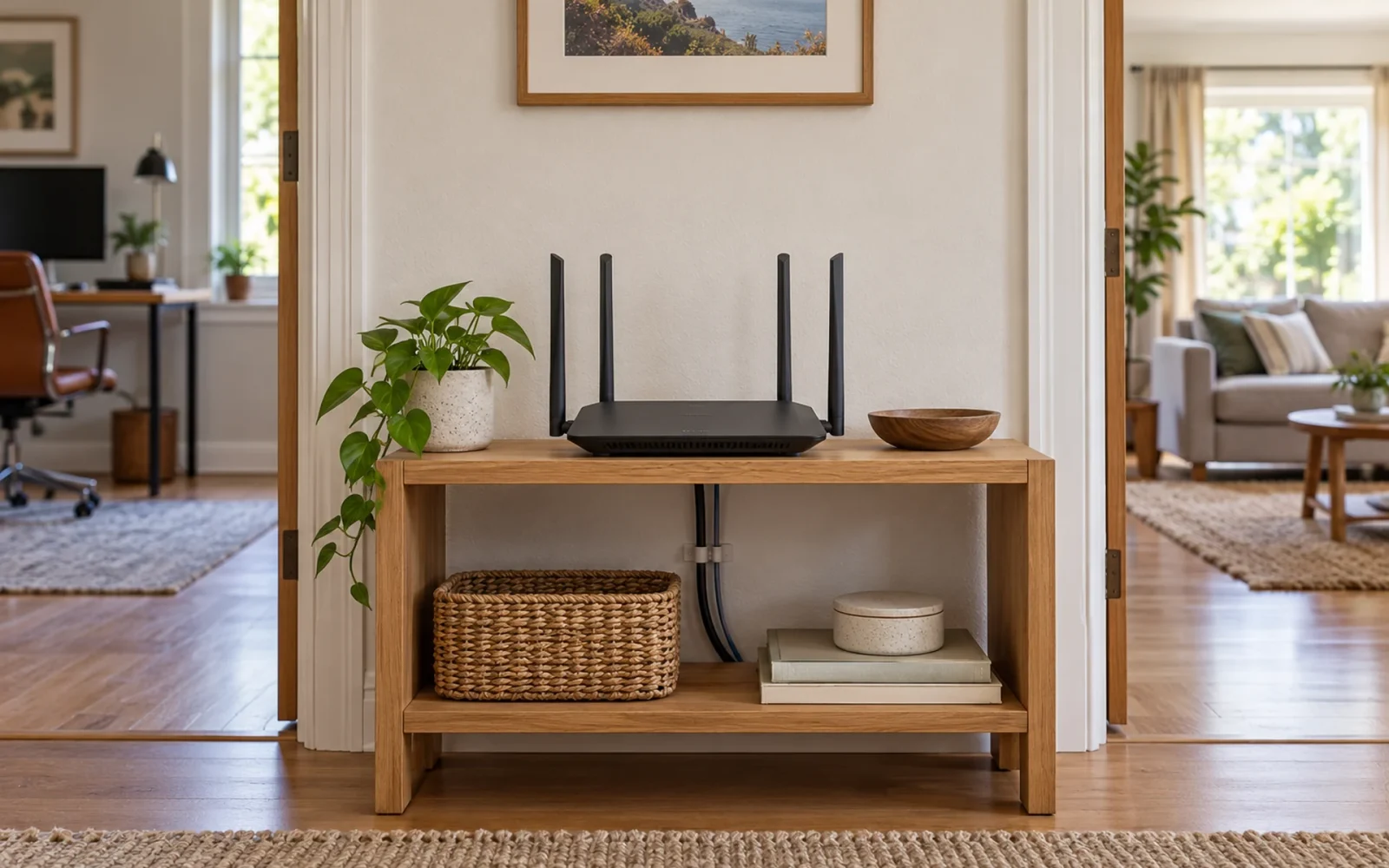
Move it out of a closed cabinet and into an open, reasonably central position that suits the home. Keep its ventilation clear and follow its orientation instructions. Thick masonry, metal cabinets, large appliances, and multiple intervening floors can make a short straight-line distance misleading.
The incoming cable may limit the modem’s location, but a suitable Ethernet run can sometimes allow a separate router to sit elsewhere. Do not stretch cables across a walkway, tightly bend fiber, or relocate provider equipment without understanding its installation requirements.
Change one thing and repeat the same room checks. If moving the router improves the office while ruining the upstairs bedroom, the home may need more than one access point. That is useful evidence, rather than proof that a particular advertised coverage figure is accurate for your walls.
Match the connection to the device and activity
Where supported, compare the available Wi-Fi bands. The 2.4 GHz band often reaches farther but can be more congested; 5 GHz can provide more capacity nearby while losing more strength through obstacles. Newer bands and standards also depend on compatible client devices. A band with a higher number is not automatically the best connection in every room.
Many routers manage band selection automatically. Use the manufacturer’s recommended settings before creating multiple networks or changing channels at random. Smart-home devices may have specific setup requirements, including support for only 2.4 GHz. Follow their instructions rather than disabling network security to make pairing work.
Keep router firmware and device software supported and current. If restarting temporarily restores service but the same failure returns, record the recurrence and investigate it. Scheduled restarts can conceal an unresolved fault.
Choose an expansion method by how it connects back
Every additional coverage point needs a reliable route to the main network. That connection is often called backhaul. Placing a wireless extender in the exact spot where the existing signal disappears gives it little usable connection to repeat.
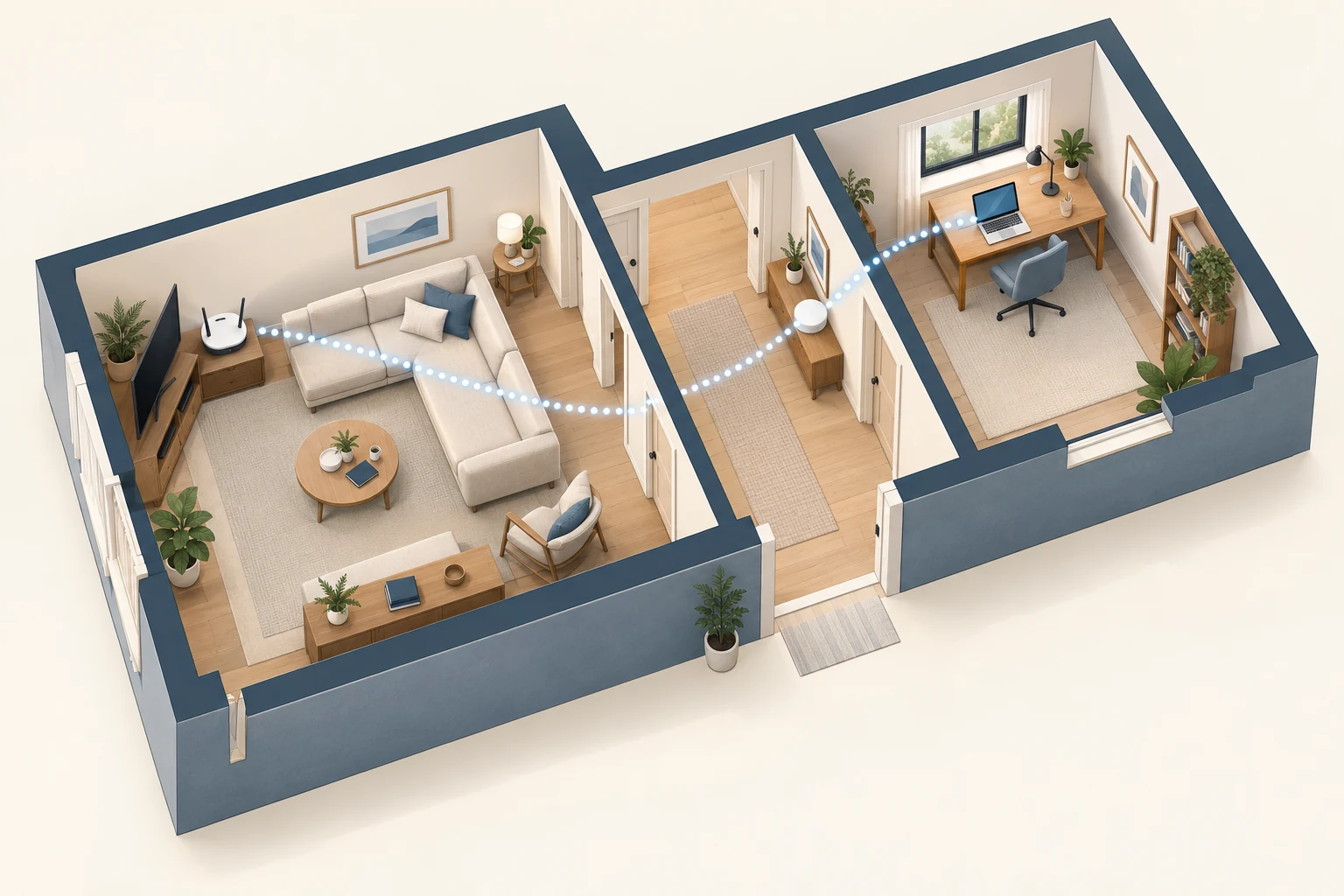
Google’s placement guidance for its Wi-Fi systems recommends open locations and moving a point partway toward a weak area, followed by a mesh connection test. Use your own system’s placement feedback; room counts and distances are not interchangeable across buildings.
Extender, mesh, or wired access point?
An extender can suit a limited coverage gap when its upstream signal is good. Performance depends on its radios, placement, and how traffic is carried; avoid treating “all extenders halve speed” as a universal rule. Confirm compatibility before assuming it will join an existing mesh.
A mesh system can coordinate coverage across several points, but it still needs good connections between them. More points are not automatically better. Verify whether the chosen models support wired backhaul, which models can work together, and whether replacing the main router affects provider services.
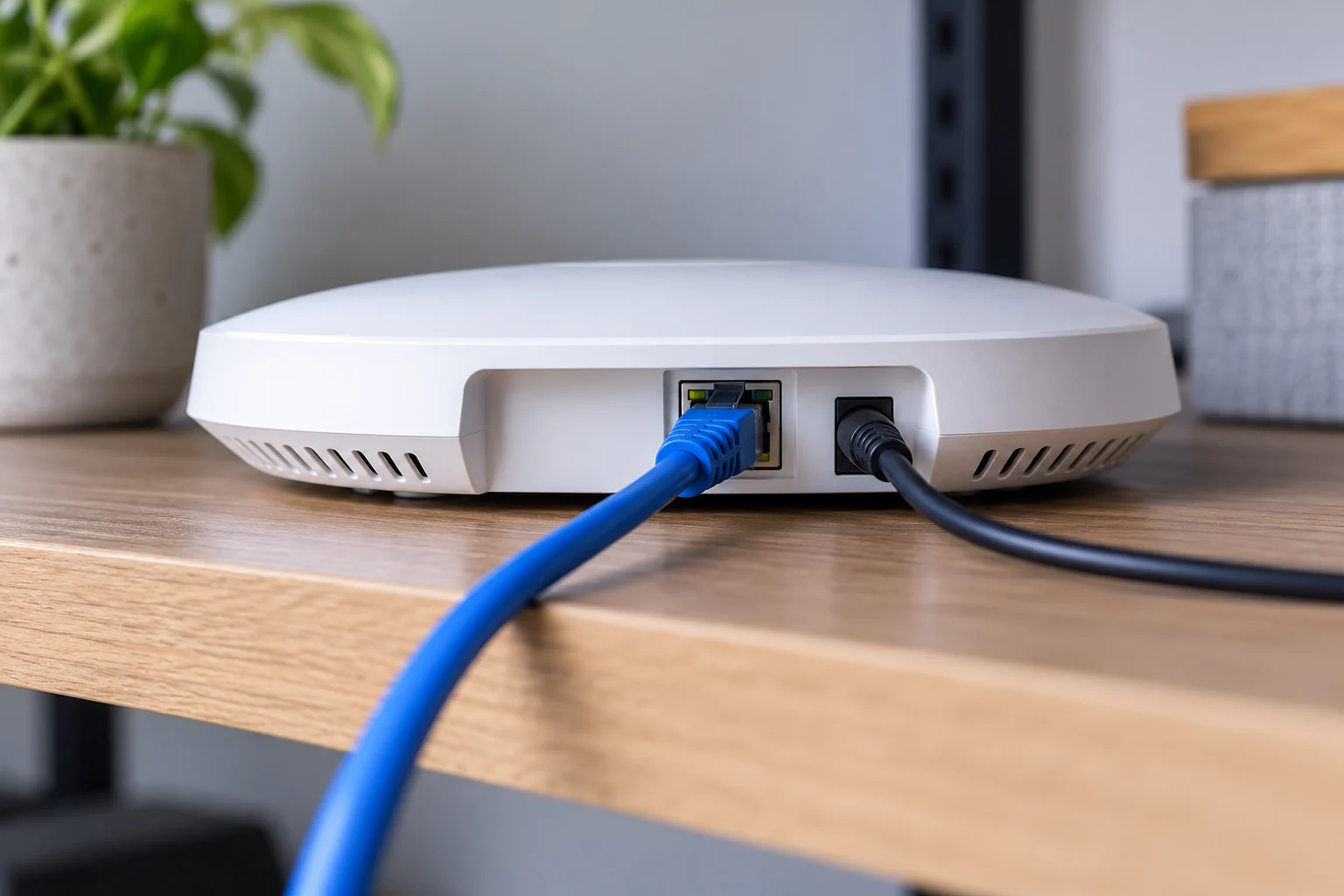
A wired access point is worth considering where a cable route is practical, especially behind thick walls. Configure additional equipment in its intended access-point or mesh mode; connecting a second router without a plan can create separate networks and connection problems. During building work, our smart-home wiring guide helps plan access-point locations and Ethernet routes before surfaces close.
Keep the successful test conditions in your notes. The right upgrade is the one that restores reliable use in the rooms you need, with manageable cables, compatible equipment, and a strong upstream connection. Its box does not need to carry the newest Wi-Fi number.

Ethan Miller
Ethan Miller writes about home improvement, interior design, cleaning, and everyday living at Home & Living Daily. He shares practical tips and simple ideas to help readers create more comfortable and functional homes.